
AI Photo Filter Remover
Remove Filter From Photo with AI
Remove filter from photo with AI and give heavily edited pictures a more natural look. Reduce unwanted color casts, vintage effects and over-saturation while keeping the subject and composition as close to the source as possible.
Remove Photo Filters
AI results may vary. Your original photo stays in your media library.


A more natural look, in three steps
Reduce unwanted photo filters while keeping the subject and composition as close to the source as possible. Your generated photos will appear here.
- 1.Upload a filtered photo from your device or media library.
- 2.Choose the filter effect you want to reduce.
- 3.Generate, review the result and download your photo.
Sign in to upload. Generation uses credits; review the cost above before you generate. Results vary with the source photo.
See what changes when the filter comes off
Explore a portrait, a product photo and a landscape. Drag each divider to compare the filtered source with the actual AI-edited result.
01 / Portraits
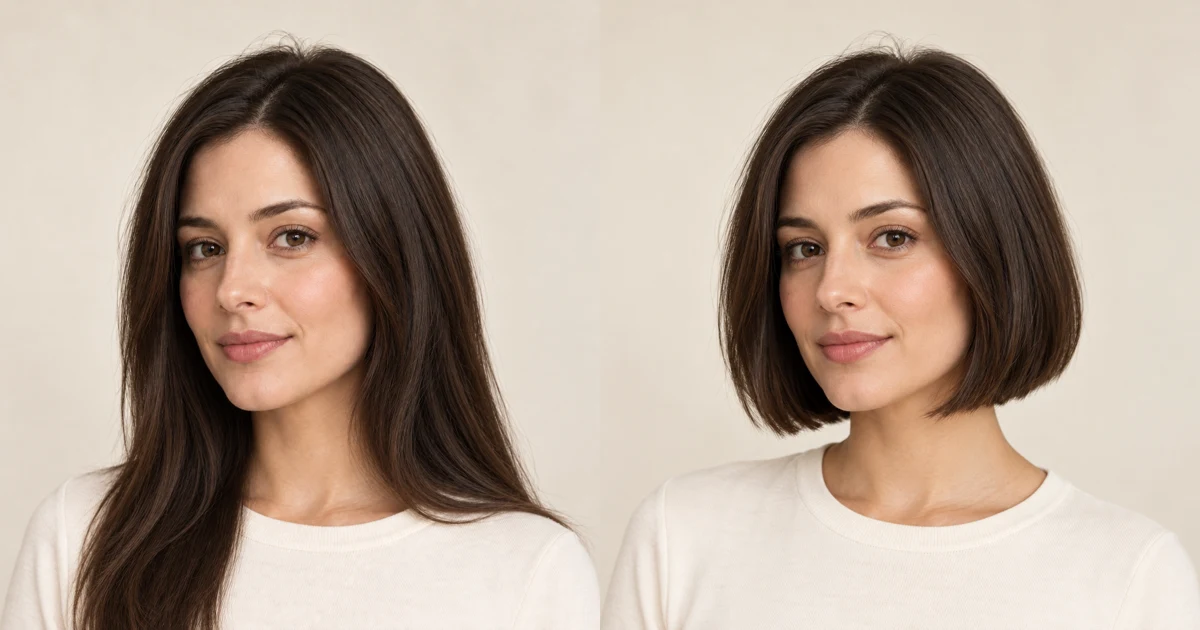
Bring portraits back to natural color
A strong orange-pink filter affects skin, clothing and the whole scene. The cleanup reduces the cast to bring out more balanced skin tones, cleaner whites and natural-looking surroundings.
- Reduce orange and pink casts in skin tones
- Balance the color of white and cream clothing
- Keep visible hair, skin and fabric texture
How to Remove a Filter From a Photo
Choose a cleanup direction, generate a more natural-looking version and review your result in one place.
1. Upload your picture
Choose the clearest version of your filtered photo. A larger source gives the editor more visible texture and color information to work with.
2. Choose a cleanup direction
Select general cleanup, a warm or cool cast, faded vintage tones, or harsh contrast. Review the credit cost, then generate your photo.
3. Review and download
Compare the result with your source. Check faces, skin tone, product colors and fine details, then download the version that looks most natural to you.
02 / Product photography
Remove a cool cast from product photos
A blue filter can make a neutral tabletop look icy and shift the color of a product. Focused color-cast cleanup brings the scene toward a more balanced white point while keeping the product and its setting recognizable.
- Reduce blue and cyan casts across the scene
- Bring neutral fabric and wood closer to natural color
- Review the edited product against the real item


A Photo Filter Remover for Natural-Looking Edits
Filters can change several parts of a picture at once. These focused editing directions help you address the unwanted effect without asking for a complete restyle.
Reduce artificial color casts
A yellow, orange or blue tint can dominate an otherwise useful photo. Ask the AI filter remover to balance those casts and bring colors closer to a believable daylight or indoor-light appearance.
Balance saturation and contrast
Heavy saturation can make skin look orange and landscapes look fluorescent. A restrained edit can soften these effects while retaining depth, visible shadows and highlights.
Soften vintage and faded effects
Reduce a sepia tint, washed-out palette or artificially lifted blacks in an edited picture. Keep the source's character instead of turning an old memory into a completely different scene.
Keep the subject in focus
The editing instructions prioritize identity, composition, clothing and natural texture. AI can still alter small details, so inspect the output before using it for an important profile or listing.
03 / Travel & everyday moments
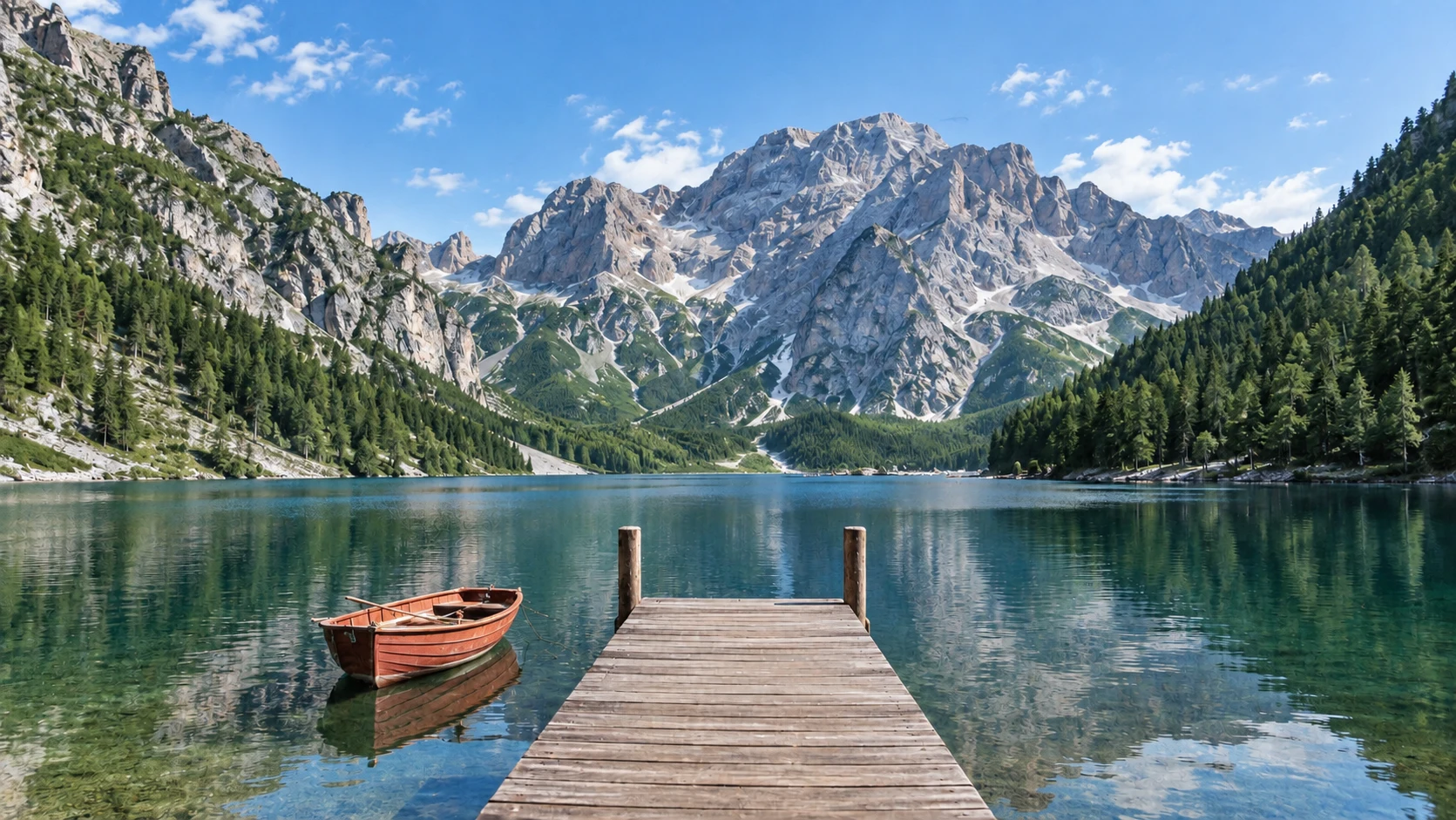
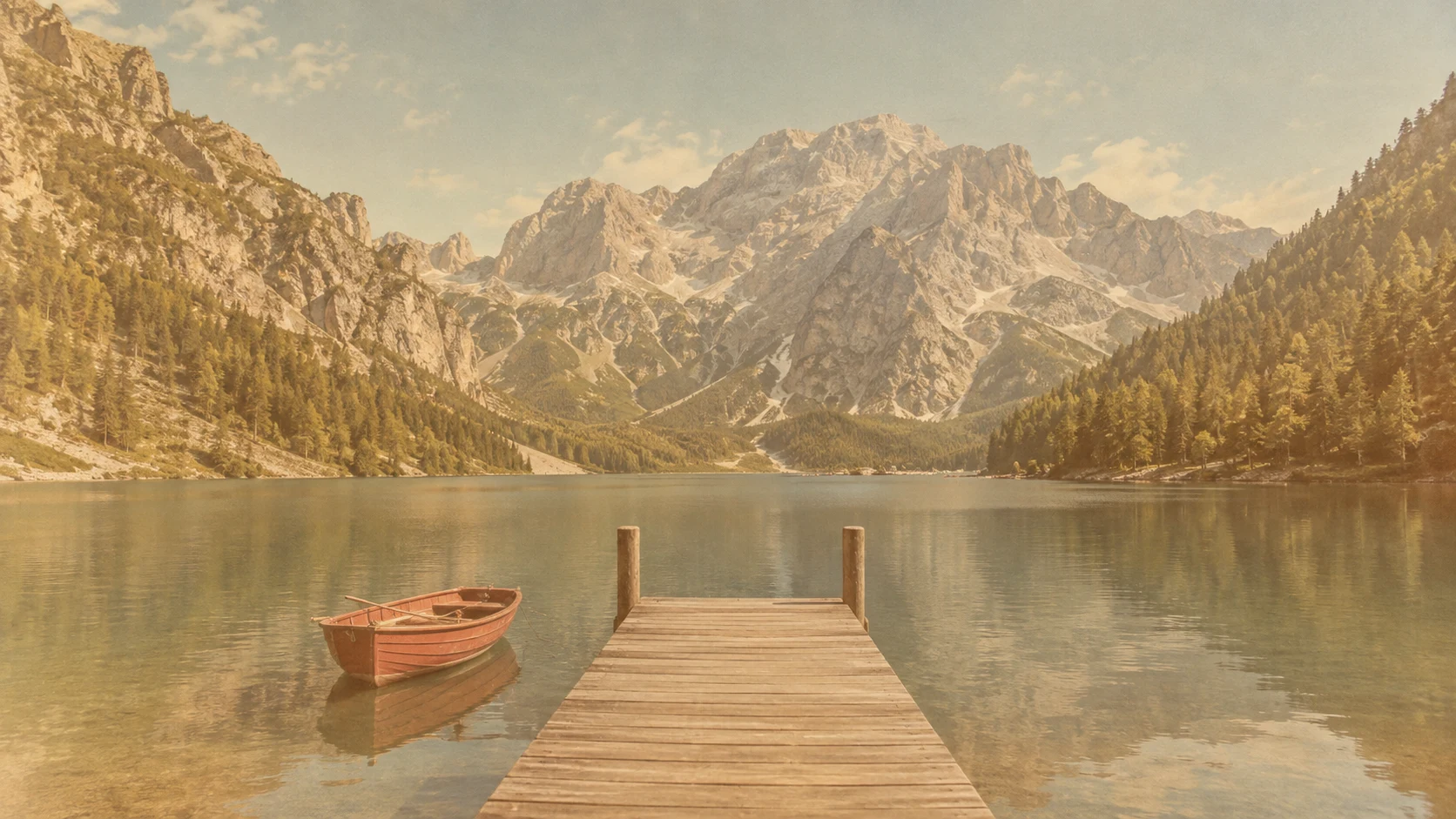
Give faded scenery a clearer palette
Vintage filters can leave a landscape flat, yellow and washed out. Gentle cleanup reduces the faded tint and restores a more natural separation between sky, water, trees and stone.
- Reduce faded sepia and amber tones
- Recover more balanced greens and blues
- Keep the landscape and composition recognizable
When Removing a Photo Filter Helps
A natural finish can be useful wherever an exaggerated effect distracts from the picture itself.
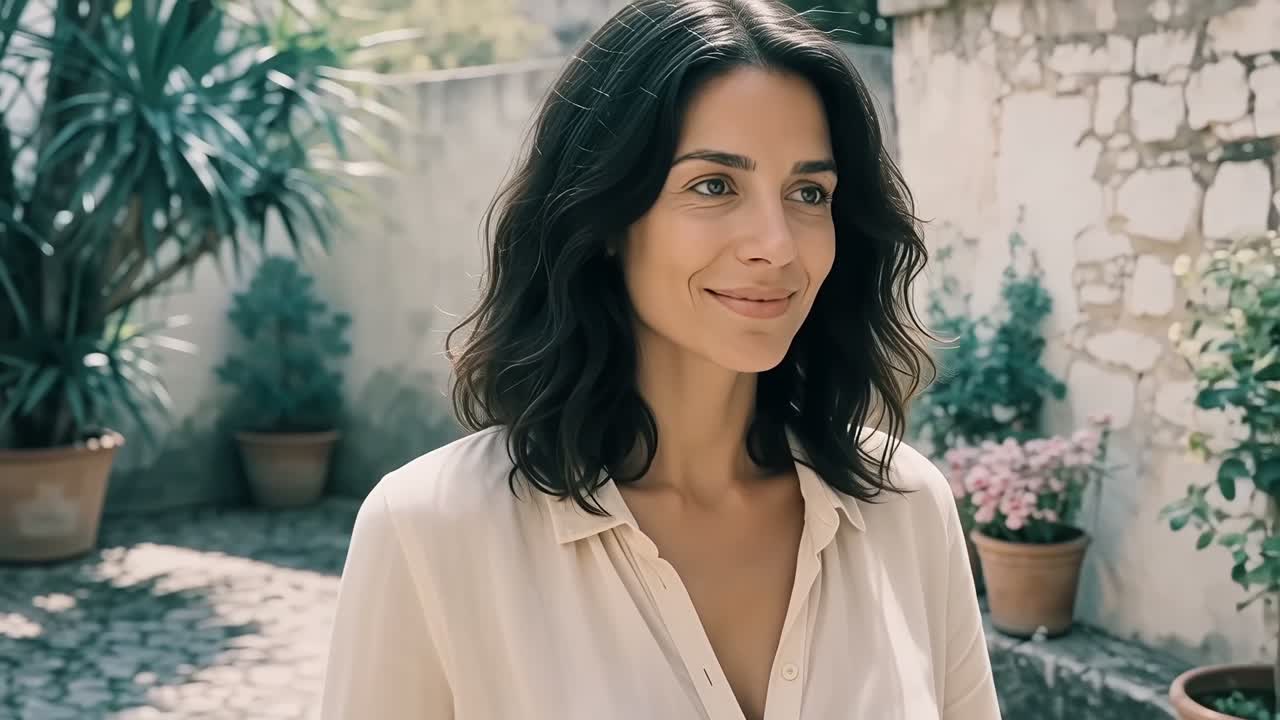
Portraits and profile pictures
Tone down a strong warm or cool filter on a selfie. Aim for realistic skin tones and visible texture, then compare the facial features with the source before sharing.
Product photography
Reduce a distracting tint on a product photo for a cleaner presentation. Check the edited color against the real item; an AI result is not a substitute for color-accurate photography.
Older edited memories
Revisit family pictures saved with a fashionable vintage effect. Gently reduce faded tones and color casts while keeping the setting and people recognizable.
Social media images
Bring differently filtered posts closer to a consistent, natural aesthetic. Color effects may be reduced, while stickers, face overlays and missing image content require a different kind of edit.
Can You Recover the Original Unfiltered Photo?
AI can estimate a more natural appearance, but a flattened filtered image does not contain a reversible history of its edits.
A natural reconstruction, not an exact undo
AI creates a new edit from the information visible in your photo. Colors and details may differ from the original photograph. If you have the original file or an editable project, use that for an exact reversal.
Start with the best available source
Use a clear image with modest compression. Clipped highlights, blocked shadows, heavy smoothing and face-changing effects may have removed information that cannot be reliably recovered.
Photo Filter Remover FAQ
Upload your picture, select a cleanup direction and review the credit cost. Generate a result, then check it against the source before downloading.
AI can reduce visible effects such as color casts, over-saturation, faded tones and harsh contrast. It estimates a natural-looking result rather than reversing the exact filter settings used on the original.
You can try reducing color and lighting effects in a saved photo from either app. Face reshaping, stickers, augmented-reality overlays and effects covering parts of the image may not be reliably reversible.
The portrait editing instructions aim for believable skin tones and natural texture. Lighting, compression and the strength of the filter affect the outcome, so review the face and skin against the source.
The instructions ask the model to preserve identity, objects and composition as closely as possible. Generative editing can still change details. Check the result carefully when accuracy matters.
No exact recovery is guaranteed. A saved filtered picture may have lost color and texture information. Use the original photograph or editable project if you need an exact unfiltered version.
You can browse the page without paying. Uploading requires sign-in, and image generation uses credits. The generator displays the cost before generation; available credits depend on your account and plan.
Yes. Upload your photo and choose a cleanup direction in the generator. The AI applies the editing instructions, so you do not need Photoshop or manual masking.
After a successful generation, use the download option on the result to save your photo. Choose 1K, 2K or 4K output; 2K and 4K require paid access. The tool does not guarantee recovery of missing source detail.













Plans for independent creators
Choose your creative capacity.
No hidden fees • Cancel anytime • Unused paid credits roll over
Trial
Billed $90 yearly · was $9/mo
360 credits / month
Credits never expire
Starter
Billed $190 yearly · was $19/mo
810 credits / month
Credits never expire
Creator
PopularBilled $590 yearly · was $59/mo
3,600 credits / month
Credits never expire
Pro
Up to 30% offBilled $1,290 yearly · was $129/mo
9,000 credits / month
Credits never expire