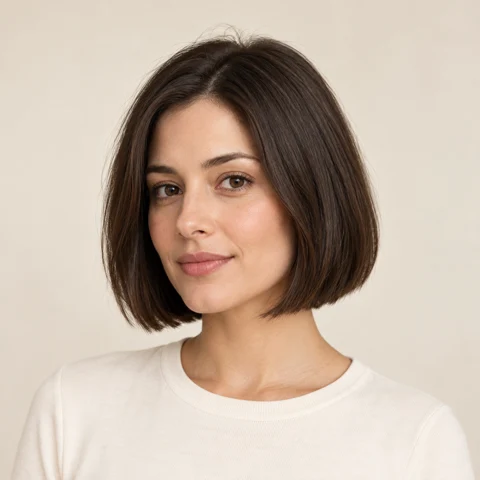
Bob
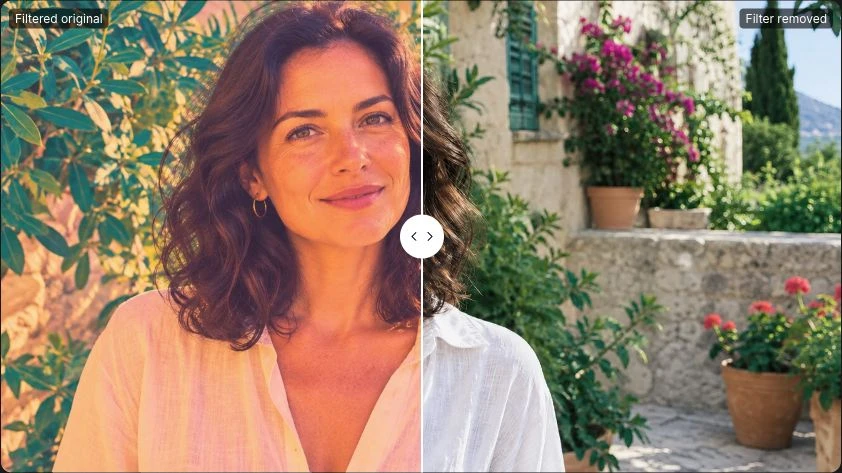
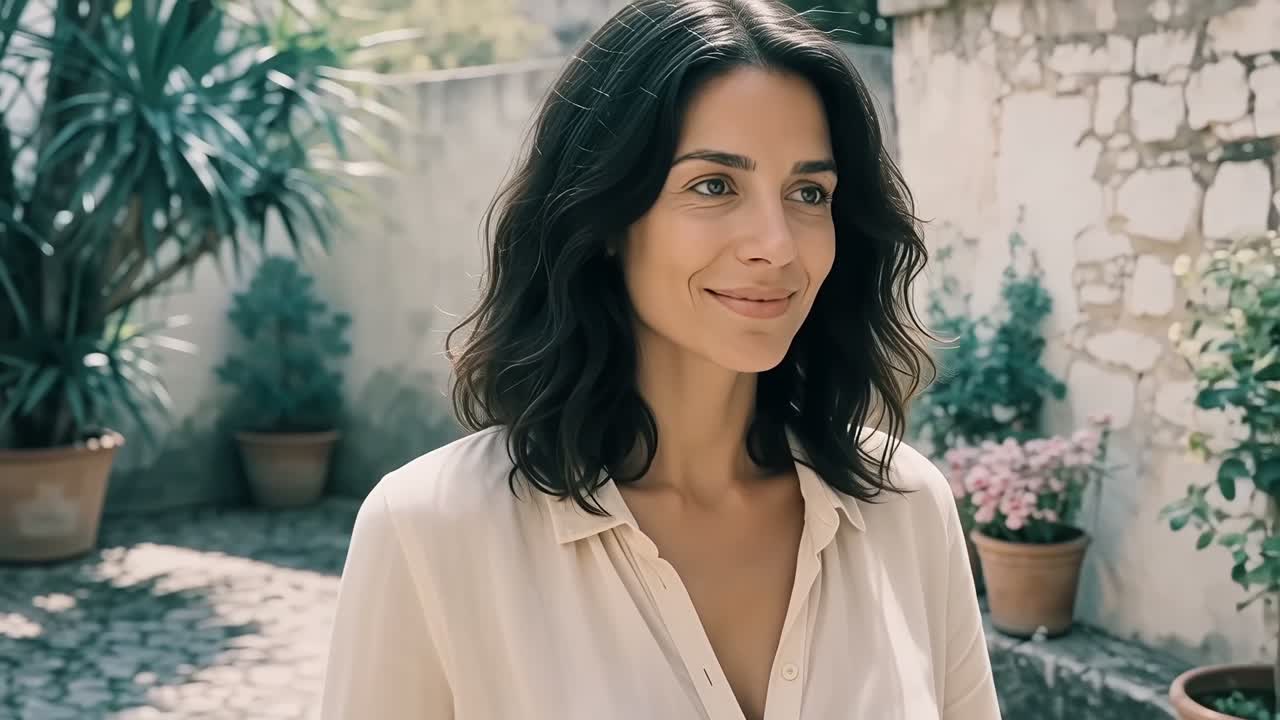
A chin-length shape with a clean edge for an easy, shorter cut.
Your photo. A different haircut.
Use the AI hairstyle changer to see how a bob, bangs or a buzz cut looks on you. Pick a style, describe your cut or upload a reference photo. The tool focuses on your hair and aims to keep your face looking like you.
Compare the face and hairline with your original before saving.
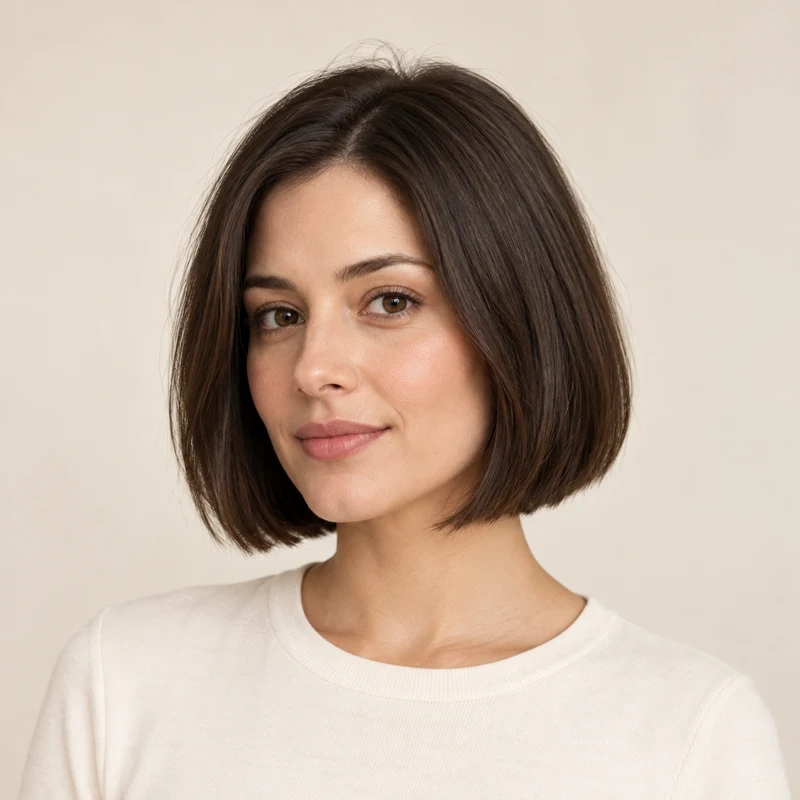
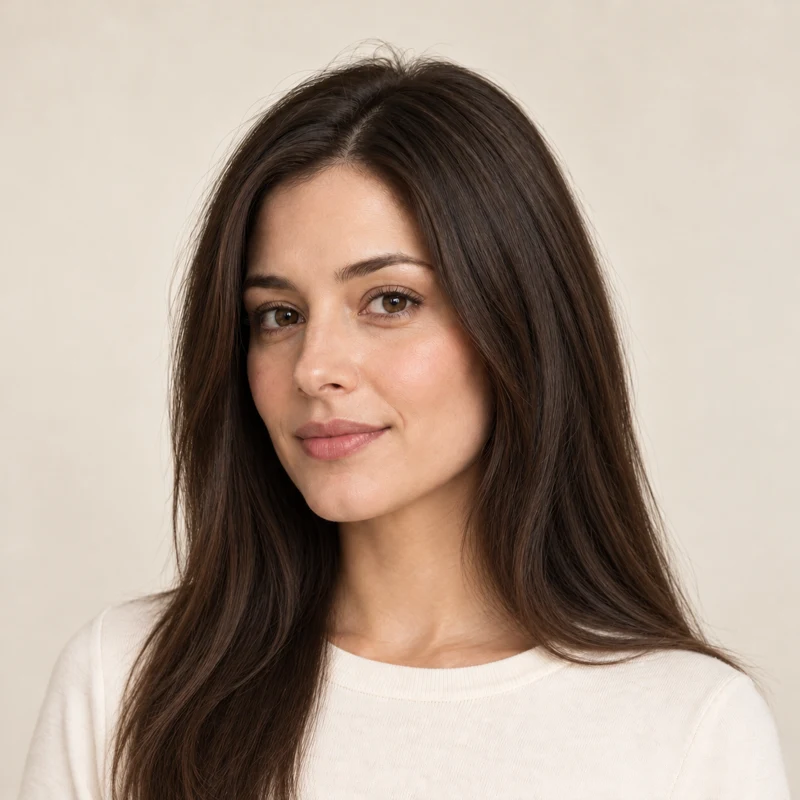
Your generated previews will appear here. Start with a style card, describe something more specific, or bring a reference photo.
Sign in to upload. Generating a preview uses credits; the cost is shown before you start.
Browse 153 cuts and looks for women and men. Each card shows the shape in a natural hair color; choose a different shade in the generator.
Hairstyles for women
A chin-length shape with a clean edge for an easy, shorter cut.
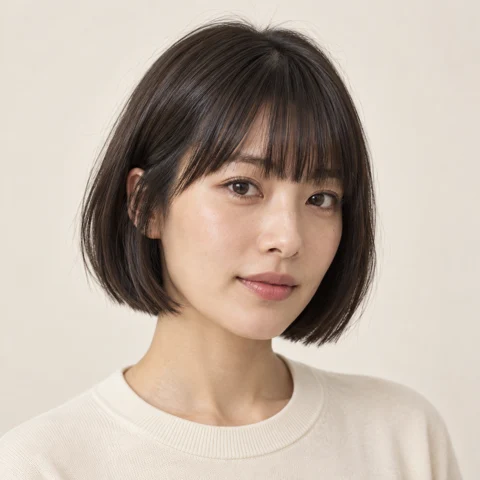
Try a neat bob with a full fringe before committing to both.
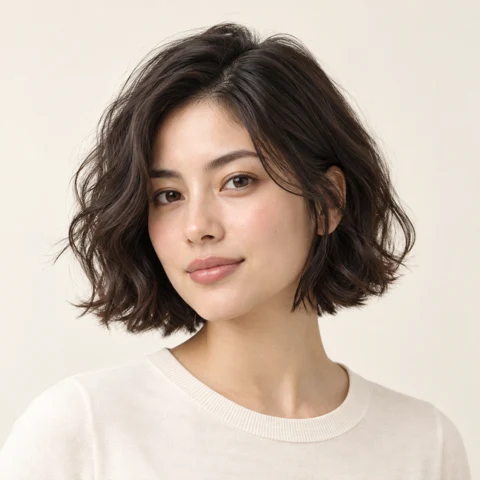
A short cut with soft movement and a less structured finish.
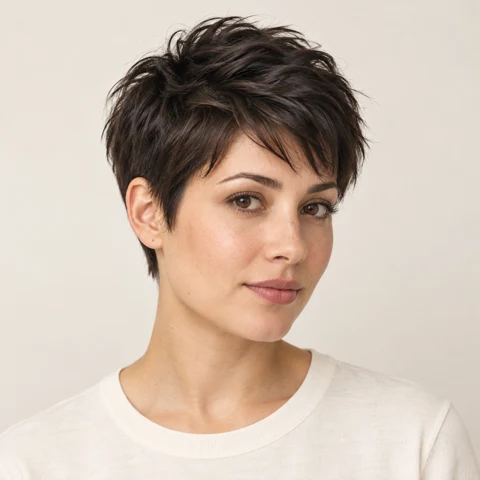
Compare a close crop with a little length left on top.
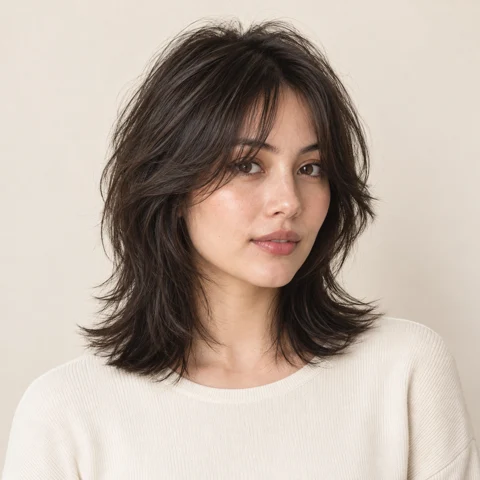
For a shaggier silhouette with a short crown and longer ends.
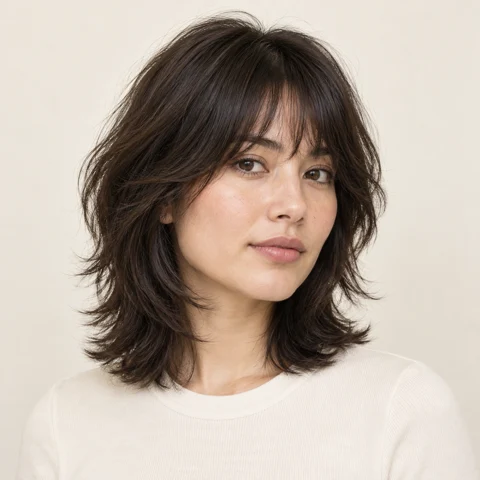
Light layers and a soft fringe for a deliberately tousled look.
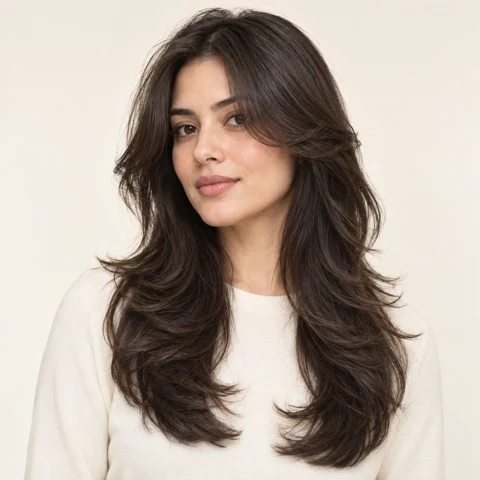
Keep the length while trying shorter face-framing layers.
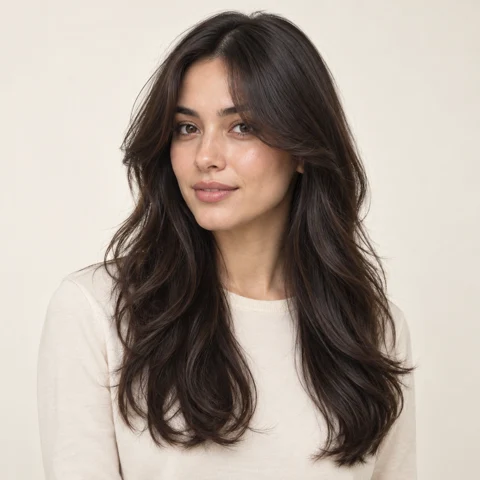
See how a center-parted fringe frames your cheeks and forehead.
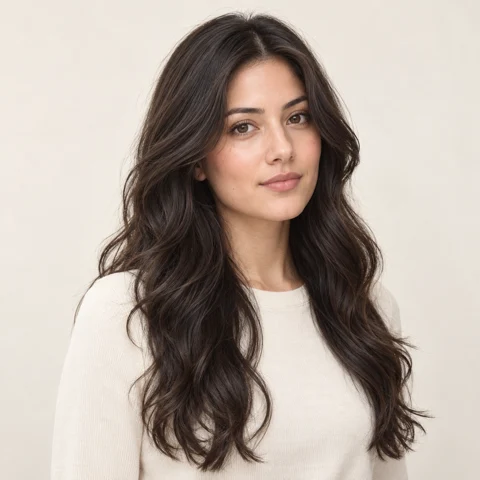
Preview loose waves without taking much length away.
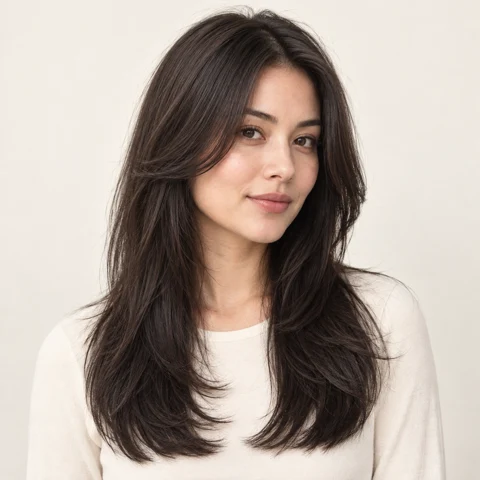
A useful comparison if you want movement without a major chop.
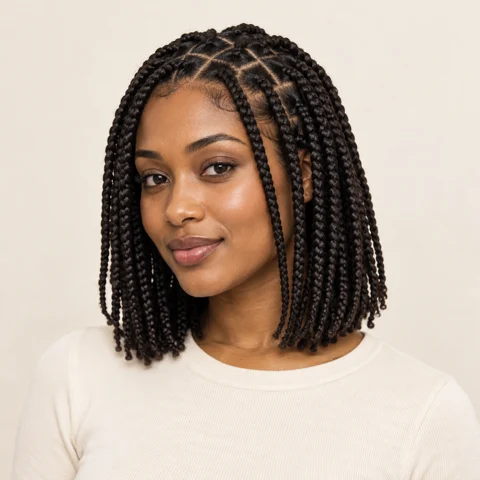
Explore the shape and length of individual box braids.
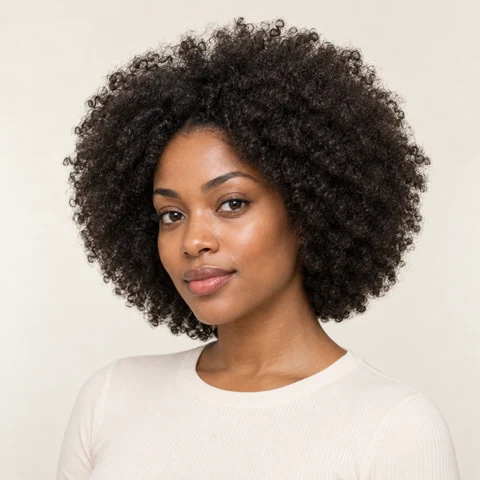
Compare a rounded silhouette with natural coiled texture.
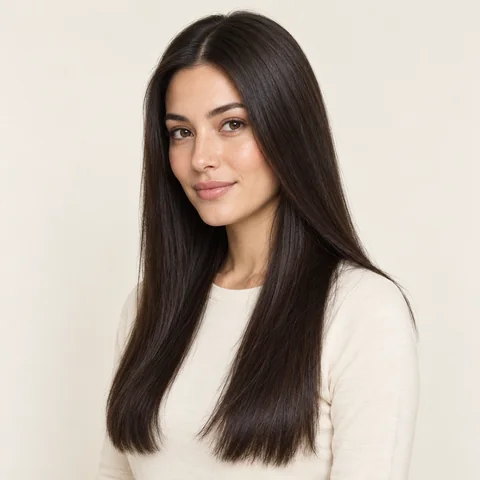
A clean outline that makes the length and part easy to compare.
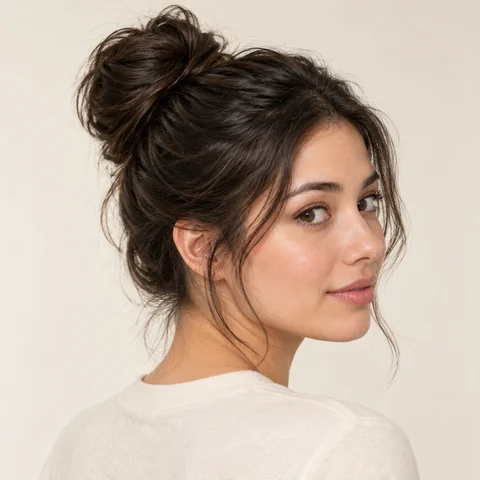
An informal updo with loose ends and a little volume at the crown.
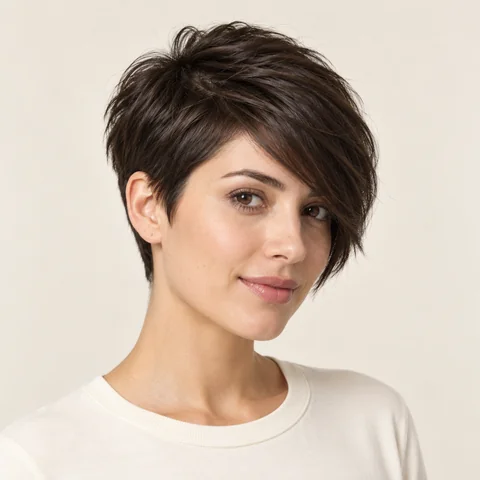
Keep one side longer to see how an angled fringe frames your face.
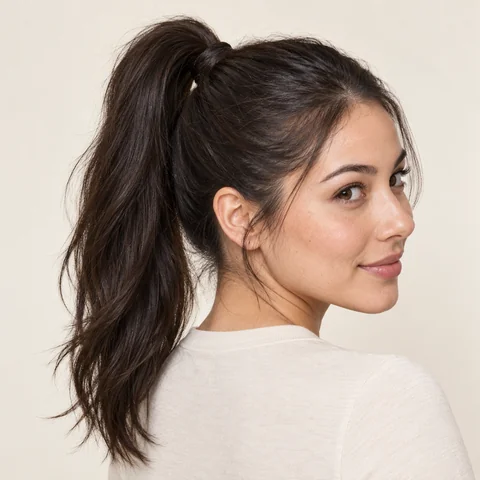
A lifted ponytail that opens up the face and shows the hairline.
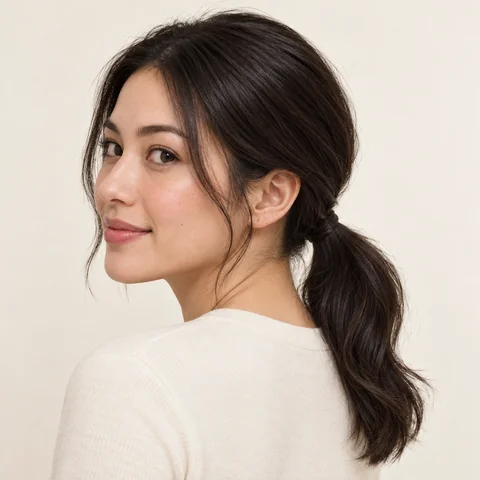
A low tie at the neck gives a smoother, more relaxed outline.
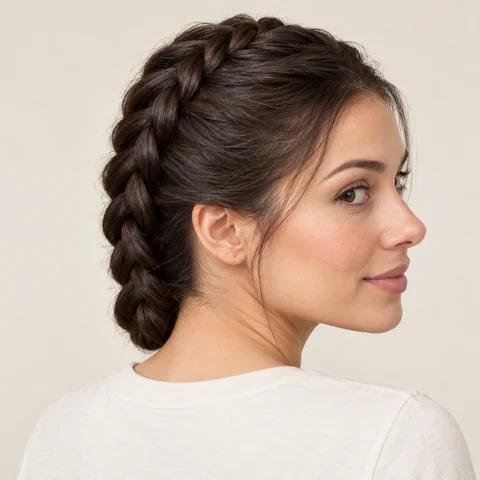
The raised braid creates a defined line from the forehead to the neck.
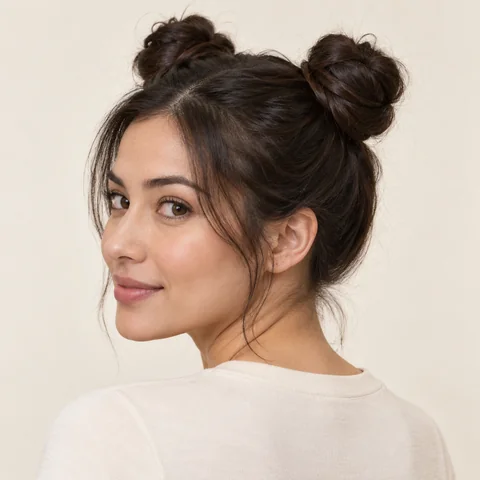
Two high buns let you compare a playful, balanced silhouette.
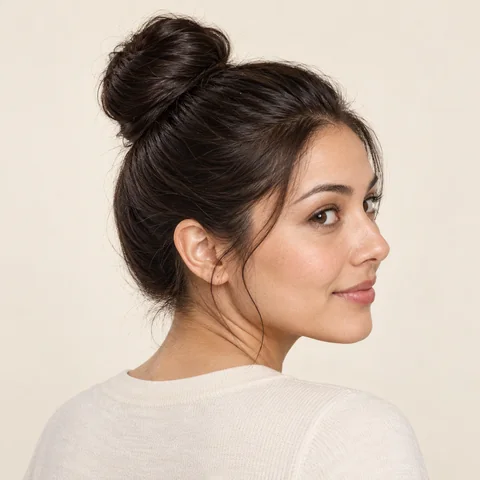
A compact knot adds height while keeping the sides close to the head.
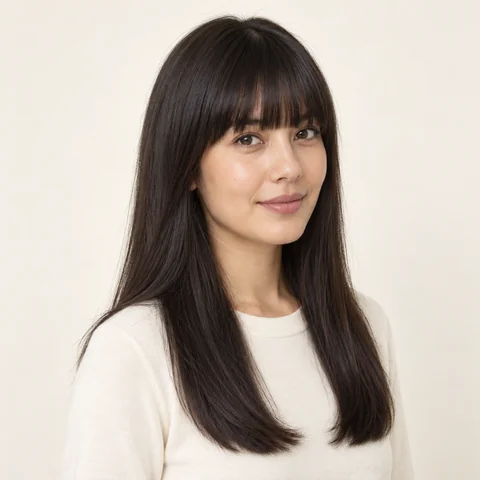
See a full fringe that falls in a straight line above the eyes.
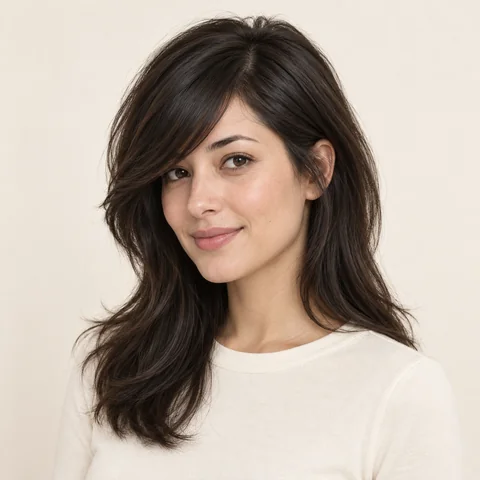
A diagonal fringe frames one eye and leaves the other side more open.
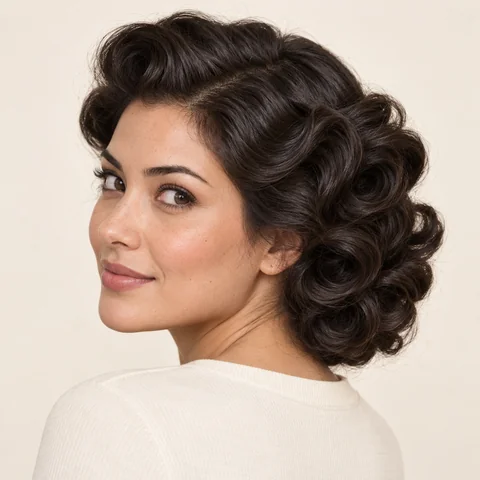
Rounded curls give the crown and ends a fuller, set finish.
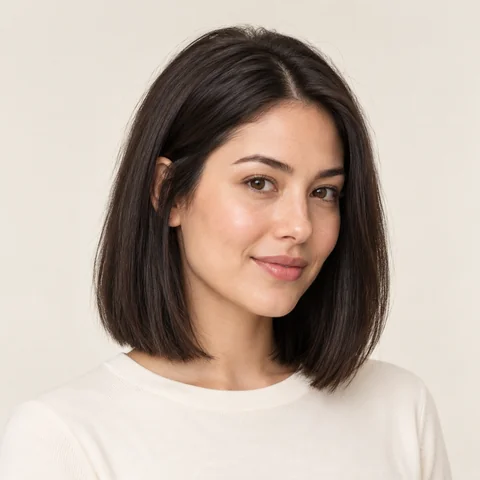
A collarbone-length cut offers a middle ground between a bob and longer hair.
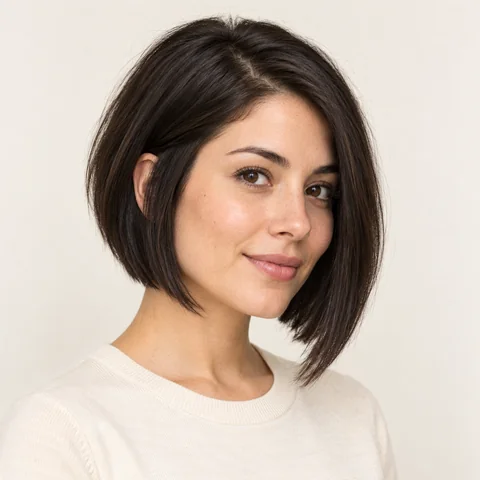
The front sits below the back for a strong diagonal outline.
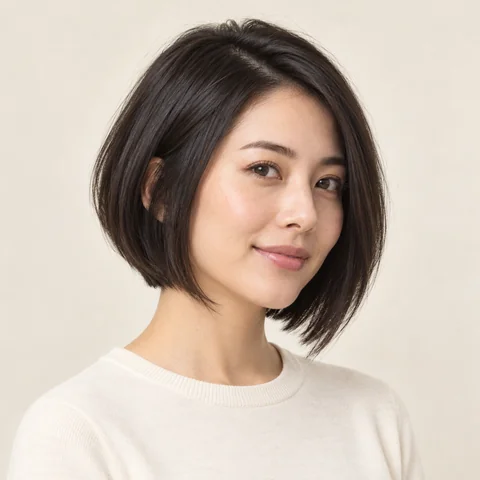
A gradual line from the neck to the chin keeps the shape smooth.
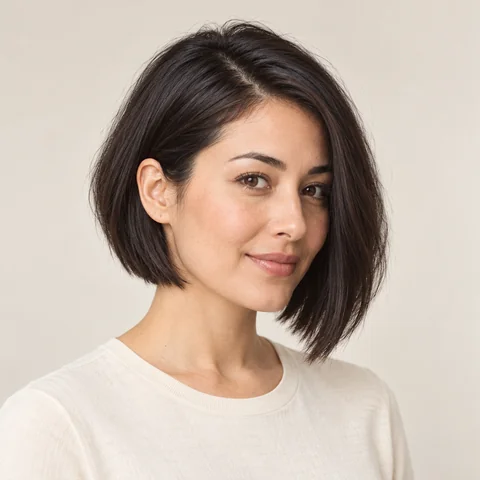
Compare two different side lengths before making an uneven cut.
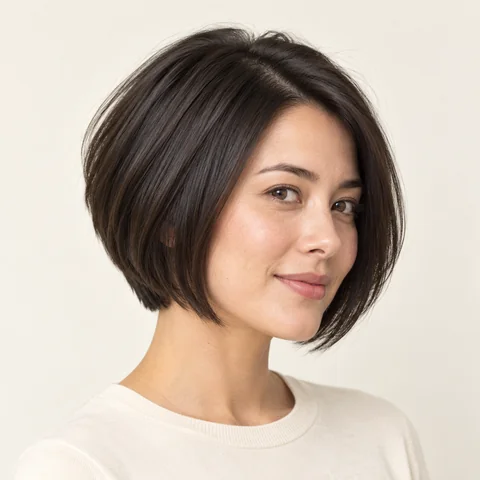
Stacked layers add a rounded shape above the nape.
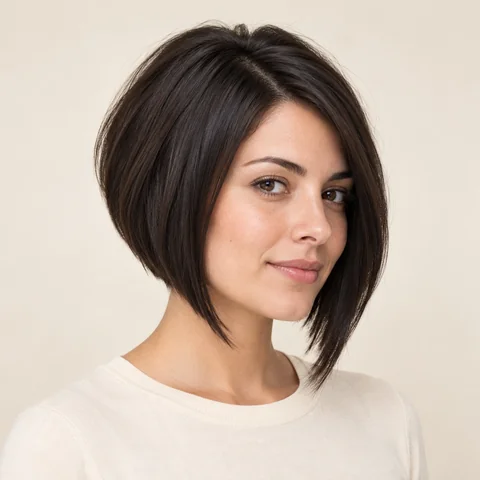
A close back and longer front create a more pronounced bob shape.
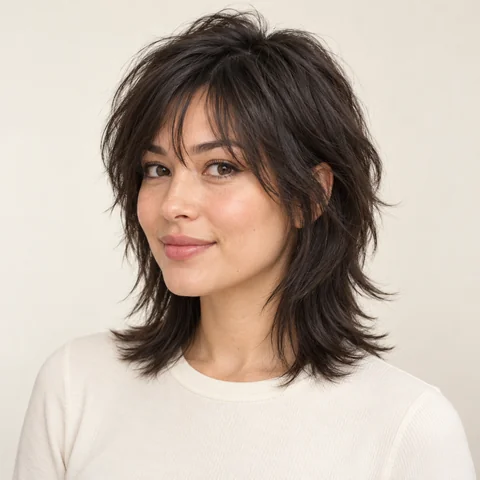
Short crown layers give this shag a lighter, more broken-up outline.
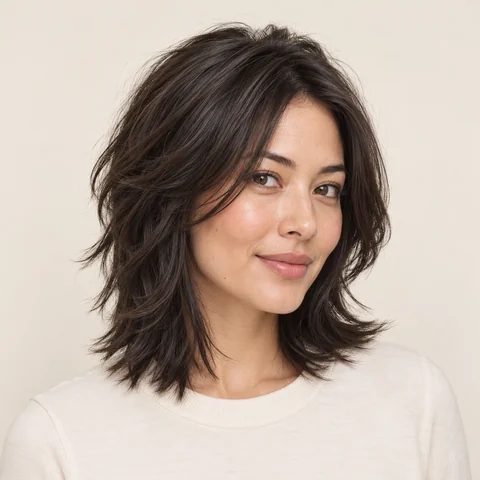
Separated ends and uneven layers add visible texture to the cut.
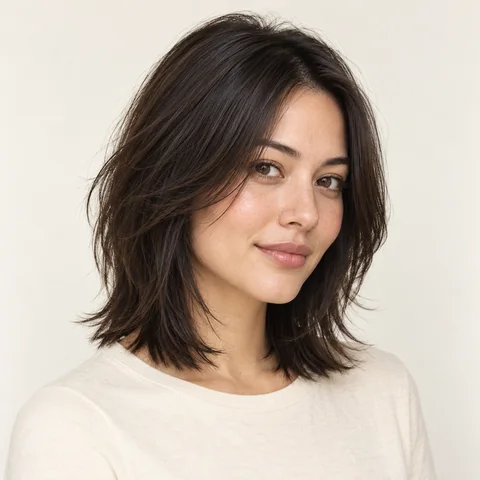
Fine, tapered ends soften the edge of a medium-length cut.
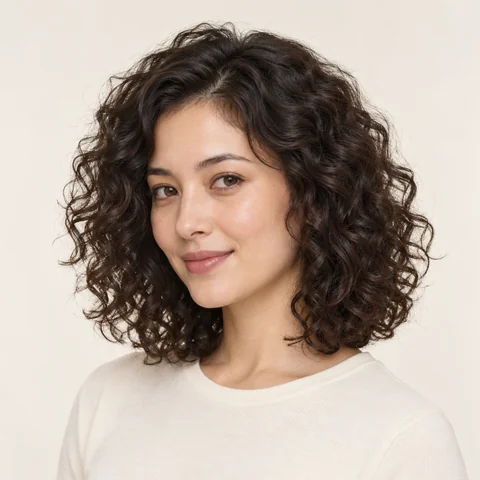
Try an even curl pattern and compare the extra volume around your face.
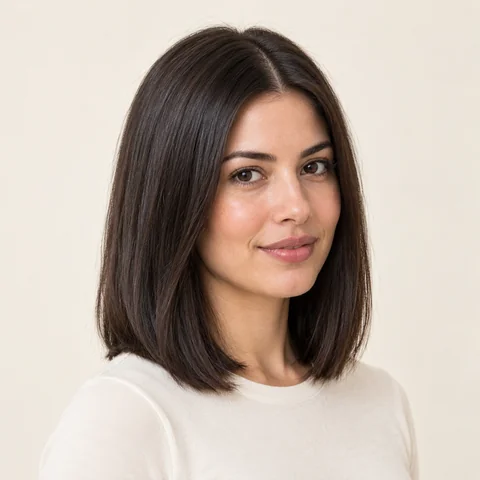
A smooth finish shows how your haircut looks with less visible texture.
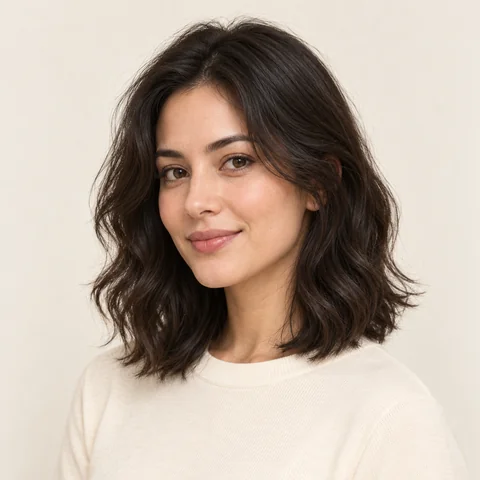
Shallow bends add movement without the shape of a defined curl.
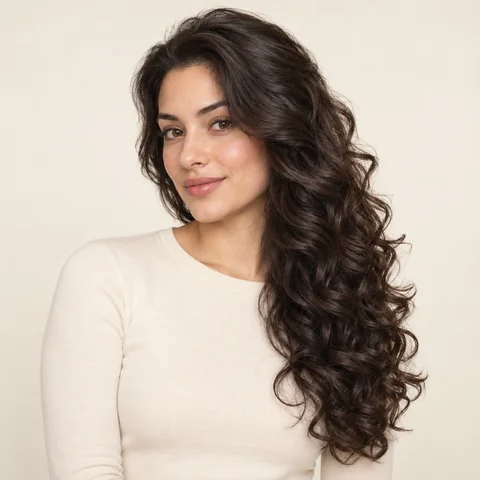
Large brushed-out curls bring more fullness to the lengths.
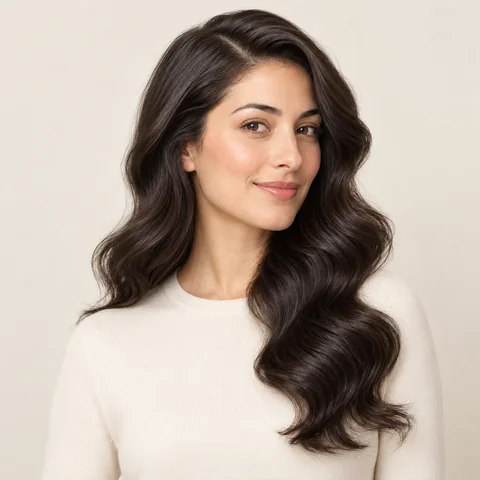
A side part and regular waves create a smooth, sculpted finish.
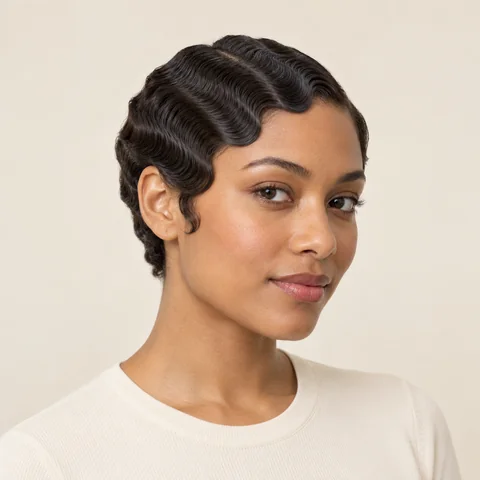
Close-set waves follow the shape of the head and leave the neck open.
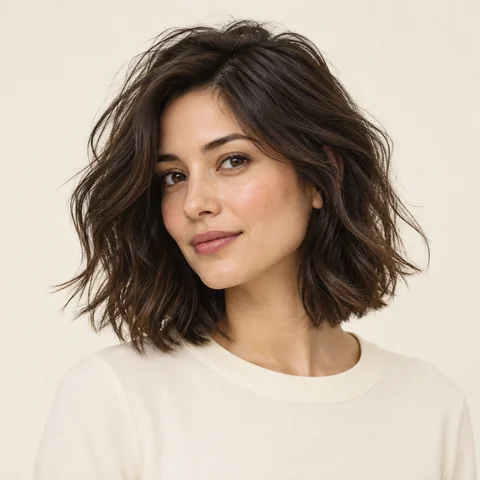
Try a relaxed finish with less defined sections and softer edges.
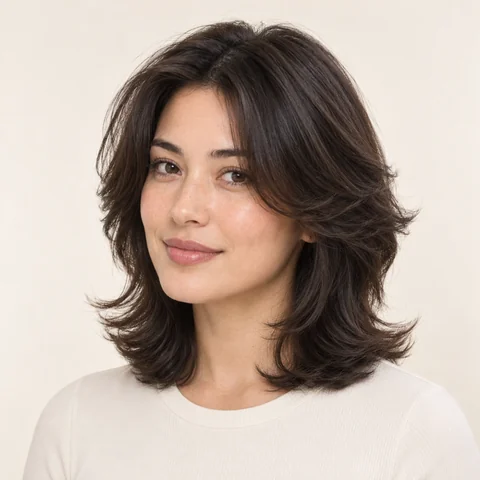
Outward-swept layers open up the face and lighten the ends.
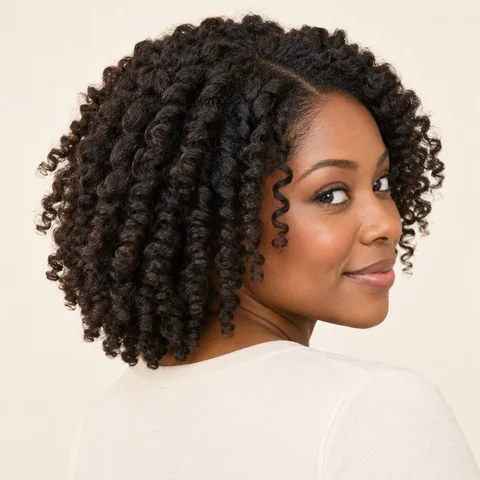
Separated coils show the shape of a twist-out with soft volume.
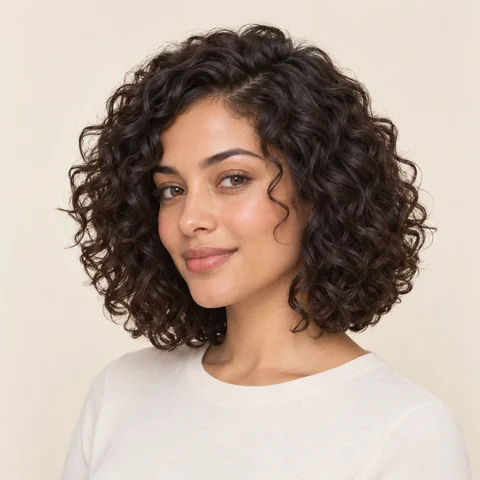
Compare a rounded outline with visible curls around the cheeks.
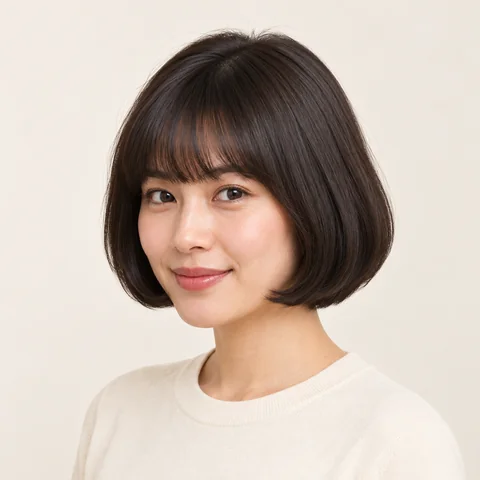
A rounded edge and full fringe create a compact, even shape.
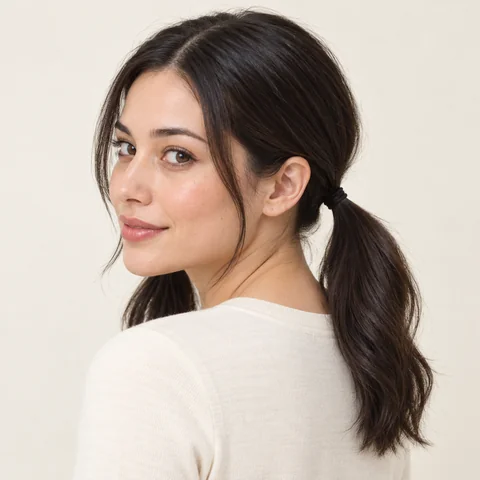
Two low ties keep the part visible and spread the length to both sides.
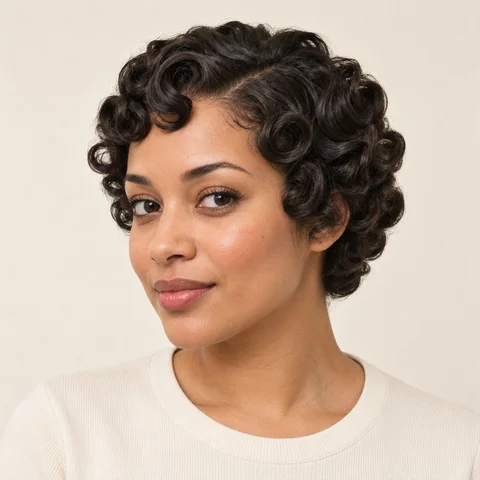
Small set curls add detail around the forehead and temples.
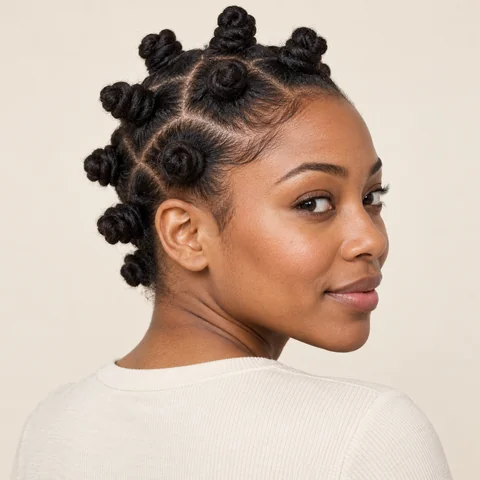
Small coiled knots make the sectioning and shape of the crown visible.
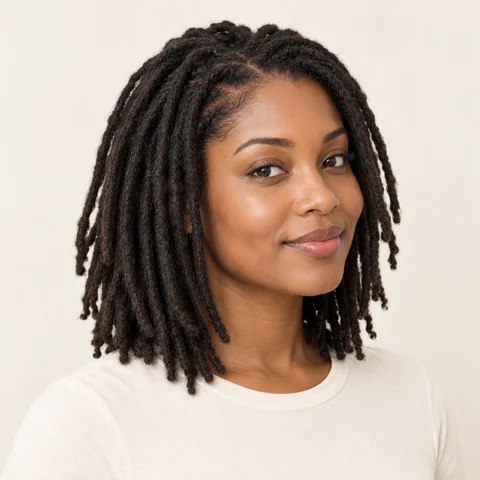
Compare the length and weight of locs around your face and shoulders.
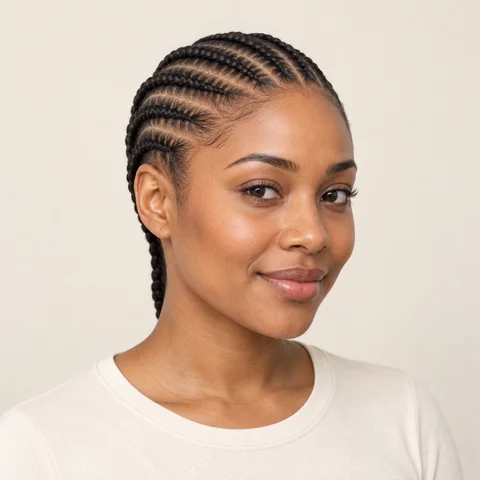
Close braids reveal the hairline and create clear lines across the scalp.
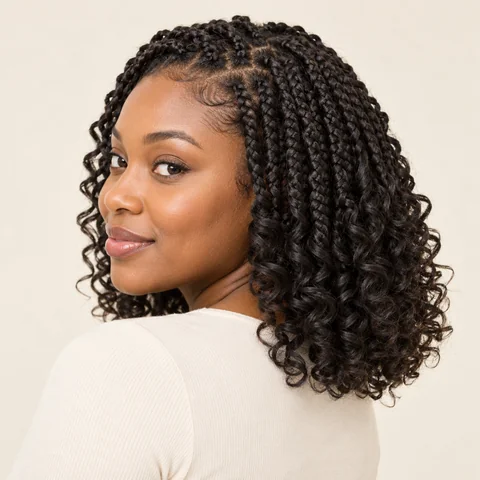
Braided roots and fuller curls give this look a soft outline.
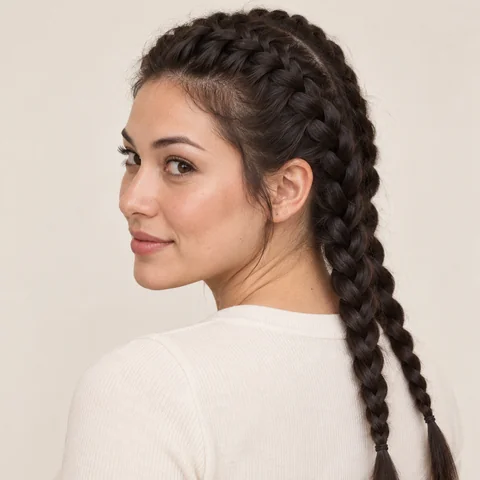
Two raised braids separate the crown into an even, defined pair.
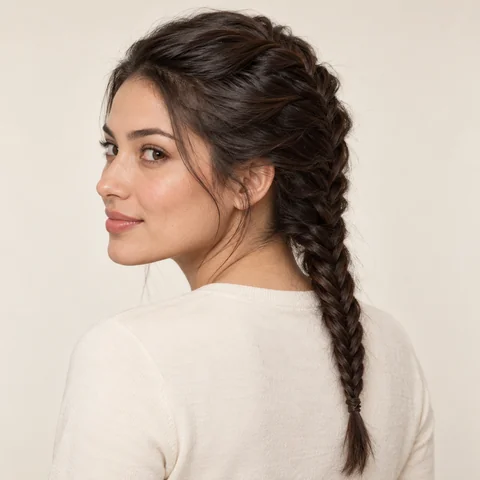
A fine woven braid gathers the hair closely along the crown.
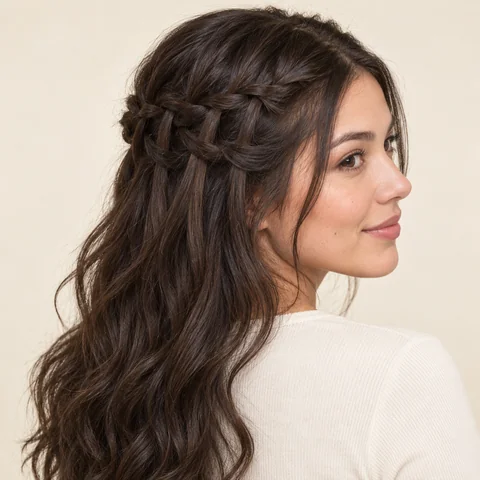
A woven band holds the upper layers while the lower lengths stay loose.
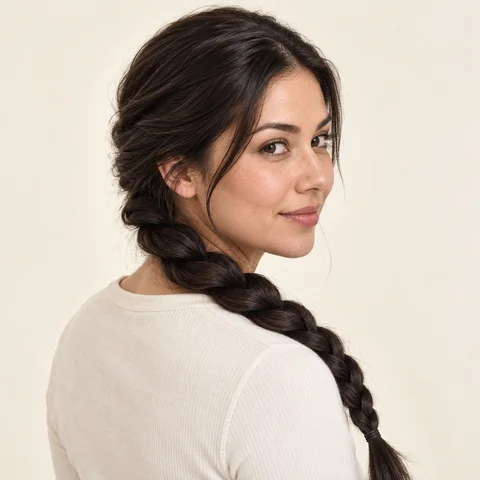
Two twisted sections form a simple rope-shaped braid.
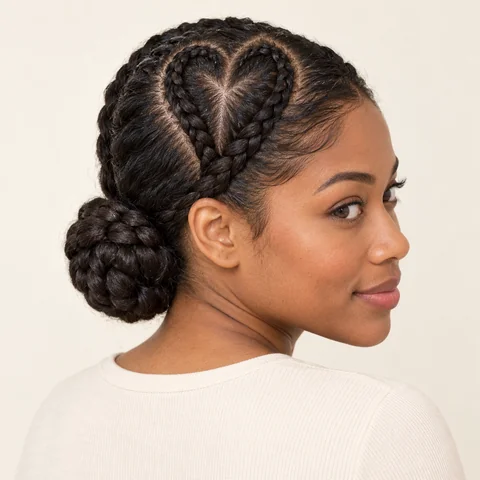
Curved braids create a heart-shaped detail in the upper sections.
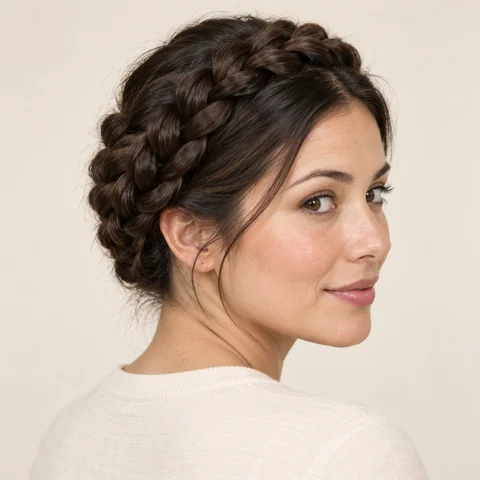
A continuous braid wraps around the head with the neck left clear.
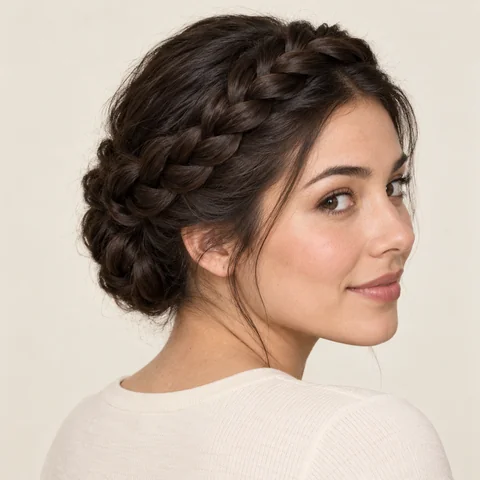
A fuller braid across the crown adds height above the forehead.
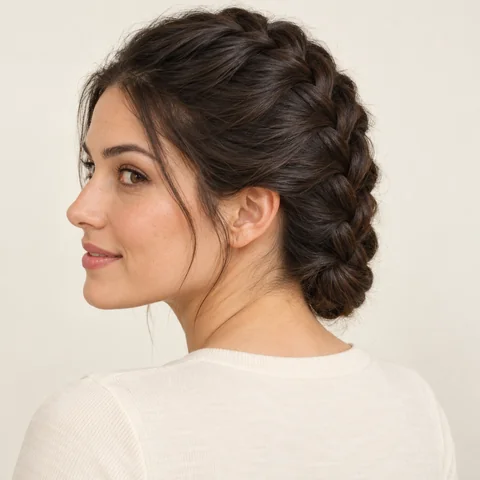
Hair feeds into a central braid for a close, tidy finish.
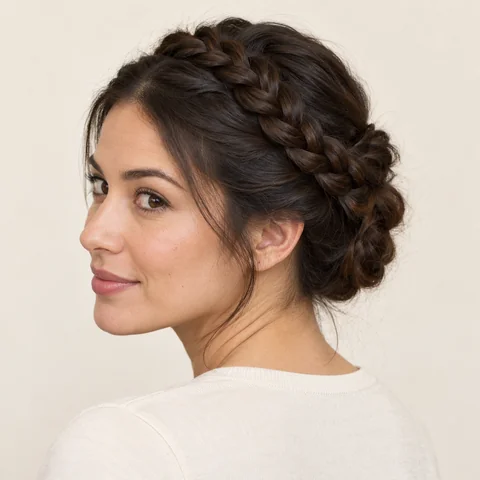
Crossed braids sit on top of the head for a fuller updo.
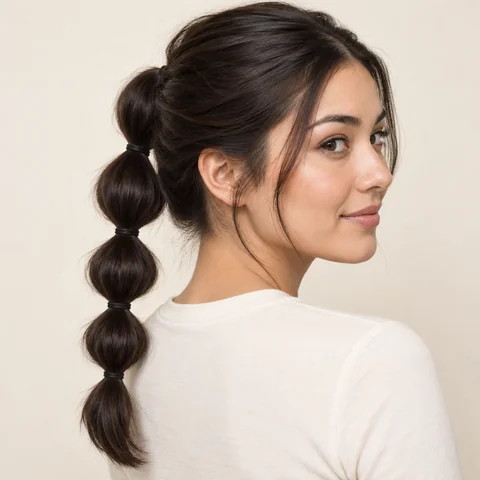
Evenly spaced ties break the length into rounded sections.
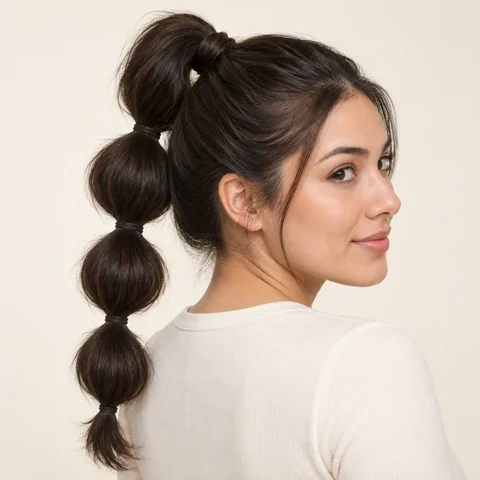
A high base and rounded sections give a ponytail more shape.
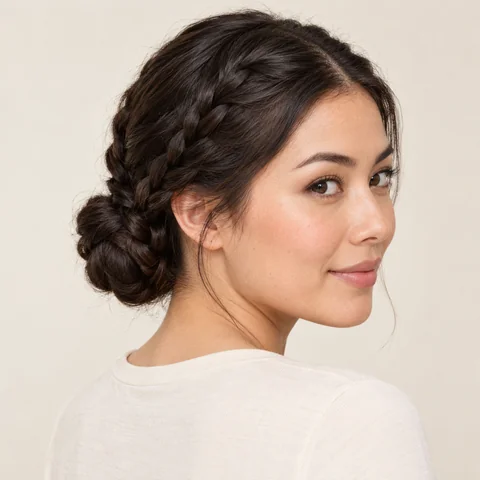
Braids wrap into a close bun at the back of the head.
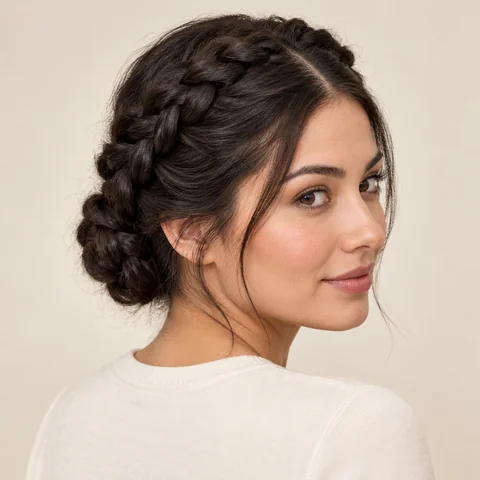
Crossed braids keep a soft center part and frame the top of the head.
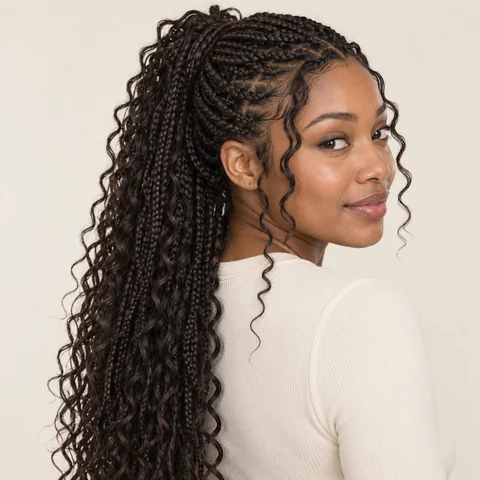
Loose curls between the braids soften the outline around the shoulders.
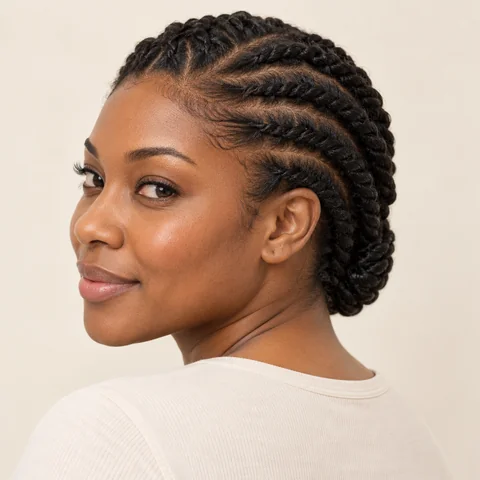
Flat twists follow the scalp with a softer line than a raised braid.
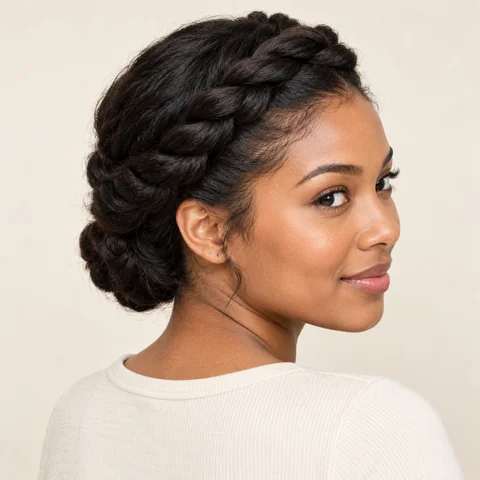
Twisted sections meet above the forehead and keep the face open.
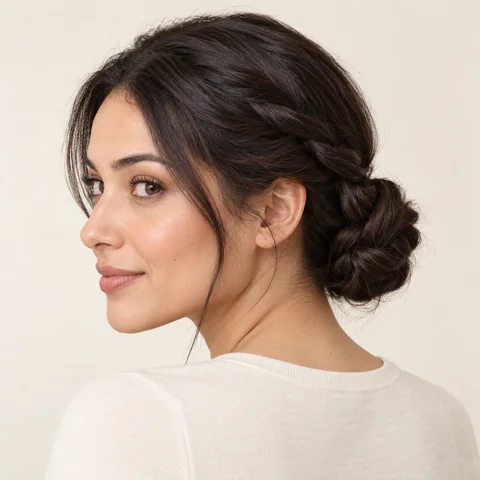
Twisted sections give a low bun more detail and texture.
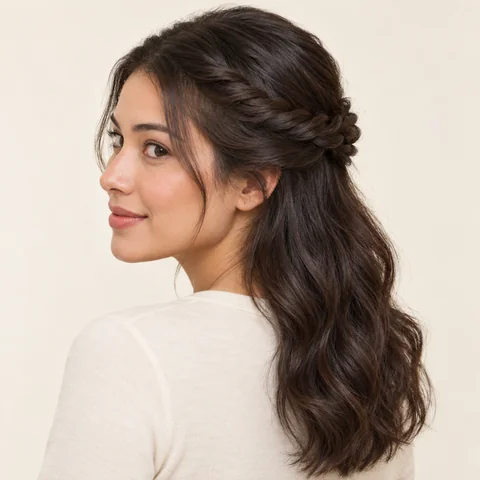
Side twists lift the upper sections while the lower lengths stay loose.
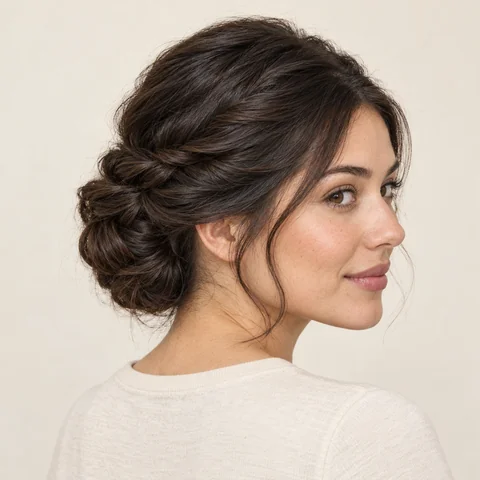
Pinned twists gather the hair into a soft, textured shape at the back.
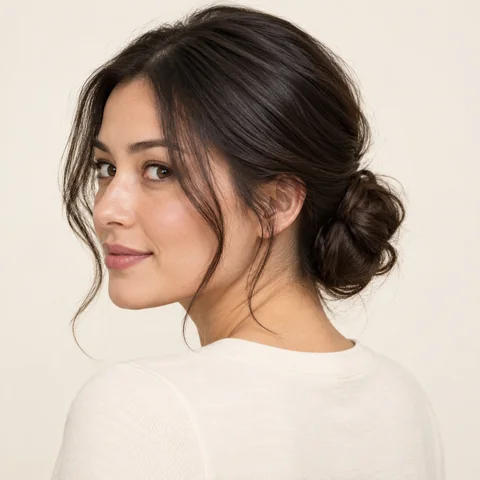
A low rolled bun and loose strands create a less formal finish.
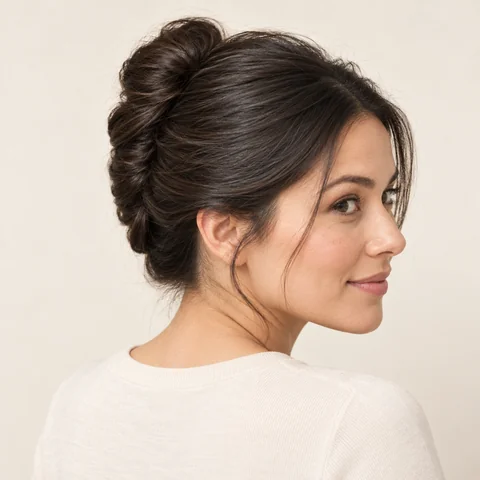
A vertical roll lifts the hair away from the neck.
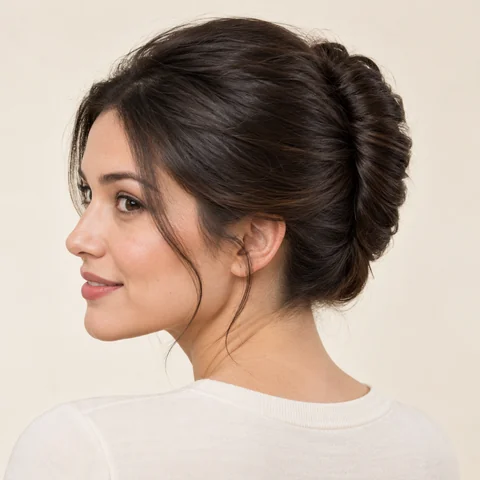
A smooth crown flows into a rounded roll at the back.
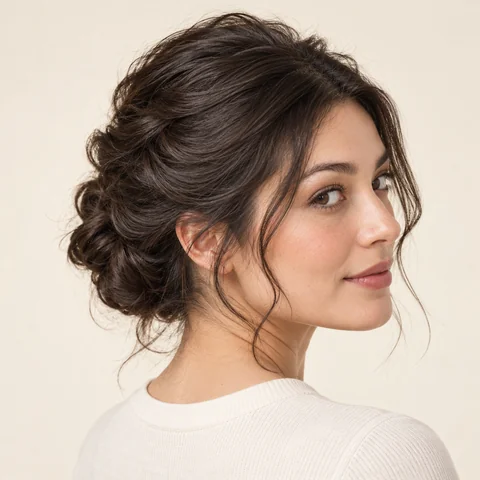
Loose pinned sections leave movement at the crown and around the face.
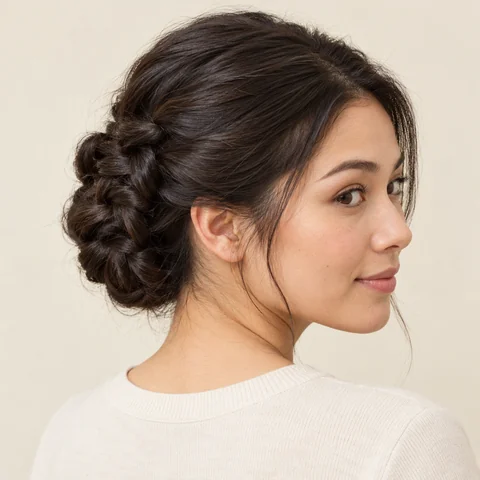
Interwoven knots add detail while keeping the lengths gathered.
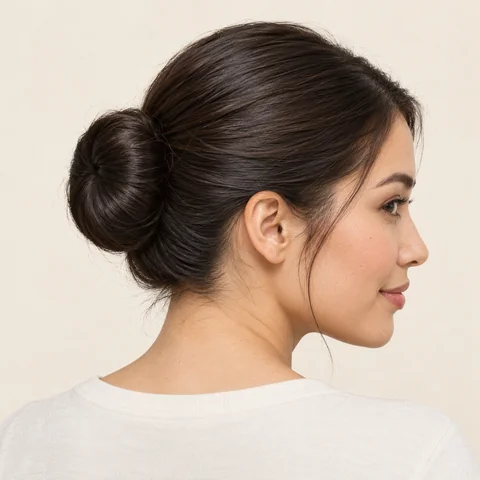
A smooth round bun keeps the hairline and neck clearly visible.
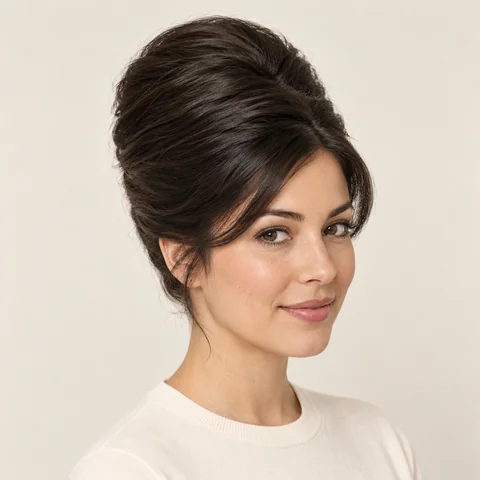
Compare a high rounded crown with the sides drawn close.
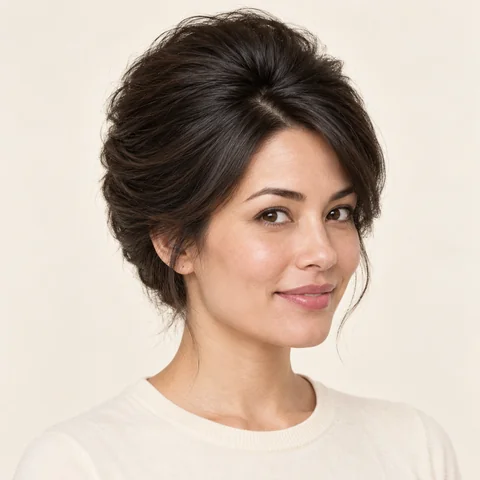
A lifted crown gives the upper half of the hairstyle more volume.
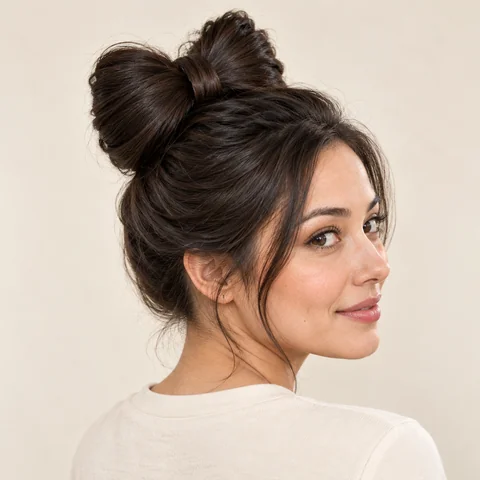
The hair itself forms a bow above the crown.
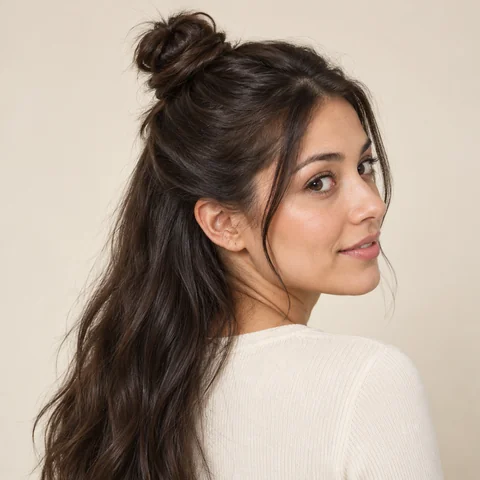
A small knot lifts the upper sections while keeping the length below.
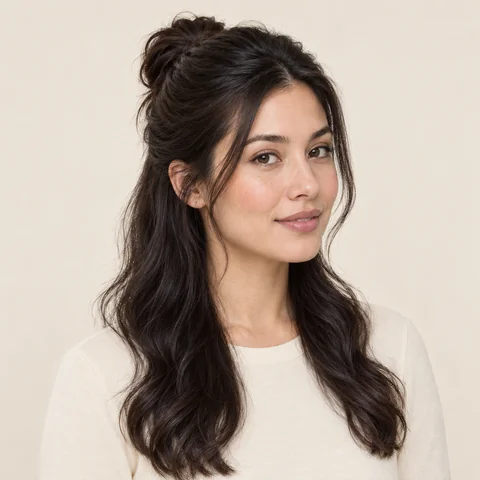
Keep the lower lengths loose while pulling the upper layers off the face.
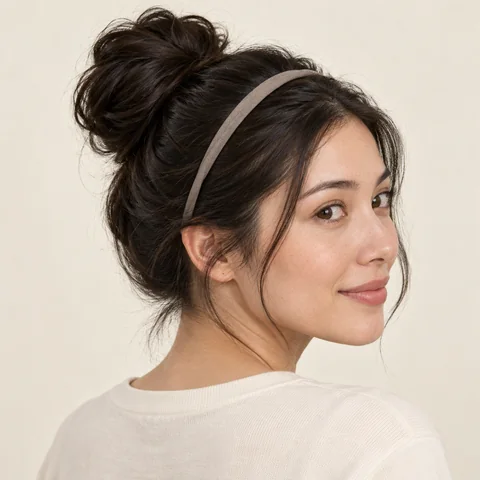
A narrow headband holds back loose hair around an informal bun.
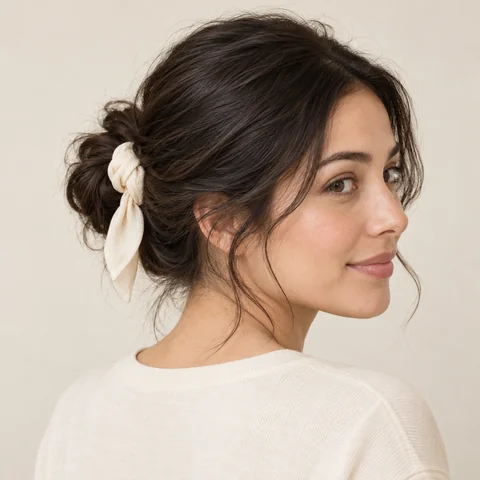
A softly tied scarf adds a visible detail around a loose bun.
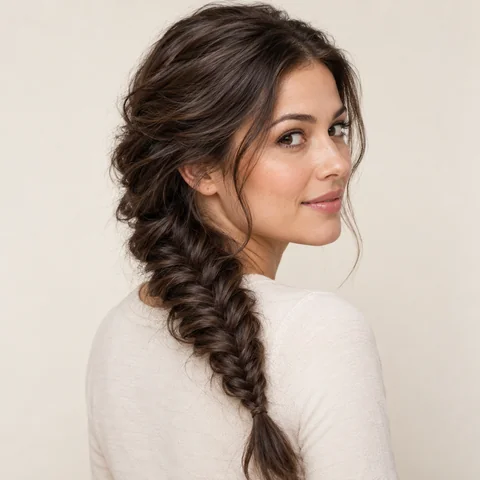
A loosened weave gives a fishtail braid a wider, softer outline.
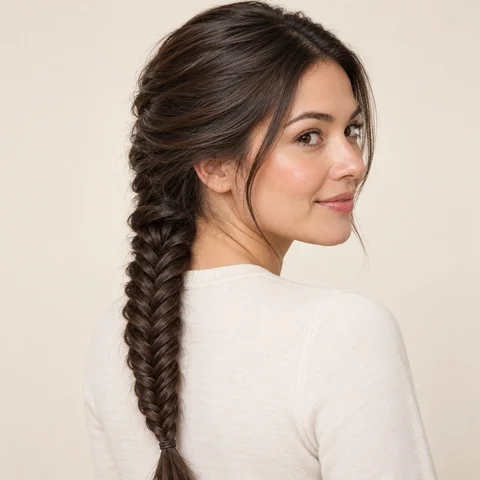
Fine overlapping sections create a narrow, detailed braid.
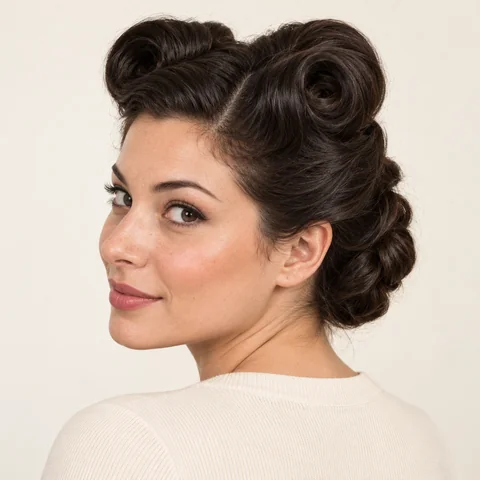
Two raised rolls bring height and a clear vintage shape to the front.
Hairstyles for men

Try an even close crop to see more of your face and hairline.

A tidy short cut with slightly more length above the forehead.
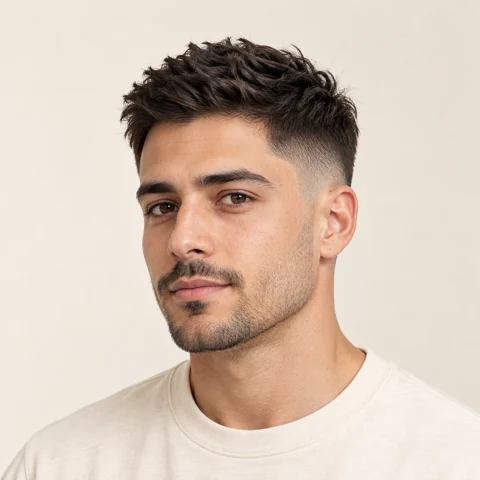
Compare a gradual transition from close sides to a textured top.
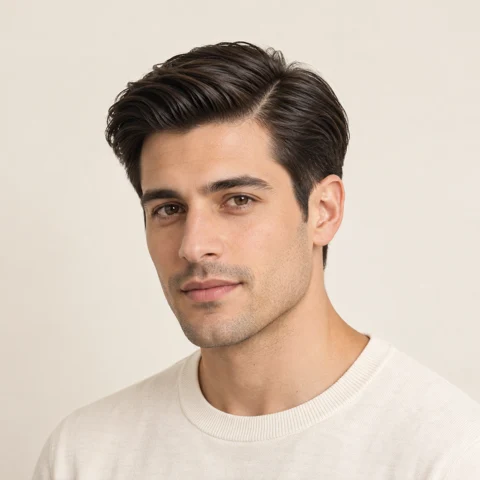
A defined part and a swept top for a more structured shape.
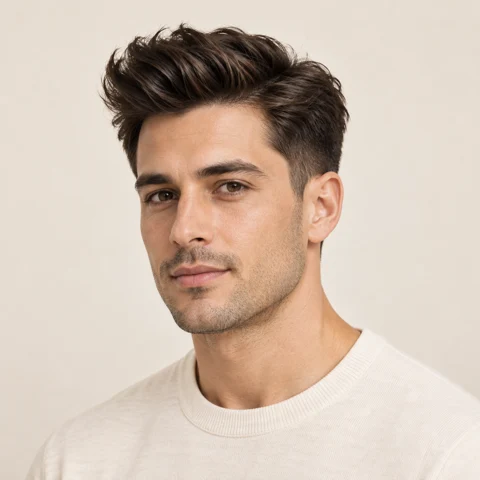
See how extra height at the front changes the overall silhouette.
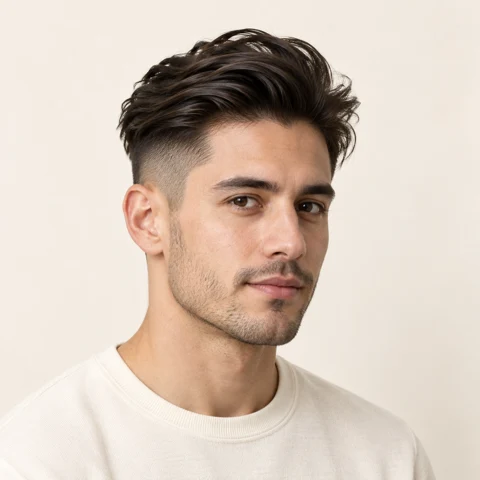
Try the contrast between short sides and a longer top.
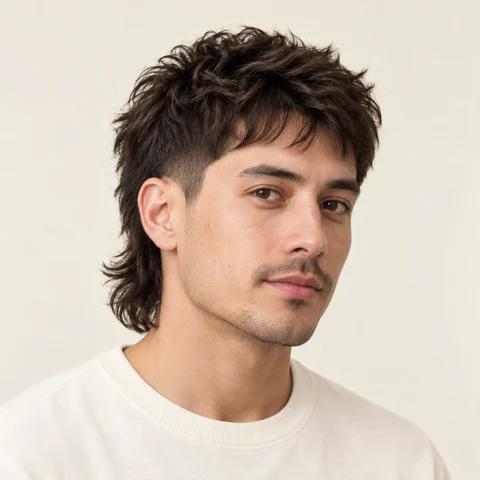
Short around the face, with a noticeably longer back.
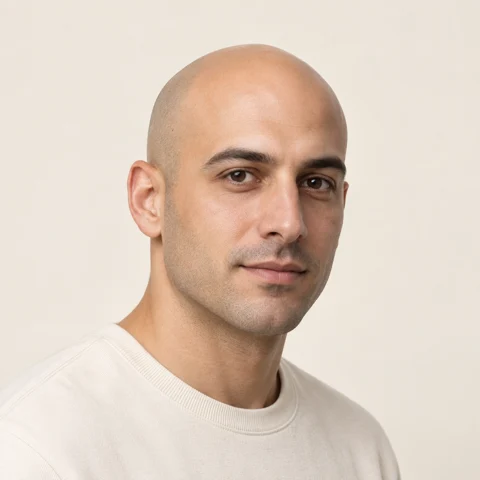
Preview a shaved head and compare it with your current hairline.
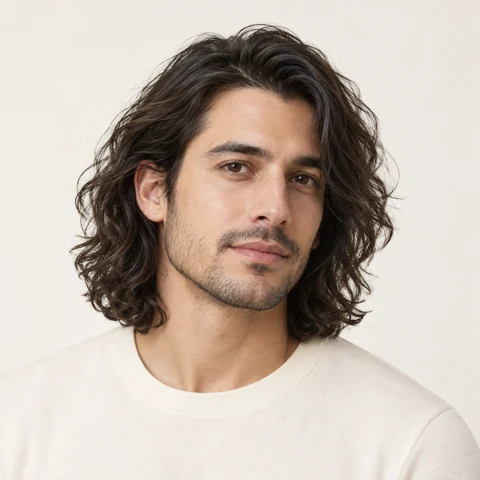
Try a longer cut with relaxed waves around the shoulders.
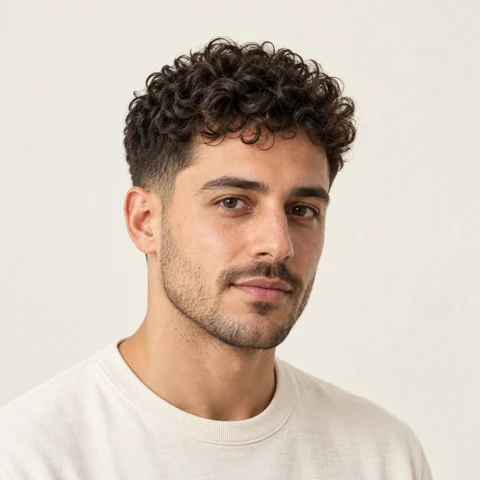
Keep the curls on top and compare a shorter, tapered outline.
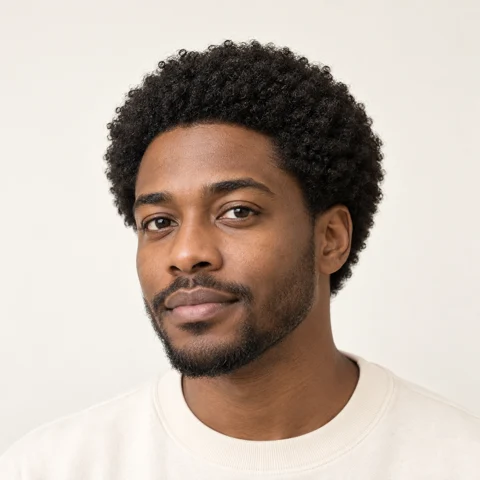
A compact rounded shape that keeps natural coiled texture.
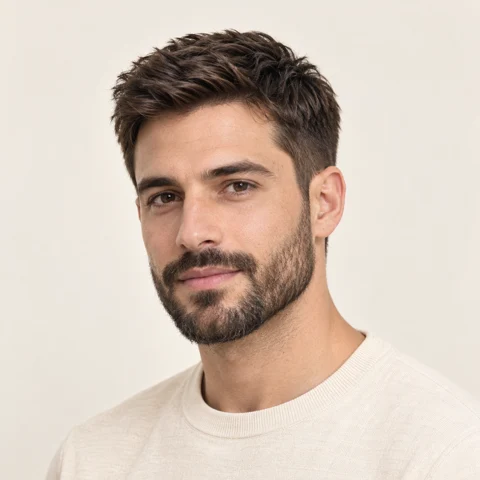
Keep your current haircut and preview a short, well-kept beard.
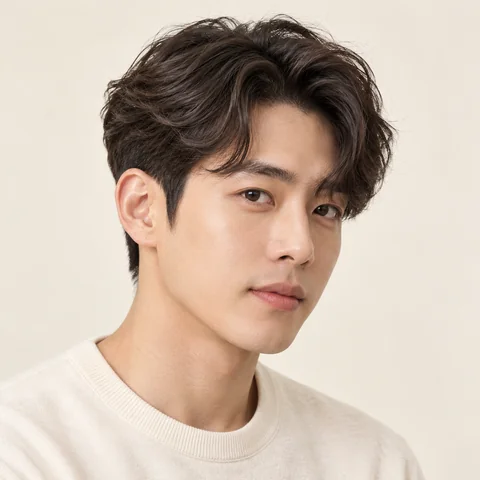
A curved fringe sits over one side of the forehead with separated, textured ends.
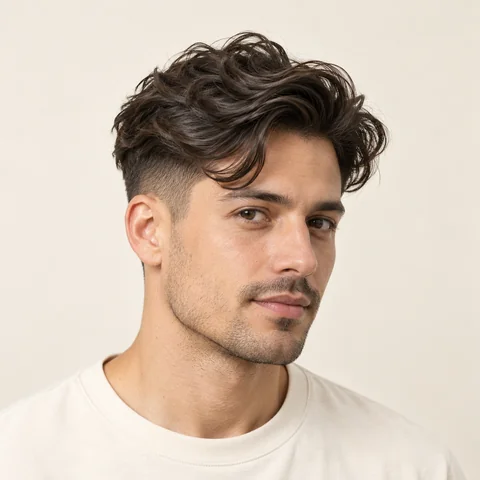
Close sides make the wave pattern on top more noticeable.
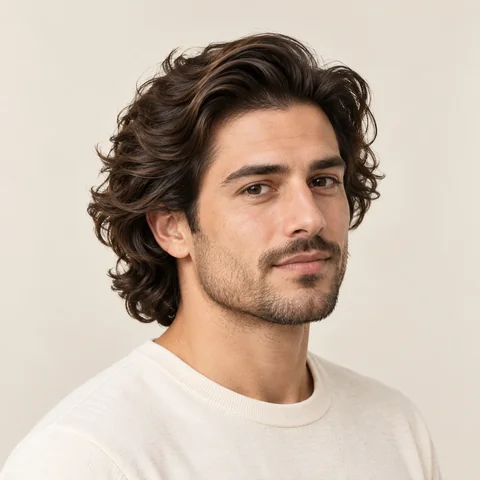
Loose curls sweep back from the forehead and fall around the ears.
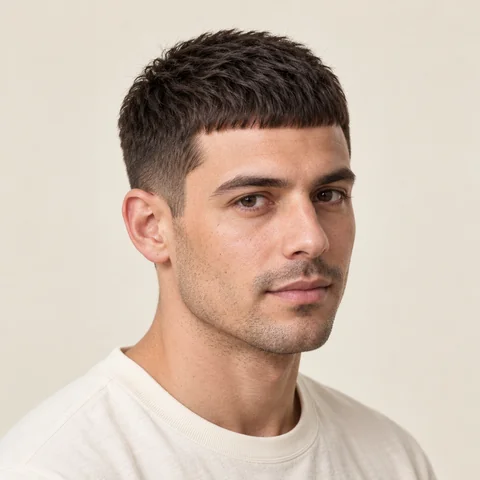
A short straight fringe gives the front a clear horizontal line.
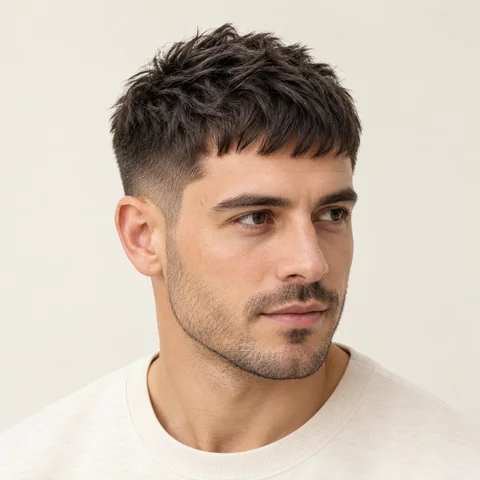
A choppy fringe and short top make this crop easy to compare from the front.
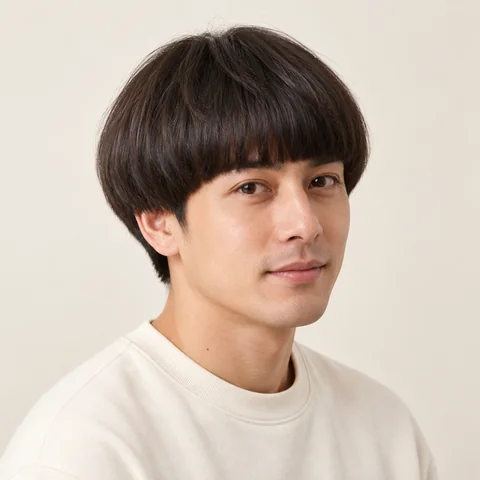
An even rounded edge runs from the fringe around both sides.
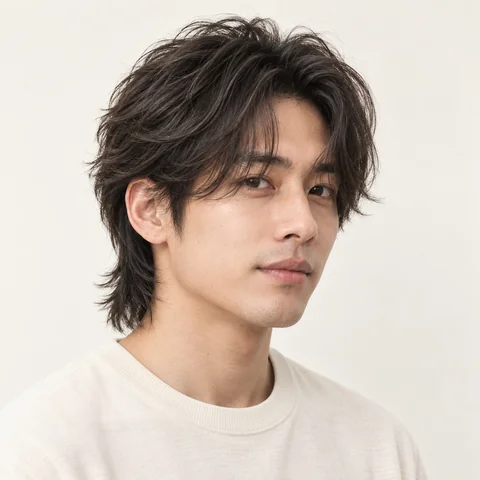
Choppy upper layers sit above a longer neck-length back.
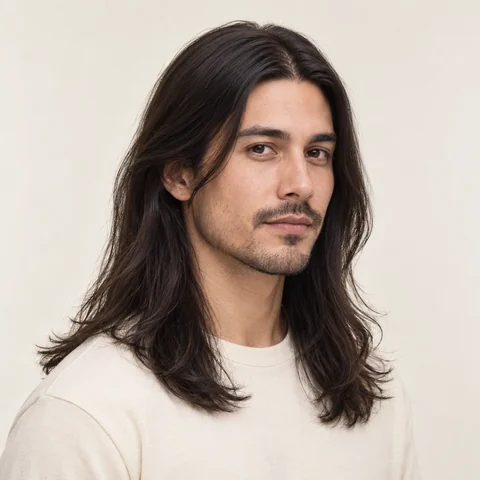
See a longer outline with a clean middle part and straight ends.
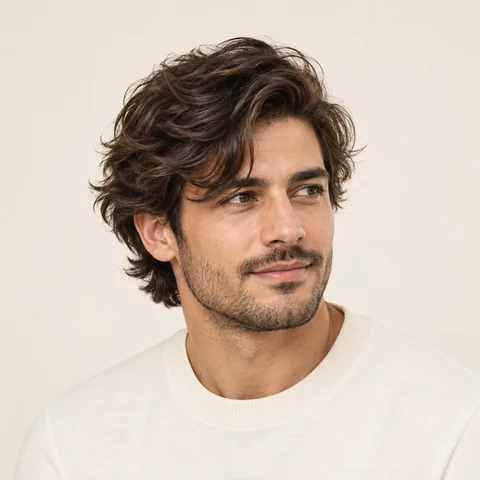
Loose waves and a side sweep give the fringe a relaxed shape.
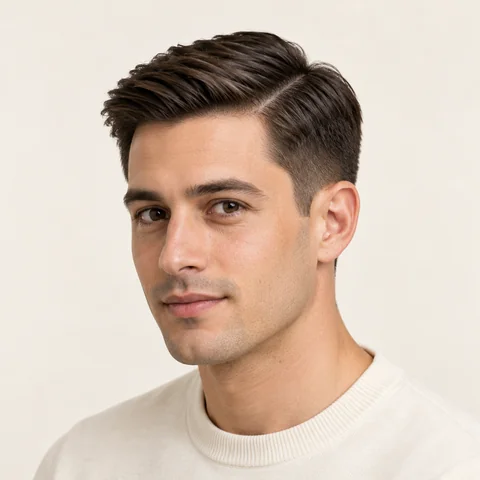
A little extra length on top leaves room for a neat side part.
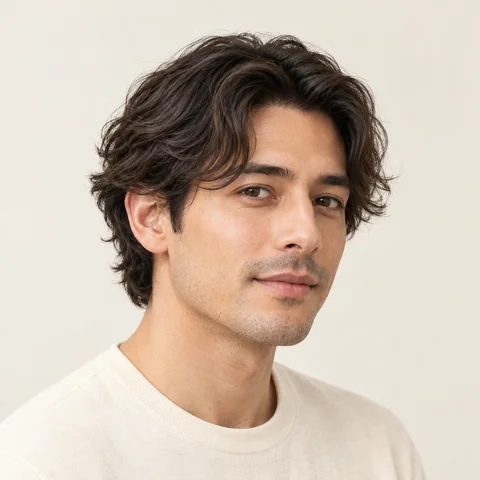
Soft bends sit around the ears without much height on top.
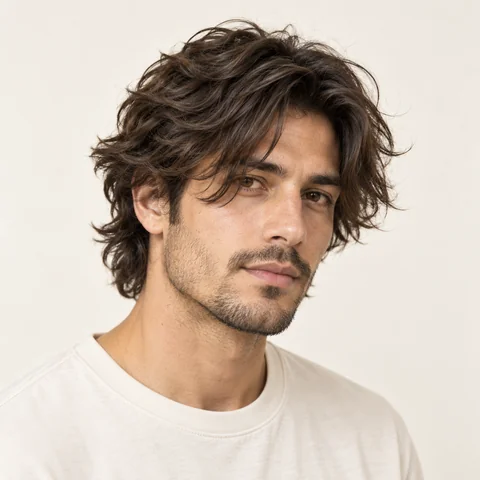
Longer fringe and loose layers create a fuller, untidy outline.
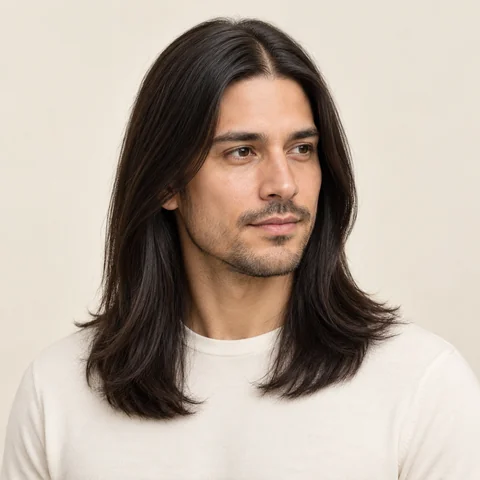
A clean outline that makes the length and part easy to compare.
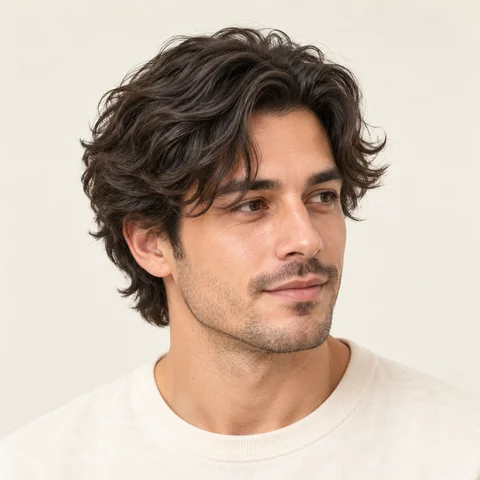
Try a softer outline with movement through the mid-lengths.
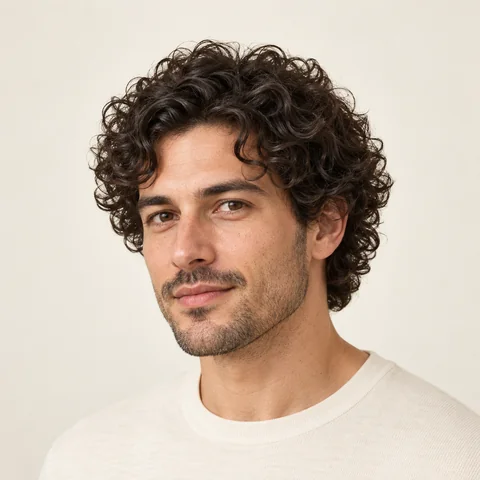
Compare a rounded outline with visible curls around the cheeks.
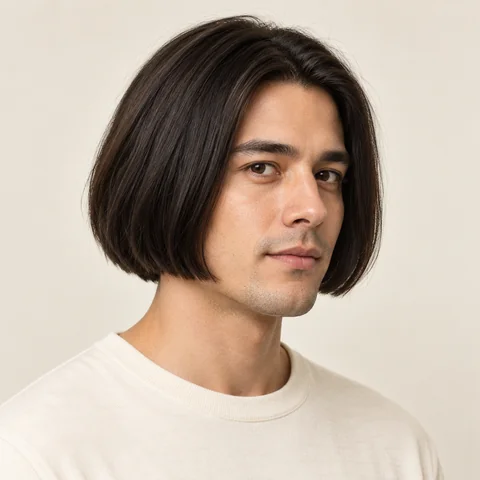
A chin-length shape with a clean edge for an easy, shorter cut.
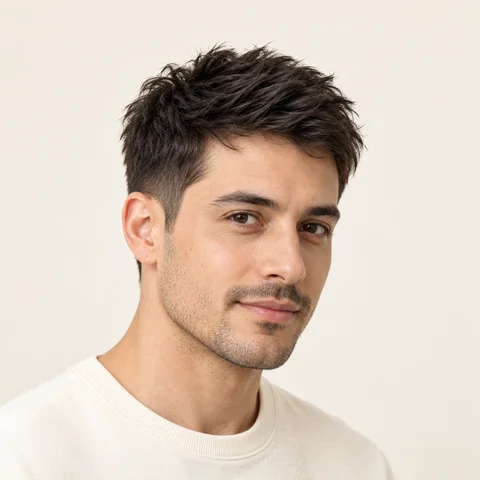
A short outline leaves a little texture above the forehead.
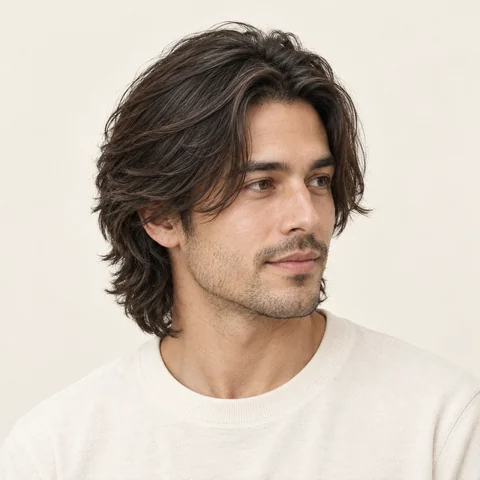
Compare shorter layers around the face while keeping length at the back.
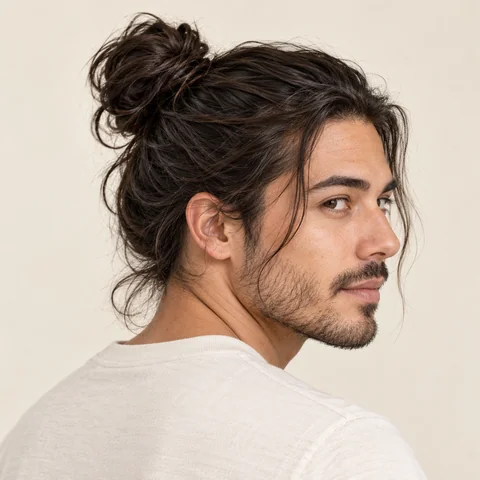
An informal updo with loose ends and a little volume at the crown.
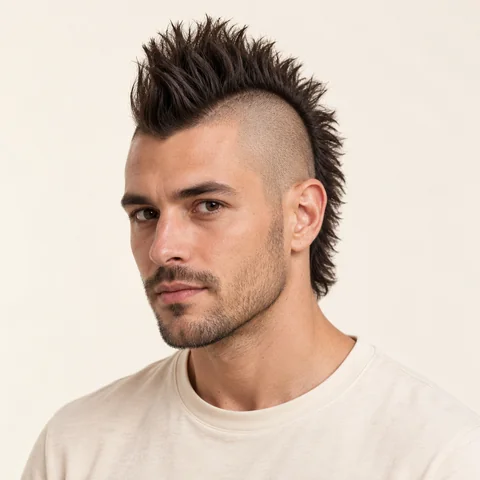
A narrow central strip adds height with a strong contrast at the sides.
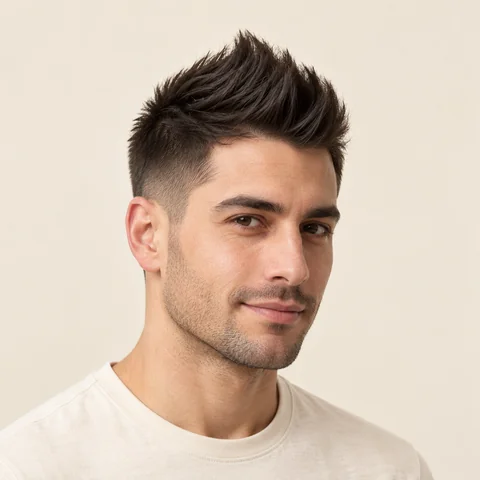
A raised central ridge gives height while keeping some hair at the sides.
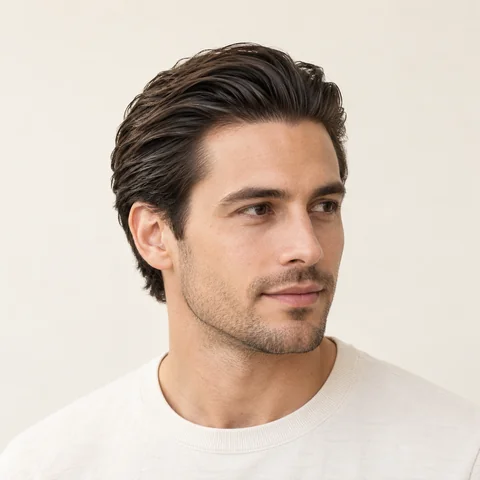
A swept-back finish opens the forehead and shows the hairline.
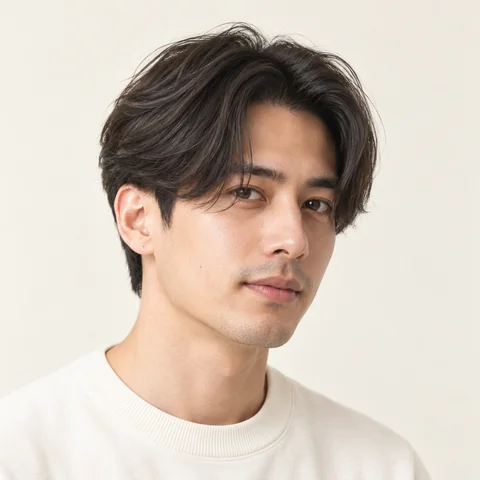
A middle part opens the forehead and balances the two sides.
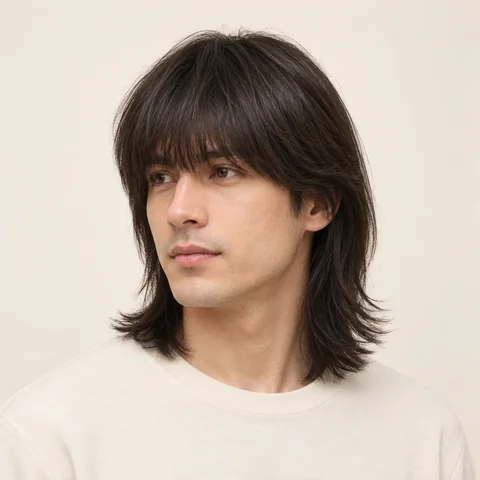
See a full fringe that falls in a straight line above the eyes.
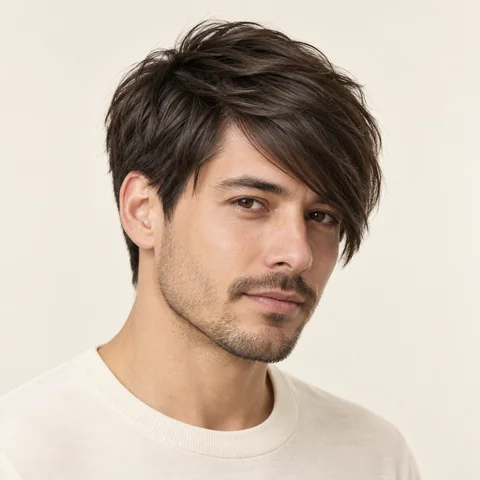
A diagonal fringe frames one eye and leaves the other side more open.
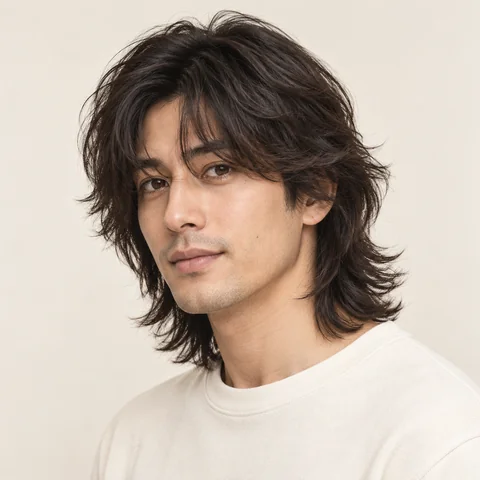
Light layers and a soft fringe for a deliberately tousled look.
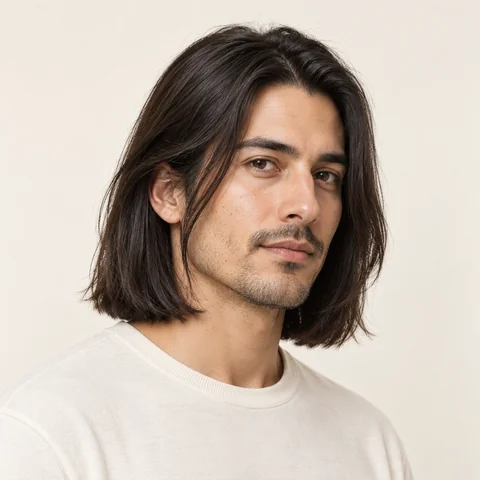
A collarbone-length cut offers a middle ground between a bob and longer hair.
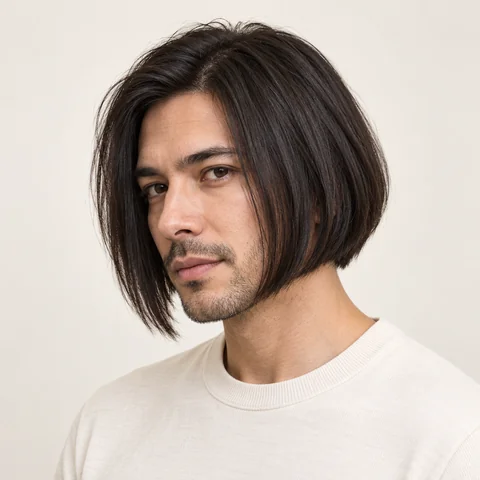
The front sits below the back for a strong diagonal outline.
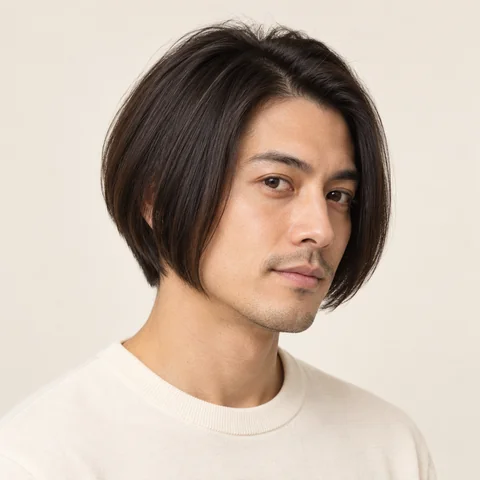
A gradual line from the neck to the chin keeps the shape smooth.
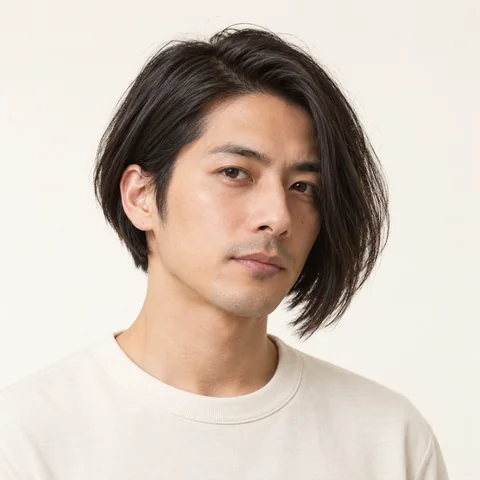
Compare two different side lengths before making an uneven cut.
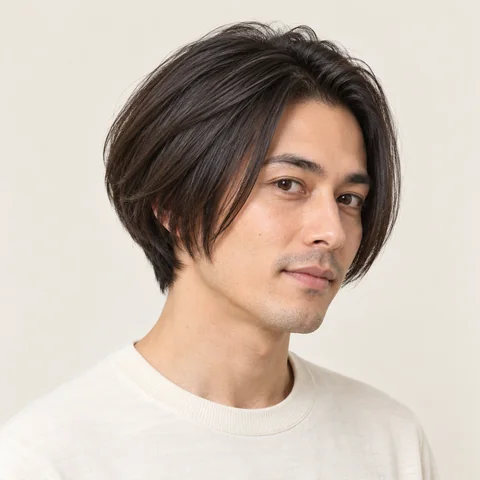
Stacked layers add a rounded shape above the nape.
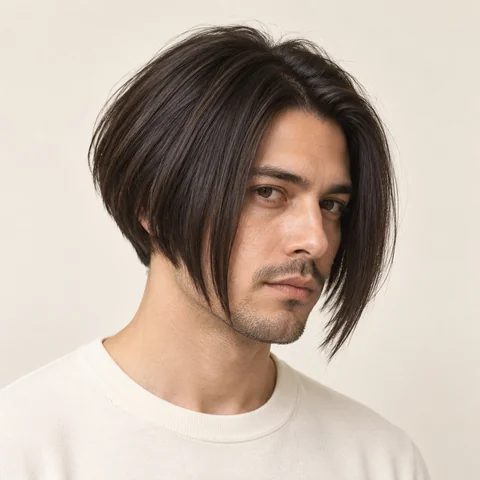
A close back and longer front create a more pronounced bob shape.
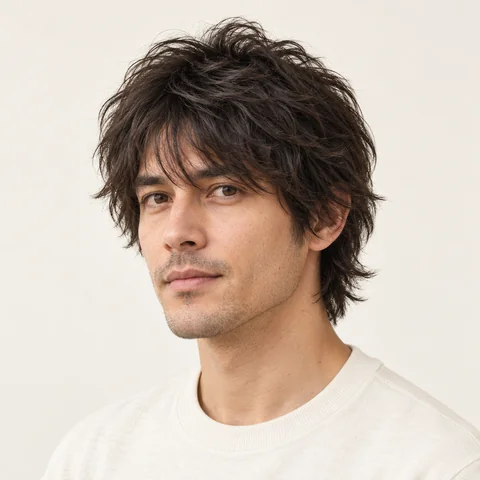
Short crown layers give this shag a lighter, more broken-up outline.
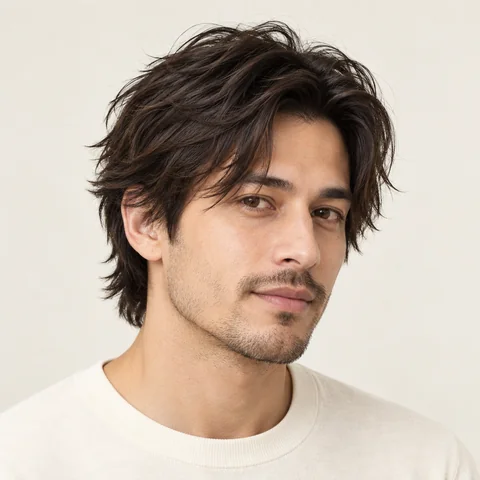
Separated ends and uneven layers add visible texture to the cut.
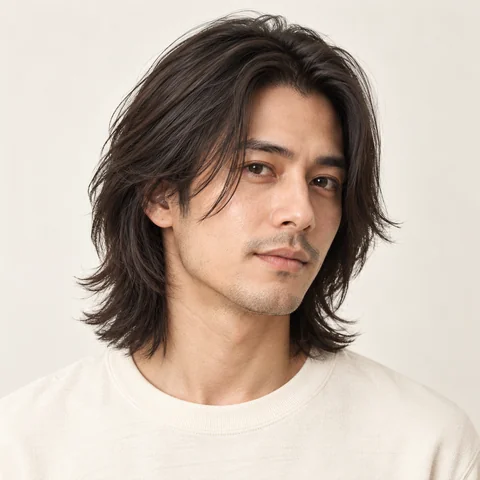
Fine, tapered ends soften the edge of a medium-length cut.
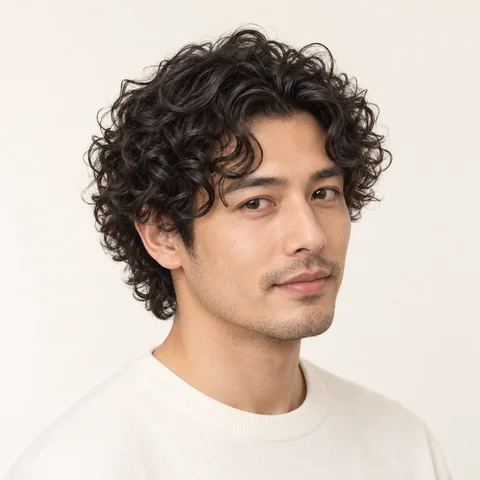
Try an even curl pattern and compare the extra volume around your face.
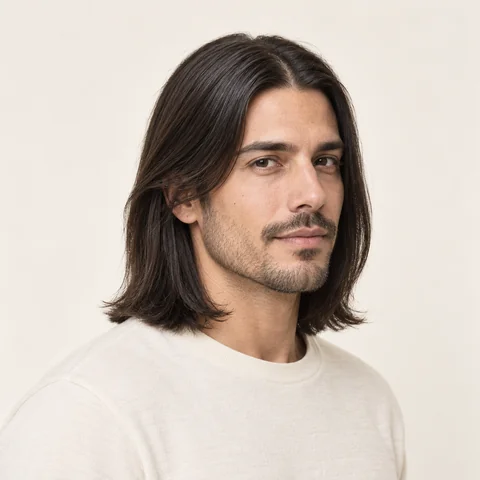
A smooth finish shows how your haircut looks with less visible texture.

Shallow bends add movement without the shape of a defined curl.
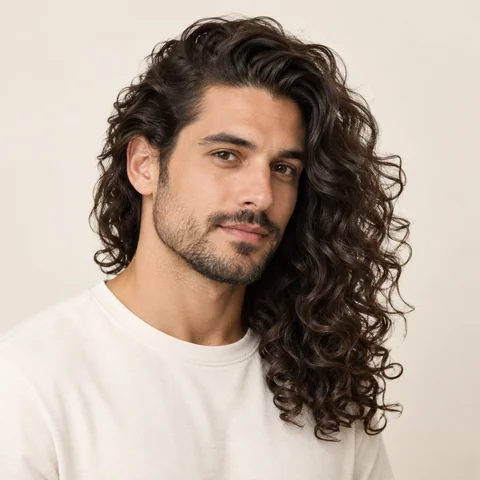
Large brushed-out curls bring more fullness to the lengths.
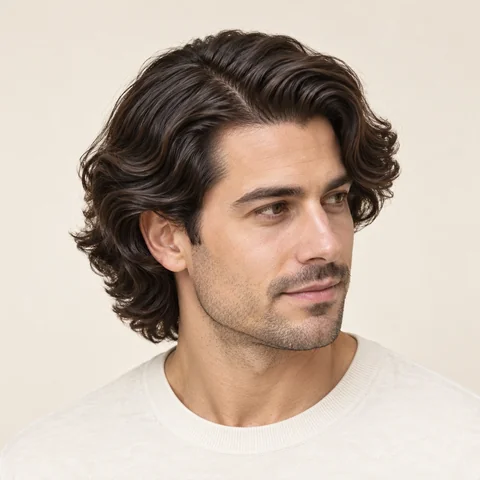
A side part and regular waves create a smooth, sculpted finish.
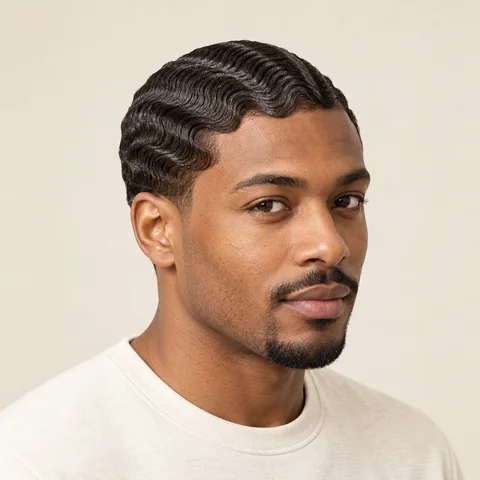
Close-set waves follow the shape of the head and leave the neck open.
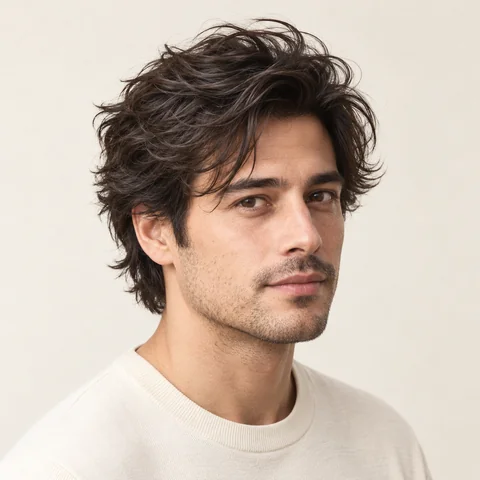
Try a relaxed finish with less defined sections and softer edges.
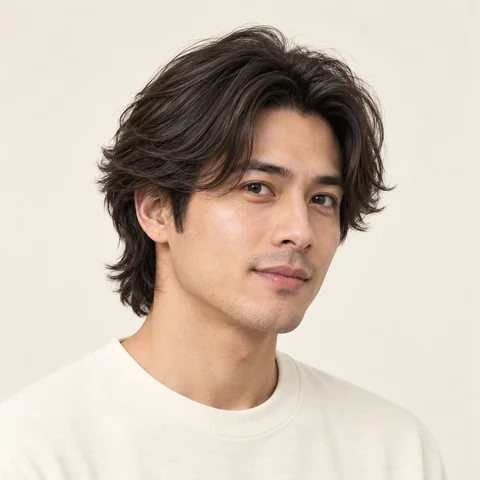
Outward-swept layers open up the face and lighten the ends.
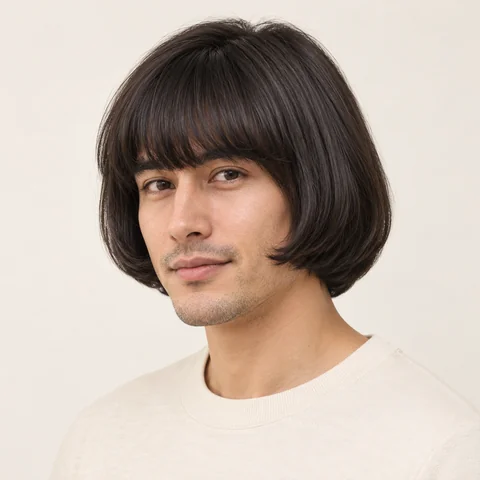
A rounded edge and full fringe create a compact, even shape.
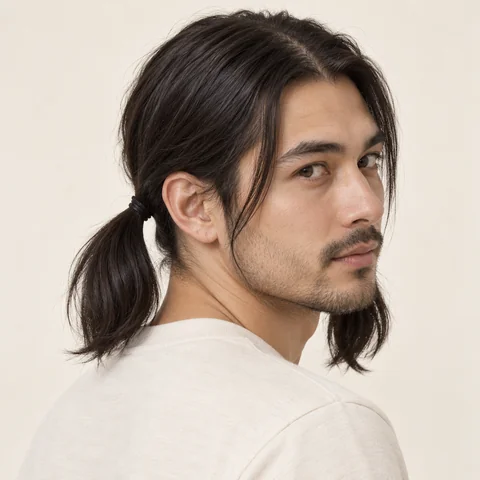
Two low ties keep the part visible and spread the length to both sides.
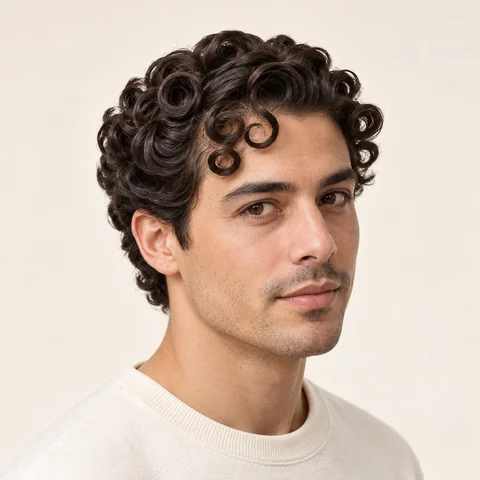
Small set curls add detail around the forehead and temples.
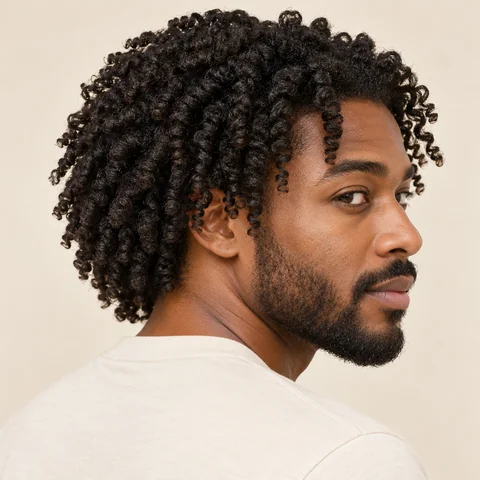
Separated coils show the shape of a twist-out with soft volume.
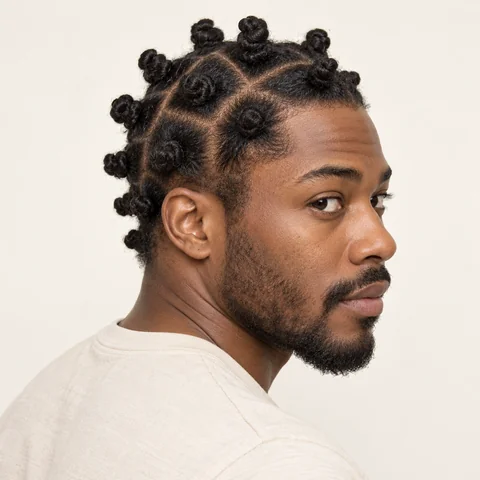
Small coiled knots make the sectioning and shape of the crown visible.
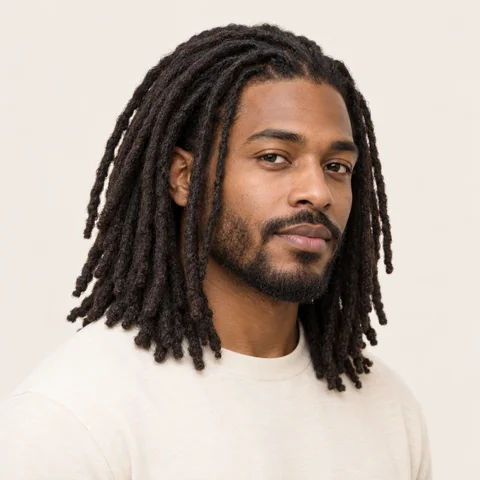
Compare the length and weight of locs around your face and shoulders.
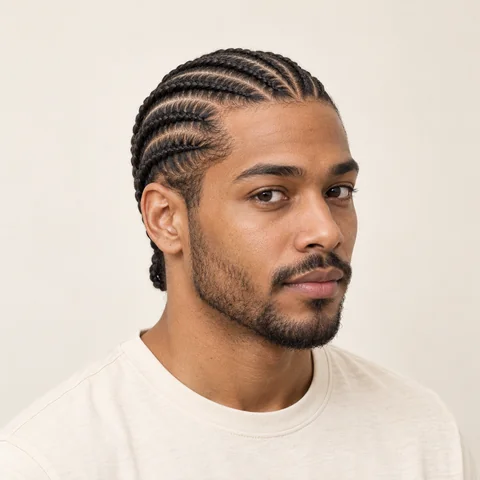
Close braids reveal the hairline and create clear lines across the scalp.
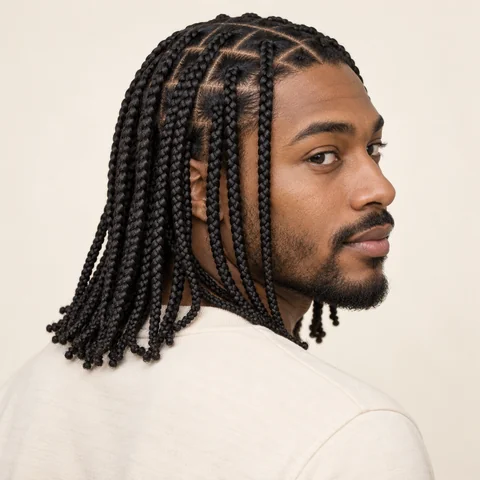
Explore the shape and length of individual box braids.
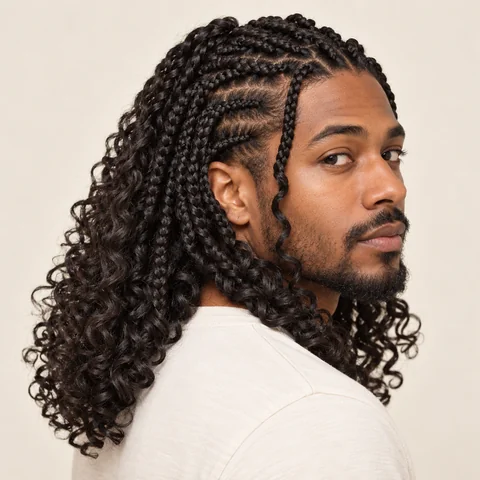
Braided roots and fuller curls give this look a soft outline.
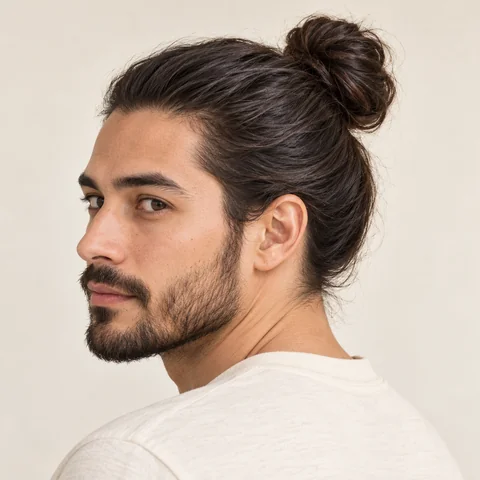
A gathered bun pulls longer hair away from the face and neck.
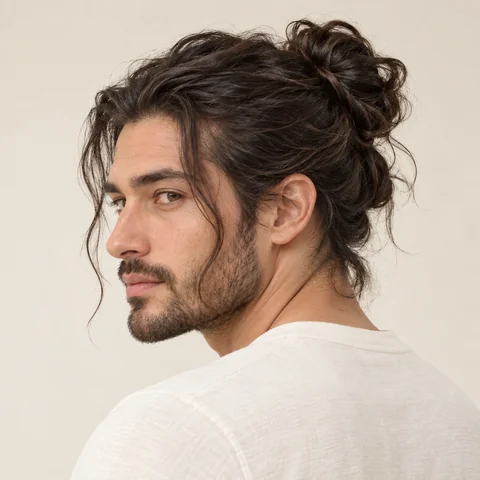
Loose pinned sections leave movement at the crown and around the face.
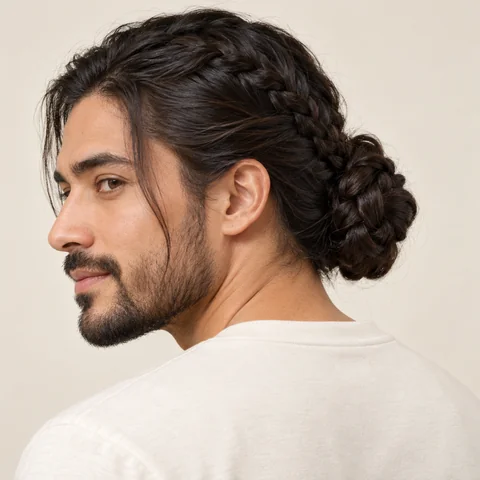
Interwoven knots add detail while keeping the lengths gathered.
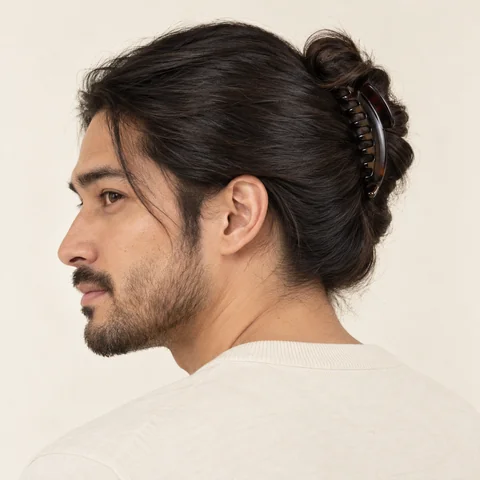
A vertical clip gathers the hair while leaving volume down the back.
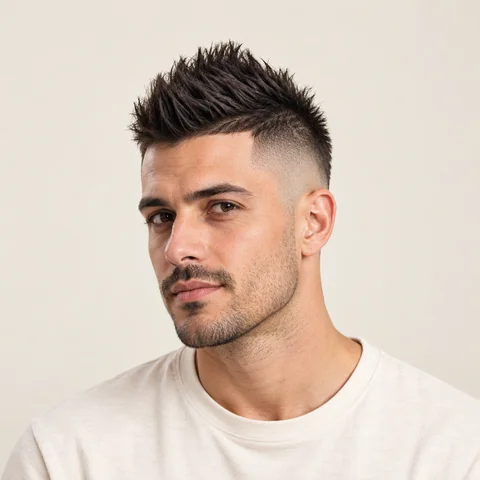
A faded side blends into a narrow, textured strip on top.
Keep your current shade while you compare haircuts, or use the AI hair color changer to try blonde, copper, brunette and other colors. The 32 swatches are a starting point; your photo’s lighting will affect the preview.
You do not need to mask your hair or edit the photo by hand.
Use a clear, well-lit portrait with one person facing the camera. Leave hats and sunglasses off, and make sure the hairline is visible. A sharp source makes it easier to compare the result.
Choose a preset, describe the length and texture you want, or upload a photo of a specific hairstyle. Keep your color for a cut-only preview, or select a new shade.
Review the credit cost and generate. Check your facial features, the hairline and the shape from the front, then download the result. Save a few options to discuss with your stylist.
Face shape can help you choose what to compare, but it is only one part of the decision. Your hair texture, density, daily routine and personal taste matter too. These are starting points for a preview, not fixed rules.
If you want a little more height, compare a quiff, long layers or a longer bob. Try leaving some length below the chin and see whether you prefer that outline to a shorter cut.
Soft waves, a textured shag and curtain bangs can add movement around a defined jaw. Compare a soft finish with a sharper bob rather than assuming one shape is off limits.
Curtain bangs or a side part can change how the forehead is framed. A chin-length bob or loose waves can add width lower down if that is the balance you prefer.
Try several lengths on an oval face. For a longer outline, compare bangs or waves at the sides with styles that add height on top. Notice where the volume falls, not just the haircut’s name.
The tool aims to keep your facial features, expression, skin texture, clothes and background as close to the original as possible. A reference photo supplies the haircut, not another person’s face. AI can still change small details, so compare the preview with your original. Your stylist can help judge how the cut will work with your real hair.
Start with two or three cuts you would realistically consider. Compare the length, where the volume sits and how each cut frames your face. A bob, long layers and curtain bangs are useful starting points for longer hair; a crew cut, side part and quiff give shorter hair different outlines.
Try adding height if you want a longer outline, or compare waves and layers if you prefer softer edges. Face shape is a guide, not a rule. Hair texture, density and the time you want to spend styling are just as important.
The tool aims to preserve your facial features and expression while changing the hair or beard you select. AI can still alter small details, so compare the face, ears and hairline with your original before saving a result.
Yes. Choose Reference photo and upload a picture that clearly shows the cut you want. The tool uses your portrait for the face and the reference for the hairstyle. The reference does not need to be a picture of you.
Choose Describe it and explain the length, layers, bangs and texture you want. You can also use a reference photo. Keep hair color in its own setting if you only want to compare the cut.
A clear portrait can produce a useful visual reference, but the result is a generated image. Fine hair, dense curls, unusual lighting and partly covered hairlines can be harder to match. A preview does not predict exactly how a salon cut will sit or grow.
Yes. The men’s collection includes a buzz cut, crew cut, fade, side part, quiff, undercut, mullet, long waves, curly crop, short afro, a shaved-head preview and a beard option. You can also describe a different cut or upload a reference.
Yes. Choose Describe it, ask to keep your current cut, and select a color. You can also combine a color with any preset. Blonde, auburn, copper and other swatches are visual guides; the final shade depends on the source lighting and generated result.
Yes. Open the page in your phone’s browser, sign in and upload a photo from your device. You can choose styles, add a reference and download a preview without installing an app.
Yes. Sign in to upload your photo. A 1K preview costs 8 credits with Nano Banana 2.1 or 12 credits with GPT Image 2.5. Higher resolutions cost more. GPT Image 2.5 and all 2K or 4K previews require paid access. Check the displayed cost before generating.
Working with a soft or poorly lit portrait? Try Photo Enhancer before choosing a new haircut.
Plans for independent creators
No hidden fees • Cancel anytime • Unused paid credits roll over
Trial
Billed $90 yearly · was $9/mo
360 credits / month
Credits never expire
Starter
Billed $190 yearly · was $19/mo
810 credits / month
Credits never expire
Creator
PopularBilled $590 yearly · was $59/mo
3,600 credits / month
Credits never expire
Pro
Up to 30% offBilled $1,290 yearly · was $129/mo
9,000 credits / month
Credits never expire