Visual Effects
Ice Codex Robot Avatar
Likes
4
Views
40
 Orelon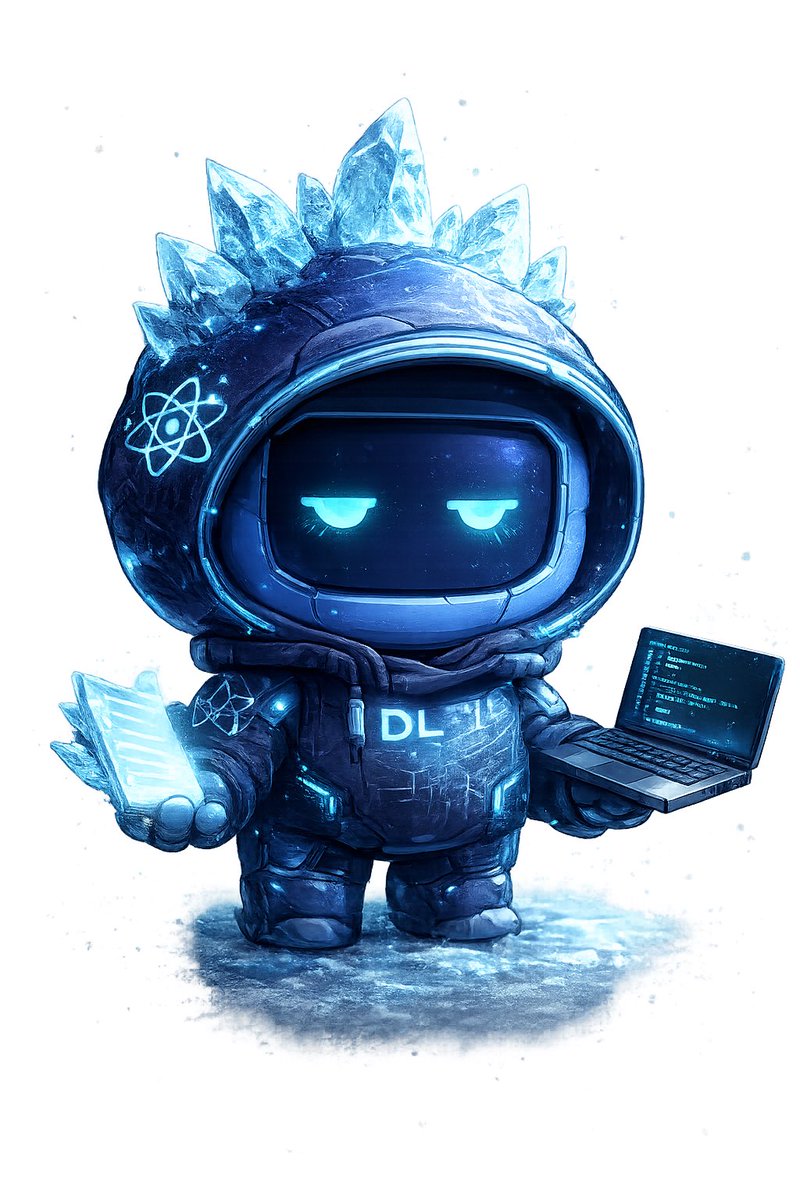
Visual Effects
Create a single full-body chibi codex avatar mascot on a clean white background with faint icy blue paint splatters and a soft frozen-ground shadow. The character is a small futuristic robot in an oversized dark navy-black hooded parka and chunky boots, rendered as a high-detail 3D digital illustration with painterly texture, glossy sci-fi materials, cyan rim lighting, and a cold arctic color palette. The hood is round and helmet-like, framing a black rounded-rectangle visor face with two sleepy half-lidded glowing cyan eyes and no mouth, giving a calm unimpressed expression. Add exactly 7 translucent jagged ice crystals protruding from the top and sides of the hood, with the tallest crystal at the center top, glowing electric blue edges, frosty refractions, and snow-like speckles. Put exactly 2 glowing atom emblems on the suit: one large cyan atom symbol on the left side of the hood and one smaller atom symbol on the chest/left shoulder area. The torso armor is puffy and segmented with cyan circuit-like accents, small luminous panels, scuffs, scratches, and the glowing chest text {argument name="chest text" default="DL"}. In the character’s left hand, show exactly 5 stacked translucent glowing cyan crystalline data sheets or code pages fanned together; in the right hand, show exactly 1 open miniature laptop angled toward the viewer, with a cyan-on-black screen filled with tiny unreadable code lines. Use a centered composition, cute proportions with a large head and short limbs, dramatic icy blue highlights, detailed snow/ice texture on the ground, and a premium mascot-avatar look suitable for a developer profile picture. Customize the avatar as {argument name="avatar theme" default="ice codex robot"}, with {argument name="primary color" default="deep navy blue"} armor and {argument name="glow color" default="cyan blue"} lighting.
This is a free AI prompt from the Orelon library. Thousands more image prompts here are free to copy and adapt.
Explore more image prompts
Ready to create
Start with this curated direction in Orelon, then shape it into your next visual.