Camera Control
MacBook Webcam Window Photo
Likes
2
Views
272
 Orelon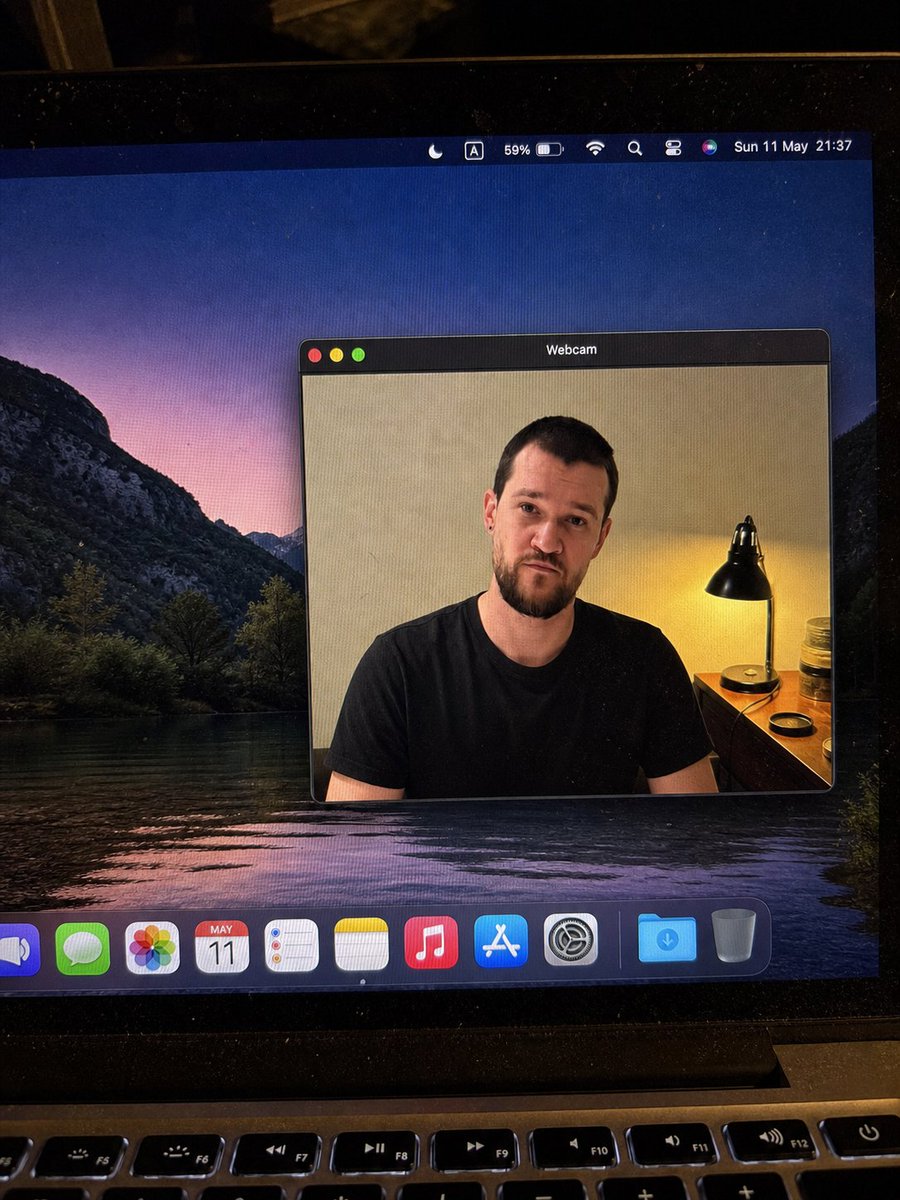
Camera Control
{"type":"realistic handheld smartphone photo of a laptop screen","scene":"A slightly tilted close-up photo of a MacBook display in a dim room, with visible screen pixels, dust specks, glare, black bezel edges, and the top row of physical keyboard keys at the bottom. The desktop wallpaper shows a dark mountain lake landscape at dusk with purple-pink sky reflected in water.","main_subject":{"description":"A macOS-style floating window titled {argument name=\"window title\" default=\"Webcam\"} centered on the desktop, showing a webcam feed of {argument name=\"person description\" default=\"a seated adult man in a plain black t-shirt\"}. The person's face is intentionally covered by a smooth rectangular blur/mosaic block in warm skin-tone colors, hiding all facial details while leaving hair, ears, neck, shoulders, and shirt visible.","webcam_background":"Indoor beige wall, warm bedside lamp on the right with a black metal shade, small wooden table or dresser, jars and a round lid near the lamp. The lighting is warm and yellow from the lamp, contrasting with the cool desktop wallpaper.","pose":"front-facing seated posture, shoulders visible, casual neutral stance"},"layout":{"screen_elements":{"top_menu_bar":{"count":8,"items":["crescent moon focus icon","boxed letter A input icon","59% battery indicator","Wi-Fi icon","magnifying glass search icon","control center style icon","Siri multicolor orb","date and time text: {argument name=\"menu bar date and time\" default=\"Sun 11 May 21:37\"}"]},"webcam_window":{"position":"center-right of the display","style":"dark macOS title bar, rounded rectangle, thin gray border, realistic shadow","traffic_light_buttons":{"count":3,"colors":["red","yellow","green"]}},"dock":{"position":"bottom of the screen","count":11,"items":["partially cropped blue speaker or volume app icon","green Messages icon","multicolor Photos icon","Calendar icon showing {argument name=\"calendar date\" default=\"MAY 11\"}","Reminders icon","Notes icon","Music icon","App Store icon","System Settings gear icon","blue Downloads folder","Trash can"]}},"camera_framing":"portrait-oriented phone photo of the laptop, not a clean screenshot; the screen is photographed at a slight angle with the laptop hinge and keyboard visible.","style":"highly realistic, candid, imperfect phone-camera capture, natural noise, subtle moire pattern on the monitor, no illustration or CGI look","quality_constraints":"Keep all UI text legible where visible, preserve the blurred face rectangle, avoid extra windows or extra people, maintain realistic reflections and perspective."}
This is a free AI prompt from the Orelon library. Thousands more image prompts here are free to copy and adapt.
Explore more image prompts




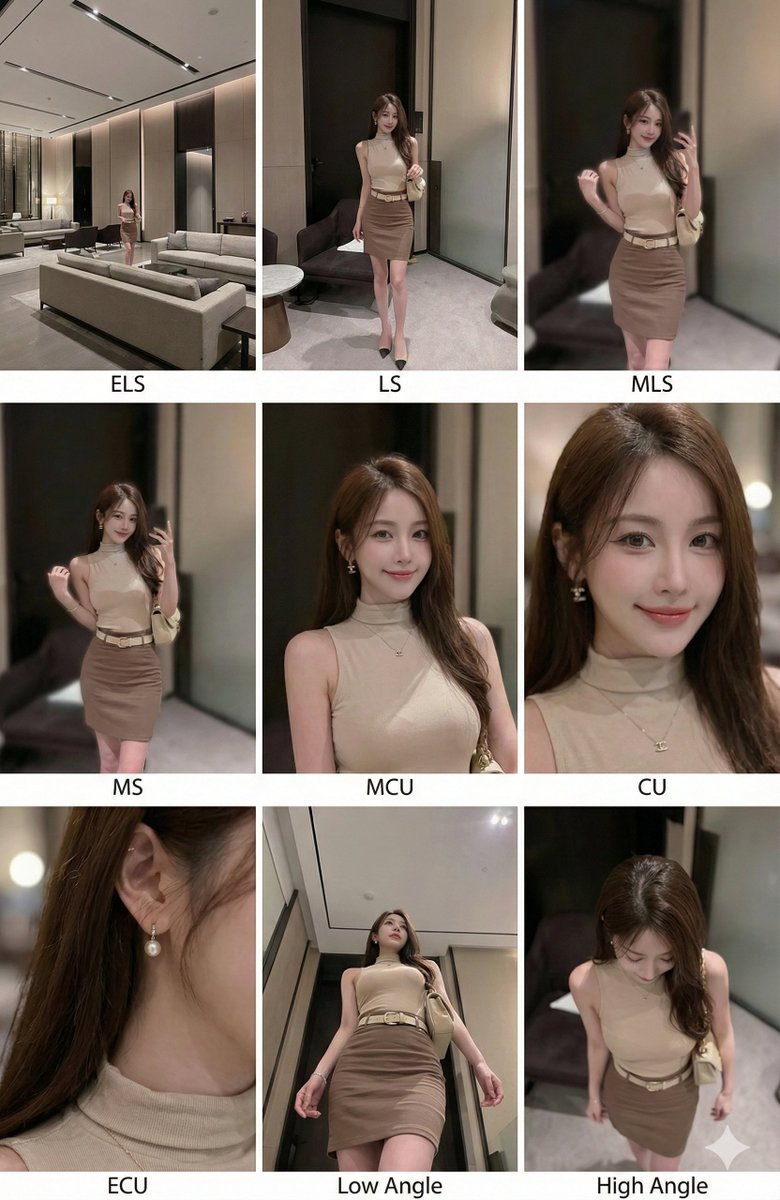
Ready to create
Start with this curated direction in Orelon, then shape it into your next visual.