Camera Control
Synthetic iPhone Photos Metadata Screenshot
Views
108
 Orelon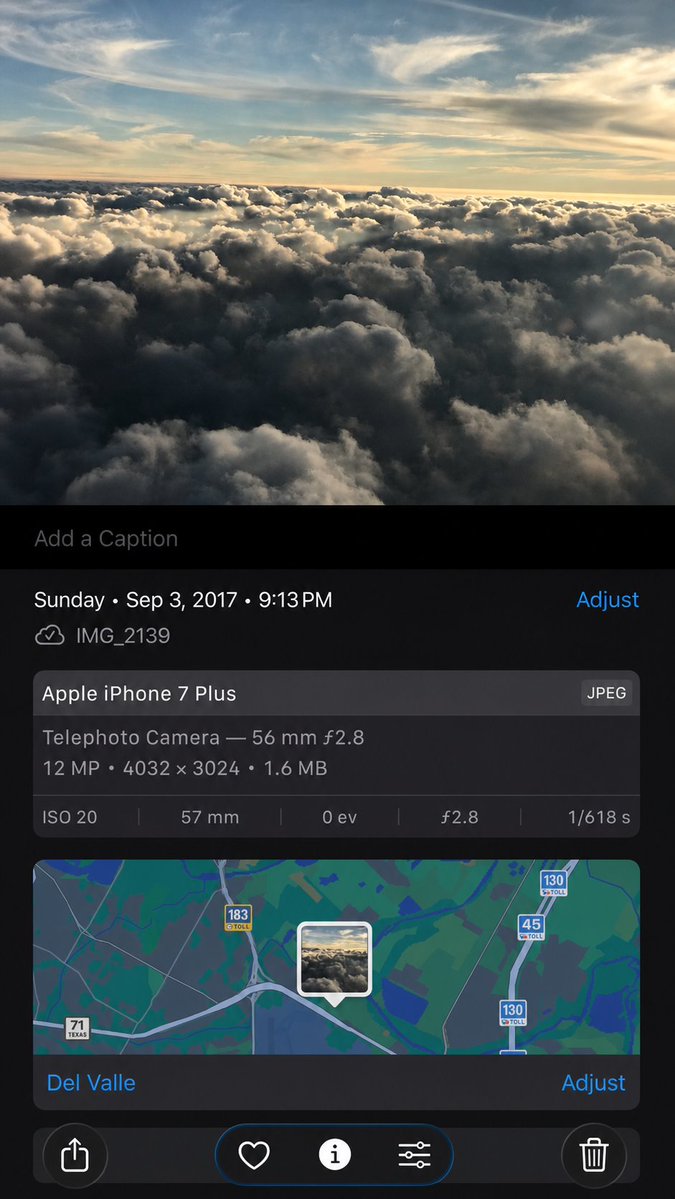
Camera Control
Using the provided iPhone Photos screenshot as the reference, recreate it as a cleaner, high-fidelity synthetic screenshot while preserving the same overall content: the cloud photo, the Photos app metadata panel, the map, date/time, filename, camera details, and bottom controls. Subtly rebuild the cloud image rather than copying it exactly, with a slightly wider-feeling crop, sharper modern rendering, and a more polished dark iOS interface. Keep the visible text and metadata unchanged, including {argument name="date and time" default="Sunday • Sep 3, 2017 • 9:13 PM"}, {argument name="filename" default="IMG_2139"}, {argument name="device name" default="Apple iPhone 7 Plus"}, {argument name="location" default="Del Valle"}, and {argument name="photo specs" default="Telephoto Camera — 56 mm ƒ2.8; 12 MP • 4032 × 3024 • 1.6 MB; ISO 20; 57 mm; 0 ev; ƒ2.8; 1/618 s"}. Include exactly 5 bottom toolbar icons: share, heart, information, adjustment sliders, and trash. Keep the map section with the centered photo-pin thumbnail and the visible road shields 71 Texas, 183 toll, 45 toll, and 130 toll.
This is a free AI prompt from the Orelon library. Thousands more image prompts here are free to copy and adapt.
Explore more image prompts




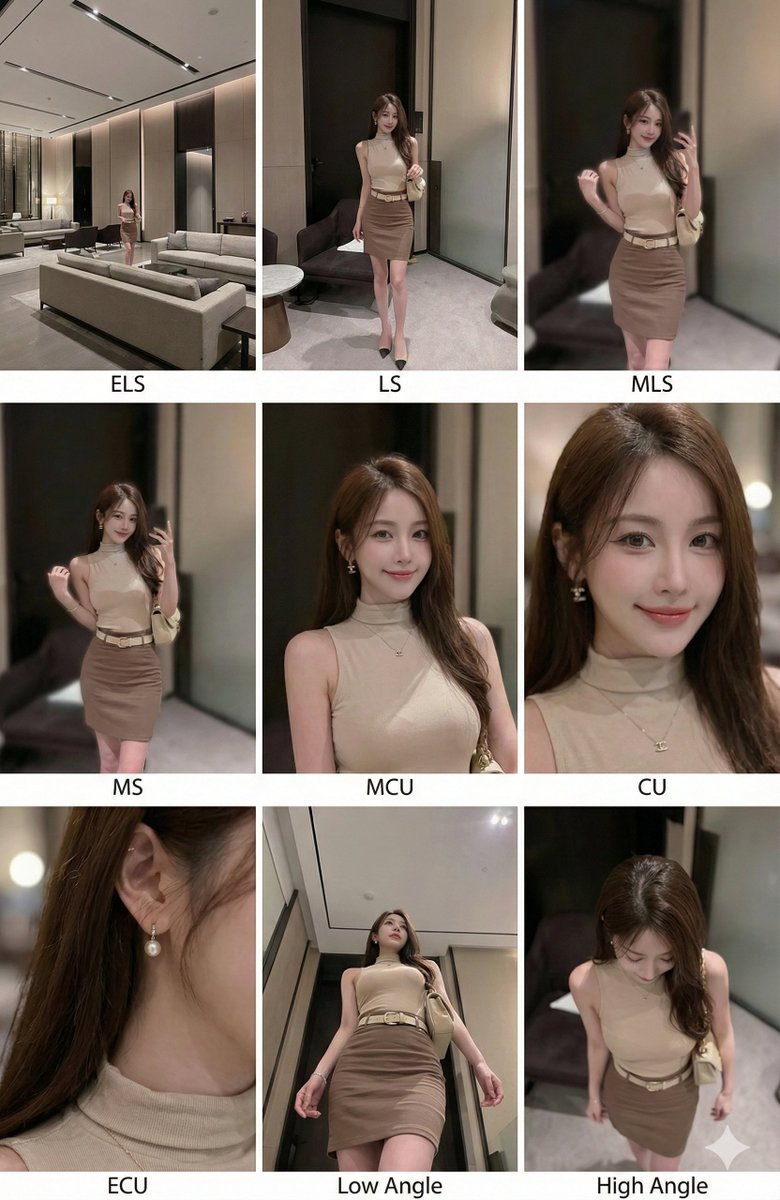
Ready to create
Start with this curated direction in Orelon, then shape it into your next visual.