Effects by Tags
Parrot Paint-by-Numbers Worksheet
Likes
1
Views
12
 Orelon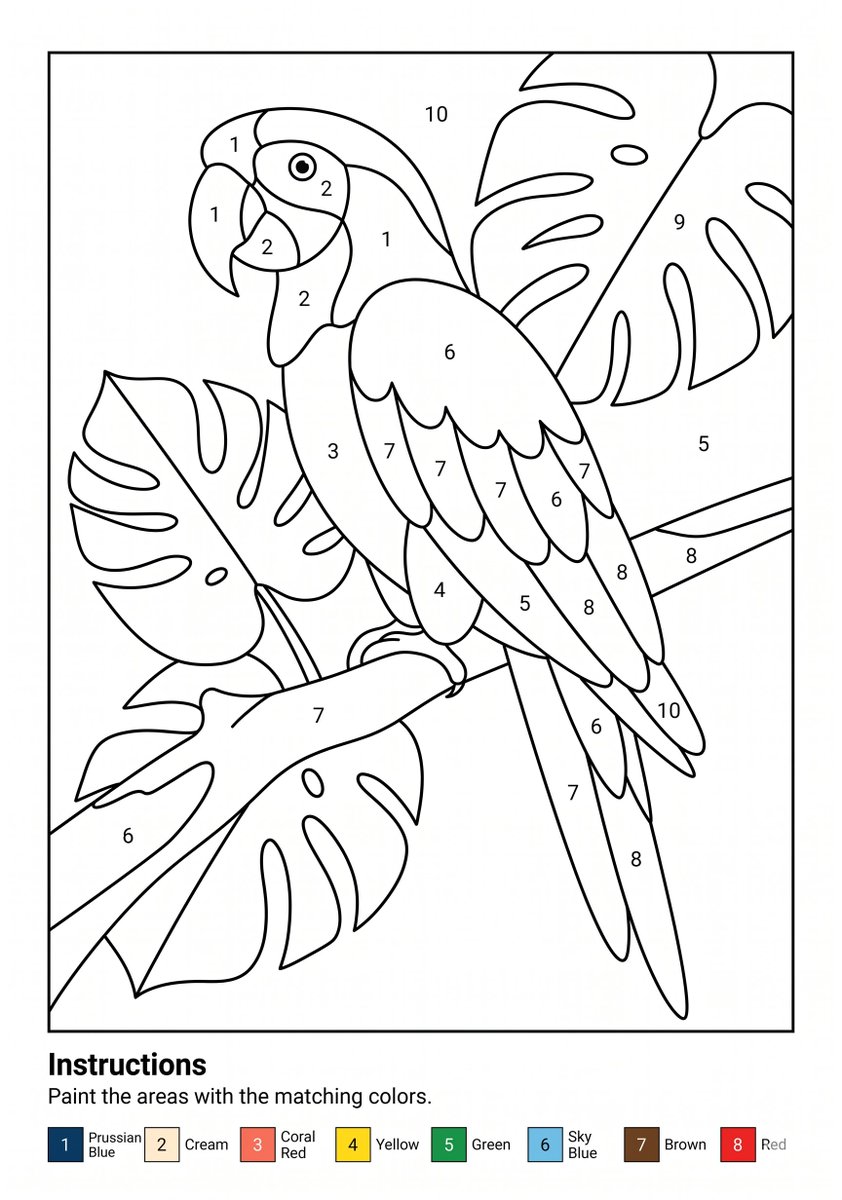
Effects by Tags
Goal: Create a printable paint-by-numbers worksheet featuring {argument name="subject" default="a tropical parrot perched among large monstera leaves"}. Canvas: A4 portrait page, clean white background, black-and-white line art, designed for printing at 300 DPI. Add a thin rectangular border around the main artwork, leaving a bottom instruction area. Main artwork: Inside the bordered frame, draw one large parrot in simple coloring-book style, facing left, perched diagonally on a branch. The parrot has a curved beak, round eye, layered wing feathers, long tail feathers, and visible feet gripping the branch. Surround it with large tropical monstera leaves in the background and foreground, with broad split-leaf shapes and simple vein lines. Use smooth, thick, consistent black outlines and no shading or grayscale fills. Numbered paint regions: Divide the illustration into many enclosed paint regions and place centered black numbers in the regions. Use exactly 10 numbered region labels across the artwork, numbered 1 through 10, with repeated numbers appearing in multiple areas. Make the labels small, clean, and readable, like a printable worksheet. Bottom instruction area: Below the artwork, add the bold heading "Instructions" aligned left, followed by the sentence "Paint the areas with the matching colors." Under the sentence, include a horizontal color legend with exactly 8 numbered color swatches: 1 Prussian Blue, 2 Cream, 3 Coral Red, 4 Yellow, 5 Green, 6 Sky Blue, 7 Brown, 8 Red. Each legend item should show a small colored square with the number inside or beside it, followed by the color name. Visual style: Minimal vector worksheet aesthetic, crisp black outlines, white fill areas, no texture, no shadows, no watermark, no extra decorative elements. The final image should look like a ready-to-print kids’ paint-by-numbers coloring page.
This is a free AI prompt from the Orelon library. Thousands more image prompts here are free to copy and adapt.
Explore more image prompts



Ready to create
Start with this curated direction in Orelon, then shape it into your next visual.