


When you can recover the original footage, and how to reduce color casts, faded tones and oversaturation in a saved clip with manual grading or AI.
An orange tint across a saved clip, a faded vintage look on last year's footage, a cool cast that makes skin look gray — before you re-edit the video, check whether the original still exists somewhere.
You can remove a filter from a video exactly when the original footage or a reversible editing history is still available. If you only have an exported copy, color correction or AI can reduce the visible effect, but nothing can guarantee the original colors, detail or hidden pixels in every frame.
This guide walks through the options in order of reliability: the revert controls you may already have, the correction that matches each visible problem, and what AI filter removal can and cannot do. If you have a saved clip ready, you can try the AI video filter remover after checking the options below.
Can you recover the unfiltered original?
Start with what you still have, not with the name of the filter.
| What you still have | Best first step | What to expect |
|---|---|---|
| The original, unedited video file | Open that file | The only route to the exact unfiltered footage |
| A project in a video editor with adjustment layers or history | Delete or disable the filter layer | The app reverses its own edit cleanly |
| An exported MP4 with a mild color cast | Color-correct a duplicate | A more balanced look, without proof of the original settings |
| An exported clip with several strong effects baked in | Try a focused AI correction and compare carefully | A new interpretation that can change small details |
| Face reshaping, stickers or overlays covering the frame | Look for the original or a backup | Covered information cannot be recovered from that copy |
An exported file with the filter rendered into its pixels is different from a saved project whose edits the app can still undo. The file extension does not tell you which situation you are in — the editing history does.
First, check your video app's revert options
If the clip lives in Apple Photos and was edited there, open it and look for Revert to Original in the More menu. The same control covers both photo and video edits, and Apple documents it in its iPhone user guide. Save a copy of the edited look first if you want to keep both versions. Apple's instructions for reverting edits.
In a timeline editor like CapCut, Premiere Pro or DaVinci Resolve, open the original project rather than the exported file. A filter applied as an adjustment layer or a color effect can be switched off in seconds; an export made after the filter was applied does not carry that history with it. If the project is gone — cleared cache, deleted draft, a different device — you are working from the export, and the sections below apply.
One more source worth checking before editing: the same scene may exist unfiltered in another clip, a burst take or a camera roll backup. Re-watching nearby footage is faster than reconstructing a look.
Match the correction to the visible problem
Look at the whole scene before touching anything. A warm sunset, a blue-shadowed street or a tungsten-lit room can be part of the footage rather than an unwanted filter. The goal is a believable result that suits the scene.
| Visible problem | A useful correction | What to inspect afterward |
|---|---|---|
| The whole clip looks orange, yellow or blue | Warm or cool color-cast correction | Skin, white clothing and objects whose real color you know |
| Faded sepia tones or unnaturally gray shadows | Vintage or faded-tone correction | Dark areas, fabric texture and the mood of the scene |
| Fluorescent colors and harsh light–dark edges | Contrast and saturation correction | Highlight texture, shadow separation and skin color |
| Several effects mixed together | General filter cleanup | The overall palette and small details frame by frame |
These four directions mirror the presets in Orelon's video filter remover. They describe what to reduce, not a promise to reconstruct the filter's original settings. If you also want new footage in a corrected style rather than an edit of an existing clip, the AI video workspace is the place to generate it.
For a mild cast on a short clip, a conventional editor may be enough: work on a duplicate, nudge temperature and tint, and check a frame you know is neutral — a white wall, a gray road. A strong filter across a long clip is where per-shot manual grading gets tedious, which is the case AI editing addresses.
How to remove a filter from a video with AI
Use AI when you want a guided correction from the saved clip and are prepared to review a newly generated edit.
- Open the Remove Filter From Video tool and sign in. Upload the clearest version of the filtered clip. The tool accepts MP4 or MOV files between 2 and 10 seconds — trim longer footage down to the part that matters first.
- Choose one correction direction. Color cast for a tint across the scene, vintage tones for a faded palette, contrast and saturation for an exaggerated finish, or general cleanup when several effects are mixed.
- Choose the resolution and review the cost. The tool offers 720p and 1080p output; 1080p requires paid access. The button shows the credit cost before you generate, so check your balance rather than assuming the first edit is free.
- Generate, compare and download. Play the result next to the source and inspect skin tones, known colors and motion before downloading the version you prefer.
A higher resolution contains more pixels. It does not prove that reconstructed faces, textures or fine details match the original footage.
If a result drifts from the subject or adds flicker, start again from the source clip. Stacking new edits on top of an edited output makes it harder to tell which changes came from the filter and which from the corrections.
A before-and-after example: a filtered portrait clip
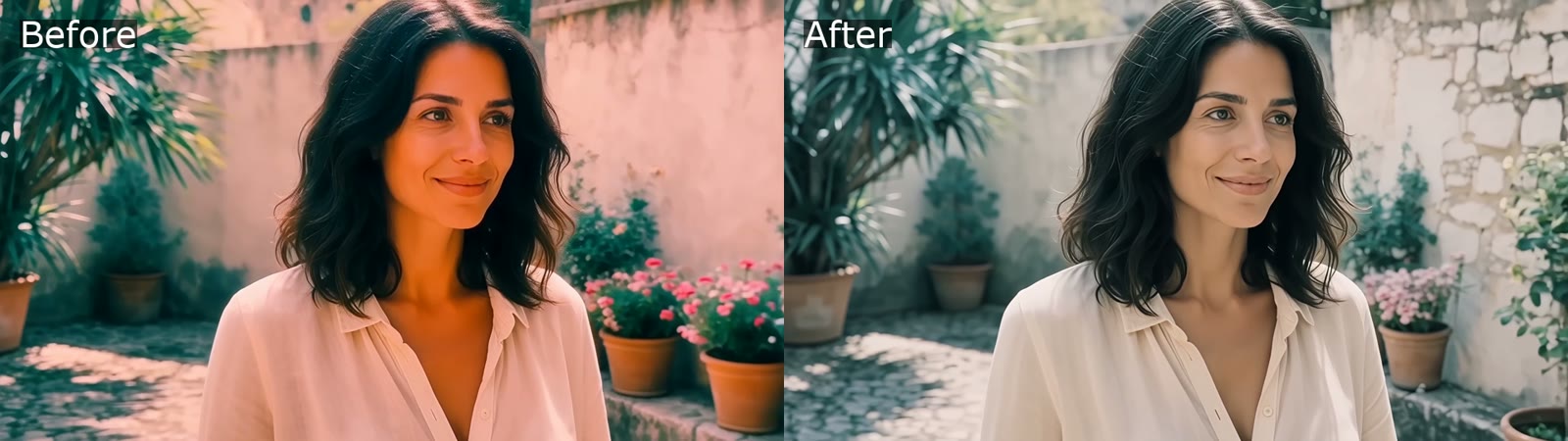
Left: the source clip with a strong orange-pink social-media filter. Right: the same footage after one general cleanup pass. The source was AI-generated with the filter baked in; the right side is the unedited output of the removal tool, not a hand-picked result.
What to notice in a comparison like this: the face, framing and motion match between the two sides, and the change concentrates in color — skin returns toward believable tones, cream fabric reads as cream again. That is the pattern to check in your own results. If identity drifts or the background shifts, the edit went further than color correction should.
Check these details before keeping the result
Video is harder to judge than a still image because the correction has to hold across every frame:
- Scan skin tones frame by frame, not just at the start. A cast correction that looks right on the first frame can wobble as lighting changes within the clip.
- Watch for flicker — small frame-to-frame pulsing in color or brightness. One flickering frame in a loop is more visible than in a single pass.
- Check known colors: a white shirt, a wooden table, a brand color you recognize. These anchor whether the palette has genuinely rebalanced.
- Verify motion is untouched. The edit should change color, not camera movement, pacing or subject behavior. Slow the player down if anything feels off.
- Keep the source file. The AI result is a new edit of your clip; the uploaded original stays in your media library so you can retry with a different direction.
Video filter removal FAQ
Can you remove a filter from a video without the original?
Only partially. Without the original footage or a reversible editing history, any tool — manual grading or AI — produces a new interpretation of the saved clip. It can look convincingly natural, but it cannot guarantee the exact original colors or recover detail the filter discarded.
Does removing a filter reduce video quality?
An AI filter removal regenerates the clip, so fine texture can shift slightly even when the overall result looks better. Compare the output at full size before downloading, and regenerate from the source rather than stacking edits if the first result softens detail you care about.
Why does my edited video flicker after filter removal?
Generative editing decides each frame in the context of the clip, but strong corrections occasionally pulsate between frames. If you see flicker, rerun the correction from the source clip with a narrower direction — color cast only instead of general cleanup — and compare again.
Can I remove an Instagram or TikTok filter from a saved video?
Color and lighting effects in a clip you saved from either app can often be reduced. Face reshaping, beauty smoothing, stickers and augmented-reality overlays change or cover the footage itself, and those changes are not reliably reversible from the exported file.
What formats and lengths does AI video filter removal support?
MP4 and MOV clips between 2 and 10 seconds, up to 100 MB, in any common aspect ratio. Longer videos need trimming first; the output keeps the source length and framing.
Is removing a filter from a video free?
Browsing the guide is free. Uploading requires sign-in and generation uses credits; the exact cost is shown on the button before you submit, and 1080p output requires paid access. Working from a still image instead? The same corrections exist for photos in the photo filter remover, and current plans are listed on the pricing page.