


Learn how to remove a filter from a photo, when to restore the original, and how AI can reduce color casts without promising lost details back.
An orange filter can turn a cream shirt peach and shift skin tones across the whole image. Before editing it again, check whether your photo app still has the original.
You can remove a filter from a photo exactly when the original image or reversible edit is still available. If you only have an exported copy, color adjustments or AI may reduce the visible effect, but they cannot guarantee the original colors, facial details or hidden pixels.
This guide helps you choose a method, match the correction to the problem, and inspect the result. If you already have a saved filtered image, you can try the AI photo filter remover after checking the options below.
Can you recover the unfiltered original?
Start with the file you have, rather than the name of the filter.
| What you still have | Best first step | What to expect |
|---|---|---|
| The original, unedited photo | Open that file | The most reliable route to the unfiltered image |
| A photo with retained editing history | Use the app's revert or reset control | The app may be able to undo its own edits |
| A JPEG or other exported copy with a mild color cast | Try white balance and color controls on a copy | A more balanced appearance, without proof of the original settings |
| A saved image with several strong filter effects | Try a focused AI correction and compare carefully | A new interpretation that can change details |
| Heavy face reshaping, a sticker over a face, or lost highlight detail | Look for the original or a backup | The covered or discarded information cannot be reliably recovered from that copy |
An exported image with a filter baked into its pixels is different from a photo library item that still retains its editing history. The file extension alone does not tell you whether an app can revert its edits.
Adobe explains that white balance changes to JPEG and TIFF files are approximations because earlier processing has already changed the pixel data. That is a useful limit to keep in mind when adjusting a saved image. Adobe Camera Raw color and tone documentation.
First, check your photo app's revert option
If you edited the picture in Apple Photos, open the edited item in that library and look for Revert to Original. Apple's current iPhone guide places it in the More menu; controls can differ by software version. Save a separate copy first if you also want to keep the edited look. Apple's instructions for reverting photo edits.
This advice applies to an item whose edits Photos can still reverse. It does not mean Photos can undo any filter in a screenshot, a downloaded social post or a photo edited elsewhere.
For another editor, check its original, reset, version history or adjustment-layer options before starting a new edit. If the original is available, use it rather than asking a model to estimate what it looked like.
Match the correction to the visible problem
Look at the whole scene. A warm lamp, sunset or blue shadow can be part of the photograph, rather than an unwanted filter. The goal is a believable result that suits the scene.
| Visible problem | A useful correction | What to inspect afterward |
|---|---|---|
| Everything looks orange, yellow or blue | Warm or cool color-cast correction | Skin, light clothing and objects whose real color you know |
| Faded sepia tones or unnaturally gray blacks | Vintage or faded-tone correction | Dark areas, fabric texture and the atmosphere of the scene |
| Fluorescent colors and harsh light–dark boundaries | Contrast and saturation correction | Highlight texture, shadow separation and skin color |
| Several effects are mixed together | General filter cleanup | Both the overall palette and changes to small details |
These are the four editing directions in Orelon's tool. They describe what to reduce; they are not a promise to identify the filter's original settings.
For a mild cast, a conventional editor may be enough. Work on a duplicate, make a small Temperature adjustment, then check Tint if the image still looks green or magenta. Adobe recommends using an area intended to be neutral gray or white as a white-balance reference. A colored light source or a reflective highlight can make that choice misleading, so inspect the subject too. How Camera Raw adjusts white balance.
How to reduce a photo filter with AI
Use AI when you want a guided correction from the saved picture and are prepared to review a newly generated edit.
- Open the Remove Photo Filters tool and sign in. Upload the clearest available version of the filtered picture. Avoid replacing a full-size image with a small screenshot.
- Choose one correction direction. Use warm or cool color cast for a tint across the scene, vintage or faded tones for an aged palette, or contrast and saturation for an exaggerated finish. Start with general cleanup when several effects are mixed.
- Choose the output size and review the cost. The tool offers 1K, 2K and 4K. The 2K and 4K options require paid access. The button shows the credit cost before you generate; check your balance rather than assuming the first edit is free.
- Generate, compare and download. Put the result beside the original and inspect the face, important colors and fine details. Download the version you prefer after that comparison.
A larger output contains more pixels. It does not prove that reconstructed eyelashes, fabric patterns or product details match the original photograph.
If one result drifts from the person or object, start again from the source image. Repeatedly editing the latest output makes it harder to judge which changes came from the original filter and which came from the new edits.
A before-and-after example: an orange-pink portrait
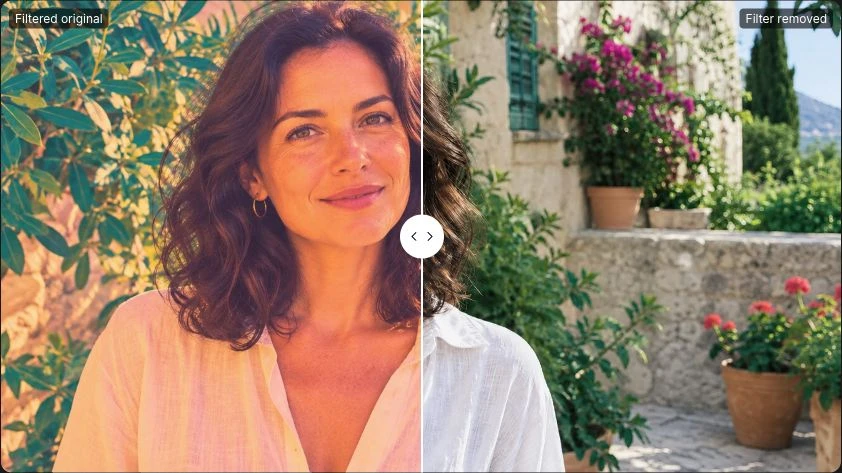
This example uses an AI-generated source portrait and an actual AI editing result from the tool. It illustrates one outcome, rather than a success rate across customer photos.
In the source, the orange-pink treatment affects the face, cream blouse and surrounding garden. The edited version shifts the scene toward more balanced colors. The light clothing is a useful place to notice the change because the effect is visible beyond the skin.
That comparison supports a narrow conclusion: the edit reduced a visible color cast in this example. It does not establish the exact skin color of a real person or recover an unseen camera original.
For another type of image, compare the product-photo example. Inspect the cup, linen and tabletop together, then check any edited product color against the real item. A pleasing result is not a color-accuracy measurement.
Check these details before keeping the result
Review the image at normal viewing size first, then zoom in on areas that matter:
- Identity: compare the eyes, teeth, hairline, face shape and expression with the source.
- Color: look for a new cast in the opposite direction. Removing warmth should not automatically make skin gray or blue.
- Texture: inspect skin, hair, fabric and repeated patterns for smoothing or invented detail.
- Scene lighting: keep intentional sunset light, colored lamps or shadows when they belong to the picture.
- Product features: check lettering, seams, edges and colors against the real item before using a commercial photo.
If the main problem is mild softness or uneven light, the photo enhancer offers a different set of guided edits. Review its output with the same care. For a more specific written editing brief, use the AI image editor.
A date stamp or visible logo is a different problem from a color filter. The photo watermark remover targets overlays; any area rebuilt underneath still needs review.
Photo filter removal FAQ
Can AI recover the exact original photo?
AI cannot guarantee an exact unfiltered original from an exported image. It generates an edit based on the visible picture. For an exact reversal, use the original file or an editor that retains the relevant history.
Can I remove Instagram or Snapchat filters from a saved photo?
You can try reducing their color and lighting effects. Face reshaping, heavy smoothing, stickers and augmented-reality overlays are harder to reverse because they can change or hide image information. Look for the original capture when you need a faithful record.
Can I remove a filter without Photoshop?
Yes. An app that retains your original may let you revert its edits. For a saved copy, a browser-based photo filter remover can attempt a new color correction. Both routes have different expectations: reverting uses retained information; AI estimates an appearance.
Is Orelon's filter remover free?
You can browse the page and examples without paying. Uploading requires sign-in, and generating an image uses credits. The generator displays the cost before submission. Check your account balance and the current credit plans; 2K and 4K require paid access.
Does 4K recover more original detail than 1K?
A 4K result has more output pixels, but generated detail may differ from the source. Choose a resolution for the size you need and inspect the actual image. Higher resolution does not turn an estimated edit into an exact restoration.
Why does the photo still look different after reducing the filter?
The saved image may already contain altered colors, contrast and texture. The correction can also introduce changes of its own. Compare with the source, try a more focused direction, or return to the original file if you have it.