
Pixel Art Japanese Studio Mascot Logo
Generates a square retro pixel-art Japanese logo with a chibi anime mascot, suitable for studio branding or social media icons.
J’aime
0
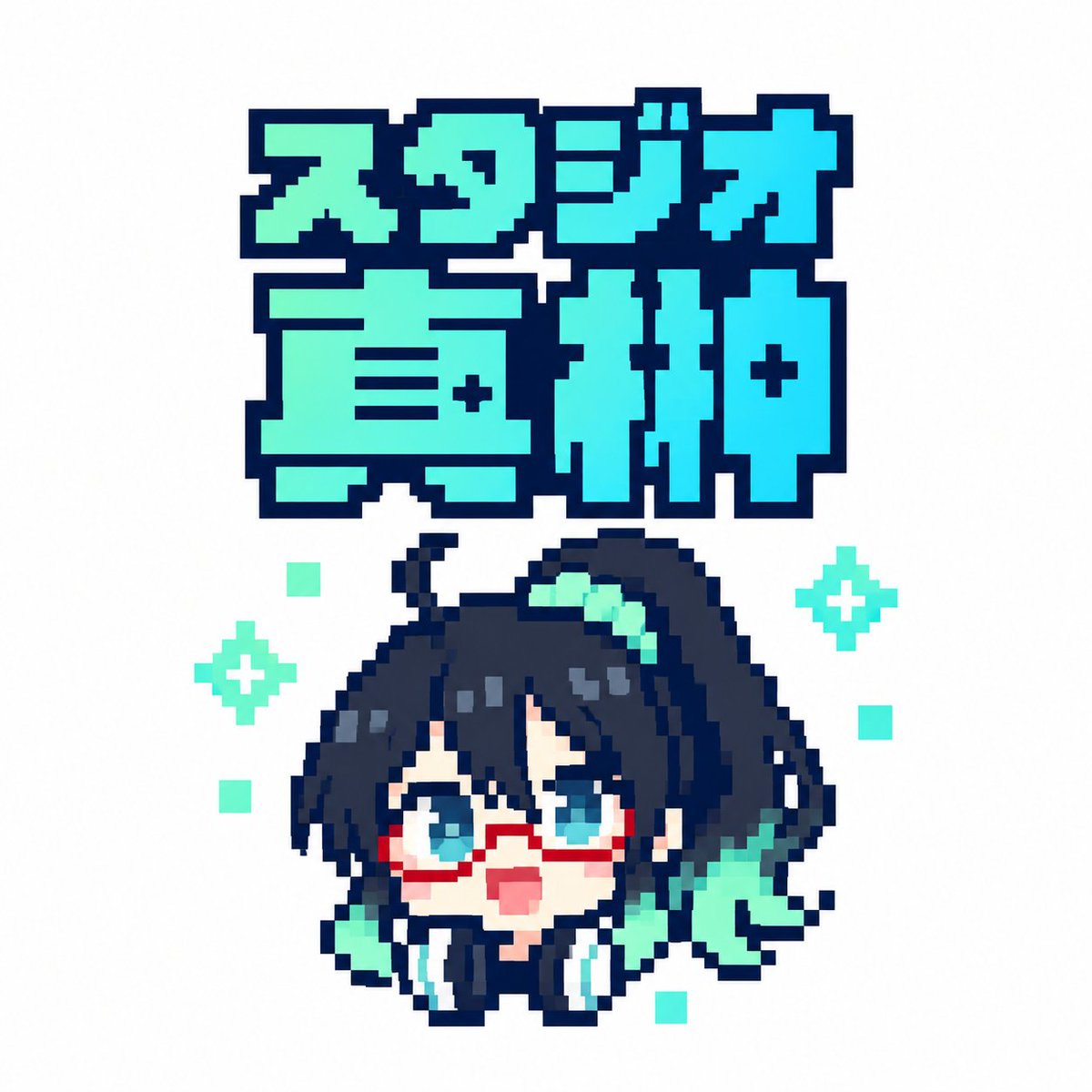
Generates a square retro pixel-art Japanese logo with a chibi anime mascot, suitable for studio branding or social media icons.
Create a square 1:1 pixel-art logo on a clean white background. At the top, place a large two-line Japanese title in chunky 8-bit block lettering reading {argument name="logo text" default="スタジオ直紬"}; the first line is smaller and reads "スタジオ", the second line is much larger and reads "直紬". Use a bright cyan-to-mint gradient fill with a very thick dark navy pixelated outline and squared corners, like retro game title typography. Centered below the title, draw one chibi anime mascot head and shoulders in crisp pixel art: a cute surprised character with {argument name="hair color" default="dark navy black"} messy hair, long side locks, a high side ponytail sweeping to the right, teal hair highlights, big cyan-blue eyes, red rectangular glasses, a small open pink mouth, pale skin, and oversized black headphones with cyan ear pads around the neck. Add mint-green accent shapes in the hair and beside the face, including a ribbon-like teal shape on the right. The character should look upward with an excited, surprised expression. Use a limited palette of dark navy outlines, cyan, turquoise, mint, white, pale peach, and red glasses. Keep the entire image sharp, low-resolution, and intentionally pixelated with no antialiasing, no shadows, and no photorealism. Count and place the decorative background pixels exactly: 2 mint four-point sparkle icons, one on the left side of the character and one on the right side; and 5 small mint square pixels scattered around the character, with one upper-left, one mid-left, one lower-left, one mid-right, and one lower-right. Maintain generous white margins and a centered sticker-like composition.
Ceci est un prompt IA gratuit issu de la bibliothèque Orelon. Des milliers d’autres prompts image sont disponibles ici, à copier et adapter librement.
Explorer d’autres prompts image
width: 1176 · aspect: 2:3 · height: 1764
Lire le prompt
width: 716 · aspect: 179:321 · height: 1284
Lire le prompt
Prêt à créer
Partez de cette direction sélectionnée dans Orelon, puis façonnez-la pour votre prochain visuel.