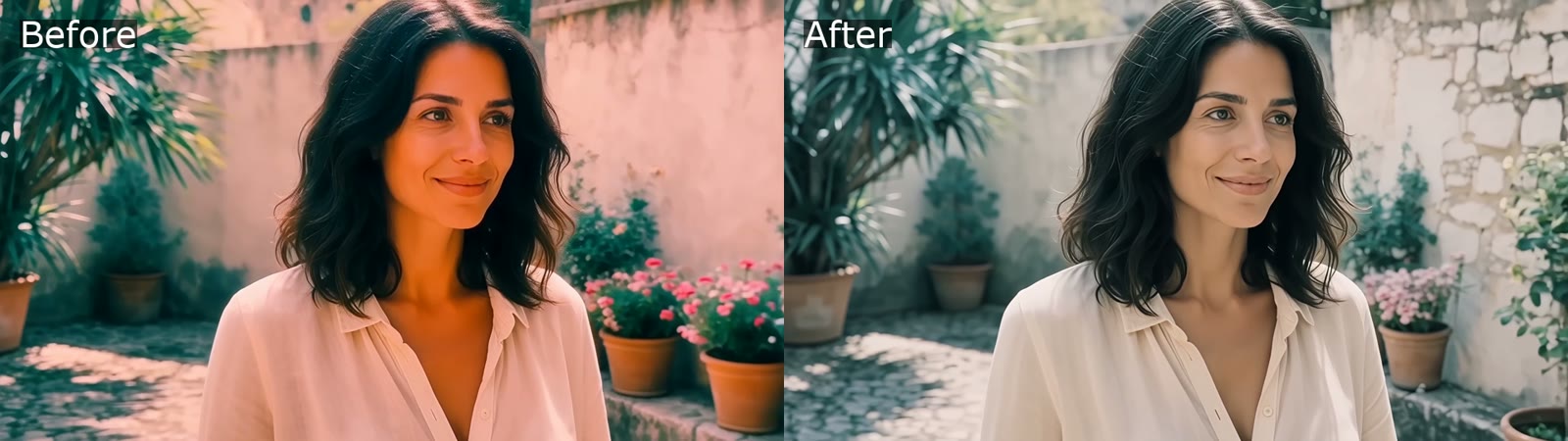
Build cinematic visual effects with an AI video workflow: shot planning, prompt design, motion control, compositing, and finishing steps.
Cinematic visual effects rarely fail because of a single bad tool. They fail because the shot was never designed for the effect, the camera move contradicts the lighting, or the finishing pass never happened. AI video generation has compressed the distance between an idea and a moving image, but it has not removed the need for a pipeline. What it has done is move the expensive decisions earlier — into planning, prompting, and compositing — where one creator can make them in an afternoon instead of a studio making them over six weeks.
This guide is a working method for AI-assisted VFX: how to design shots that survive generation, how to structure prompts so light and motion stay coherent, how to blend generated elements with real footage, and how to judge whether a clip is actually finished.
Cinematic Is a Set of Decisions, Not a Filter
The word "cinematic" gets used as if it were a preset. It is not. It is the visible result of four controllable variables:
- Light direction and quality. Hard side light reads as drama; soft frontal light reads as commercial; practical sources inside frame read as documentary.
- Lens behavior. Wide lenses exaggerate scale and speed. Long lenses compress space and isolate subjects. Shallow depth of field directs attention.
- Motion logic. A camera that moves with purpose — motivated by a subject, a reveal, or an emotional shift — feels authored. A camera that drifts feels generated.
- Texture. Grain, halation, atmospheric haze, and slight imperfection are what separate a rendered frame from a photographed one.
Every prompt you write and every edit you make is a decision about those four variables. When a clip looks "AI-ish," it is usually because one of them was left undefined and the model chose a safe, average default.
A practical test: pause any frame of your clip and ask what the light is doing, what lens you would need to shoot it, and what the camera was doing a second earlier. If you cannot answer any of those, the shot is under-decided, not under-generated.
Start With a Shot List, Not a Prompt
The most common waste in AI video work is prompt-first exploration: type something evocative, get something interesting, then try to build a sequence around it. It feels productive and produces footage you cannot assemble.
Work backwards instead.
Step 1: Write the beat, not the shot
Before anything visual, write the sequence in plain language: A courier crosses a rain-soaked plaza, notices the package is breathing, and runs. Three beats. Everything visual serves those beats.
Step 2: Assign one job per shot
Each shot should do exactly one thing — establish scale, reveal a detail, express speed, deliver a reaction. If a shot attempts two jobs, split it. Generated clips are short and expensive to steer; a shot with a single purpose is far easier to prompt and far easier to cut.
Step 3: Previs with stills
Generate or sketch a still for each shot before you commit to motion. Stills are cheap, fast, and let you lock composition, palette, and lighting across the sequence. An image generator is the right tool for this stage; moving to video only after the stills hold together saves enormous iteration time. You can explore composition quickly in the AI image generator and then use those frames as the visual reference for each video prompt.
Step 4: Mark the un-generatable shots
Some shots should not be generated at all — a clean plate of a real location, a practical effect, a title card. Identify them early so you are not trying to force a model to do something a camera phone and a lamp could do better in ten minutes.
Prompt Architecture for Effects That Hold Up
A prompt is a shot description with production constraints. Random adjectives produce random results. A layered structure produces repeatable ones.
Layer 1 — Subject and action
State who or what, and what changes between the first and last frame. "A lone figure in a canvas coat walks toward a wall of rain" is a shot. "A person in the rain, cinematic" is a mood board request.
Layer 2 — Light and lens
Specify direction and quality: low side light from frame left, warm practical behind subject, 40mm equivalent, shallow focus on the coat collar. Naming a real lighting setup is more reliable than naming an adjective like "dramatic."
Layer 3 — Motion and physics
Describe camera behavior and subject physics separately. Slow dolly-in, no handheld shake is camera. Coat fabric moves with the wind, rain streaks at an angle is physics. Models often blend the two unless you separate them.
Layer 4 — Grade and texture
Finish with the look: cool shadows, warm highlights, fine grain, mild halation on the practicals, no digital sharpening. This is where most of the perceived production value lives.
A full example:
A lone figure in a canvas coat walks toward a wall of rain across an empty plaza, low side light from frame left, warm practical lamp behind the subject, 40mm equivalent, shallow focus on the collar, slow dolly-in with no handheld shake, fabric moving with wind, rain streaking at an angle, cool shadows with warm highlights, fine grain, mild halation, no sharpening.
Same shot, four layers, and any collaborator can adjust one variable without rewriting the whole thing. Save the ones that work as reusable blocks in a prompt library so a series stays visually consistent across dozens of clips.
Motion Control Is Where Clips Fall Apart
Most disappointing AI clips are not badly lit or badly composed. They are badly moved. A few rules keep motion readable:
| Intent | Strong choice | Weak choice |
|---|---|---|
| Reveal scale | Slow crane up or pull back | Fast orbit |
| Build tension | Locked-off frame, subject moves | Constant drift |
| Convey speed | Low tracking shot, motion blur | Shaky handheld |
| Isolate emotion | Slow push in, shallow focus | Wide and busy |
| Transition | Match cut on movement | Flashy wipe |
Two practical habits help enormously. First, motivate every move: a camera should move because something in the scene causes it — a subject entering, a door opening, a realization landing. Second, reduce amplitude: cut your intended camera speed in half. Generated motion tends to over-travel, and a restrained move reads as confident rather than chaotic.
Also decide early whether you want motion blur baked in. Baking blur makes a clip feel photographic but limits how much you can slow it down in the edit. Generating clean and adding blur in post keeps options open, at the cost of realism.
VFX Recipes That Survive Generation
Certain effects are reliably achievable and worth building your sequences around.
Atmosphere
Fog, dust motes, god rays, and rain are the highest-value, lowest-risk effects in AI video. They hide seams, add depth between foreground and background, and give the model something to render other than smooth surfaces. Add one atmospheric layer to every exterior shot and the sequence will feel continuous even when the shots were generated separately.
Elements
Fire, water, smoke, and sparks work well when they are secondary — behind a subject, at the edge of frame, partially occluded. They break down when they are the hero of the frame and must interact precisely with an object. If a character needs to hold a flame, generate the plate clean and composite the element.
Scale and miniatures
Tilt-shift framing, deep focus with small apertures, and dense texture read as miniature. This is a cheap way to build a cityscape or a vehicle shot without asking for photoreal crowd simulation, which remains one of the weakest areas of generated footage.
Transitions
Match cuts on movement, whip pans that land on a new scene, and light-flare wipes are all achievable in-editor. Do not ask a model for a transition; ask for two clips that share a motion vector, then cut between them.
What to avoid
Precise text, hands manipulating small objects, crowd choreography, reflections that must match a real actor, and anything requiring frame-accurate continuity with real footage. Route those to compositing, practical effects, or a different shot altogether.
Compositing: Where Generated and Real Footage Meet
A hybrid pipeline is almost always stronger than an all-generated one. Real locations give you authentic light and texture; generated elements give you scale, danger, and impossibility.
A simple and reliable composite:
- Plate. Shoot or source the background clean, locked off if possible.
- Element. Generate the effect against a simple background with the same light direction as the plate.
- Extract. Key or mask the element, softening the matte edge by one or two pixels.
- Match. Grade the element to the plate's black point and white point, not the other way around.
- Integrate. Add grain, atmospheric haze, and a light wrap where the element meets the plate.
- Dirty the frame. A little foreground occlusion — a passing leaf, a pillar edge — sells the composite more than any plugin.
Color management is the step most often skipped. Convert everything into the same working space before you grade, and avoid stacking look-up tables. One grade, applied once, at the end.
Build a Project Structure You Can Reuse
A cinematic look is partly a logistics achievement. Adopt a shot-code convention on day one — SC02_SH04_v03 — and keep folders flat:
/01_script— beats and shot list/02_stills— previs frames/03_generated— raw clips, untouched/04_composites— layered projects/05_grade— final graded exports/06_delivery— masters and social cuts
Never overwrite a generated clip. Model versions change and a shot you cannot reproduce is a shot you cannot fix. Version everything, and keep a short text note beside each clip recording the prompt and settings that produced it.
A Quality-Control Checklist Before You Export
Run every clip through the same questions:
- Is the light direction consistent with the previous shot?
- Does the camera move have a motivation?
- Is the subject's motion physically plausible — weight, friction, follow-through?
- Do the black levels match across cuts?
- Is the grain consistent, or does it pop between shots?
- Are there warped edges, extra fingers, or melting background geometry?
- Does the frame hold up when paused?
- Is the aspect ratio and safe area correct for the target platform?
- Does the audio sell the effect — low-end for impacts, room tone for atmosphere?
- Would the shot survive being watched twice?
If a clip fails three or more of these, regenerate rather than repair. AI-assisted repair is possible but usually costs more time than a cleaner generation with a tighter prompt.
Choosing Tools Without Chasing Model Names
Model comparisons age quickly. Decision criteria do not. When evaluating any AI video workflow, score it on:
- Prompt adherence — does the output respect light, lens, and motion instructions?
- Iteration speed — how fast can you see a variation and reject it?
- Continuity controls — can you reuse a character, palette, or camera setup across shots?
- Resolution and duration — enough to cut, not just enough to demo?
- Export flexibility — codecs, alpha, frame rate, aspect ratios.
- Finishing room — does the output hold up under grading and grain?
A tool that scores well on adherence and iteration speed will beat a tool with a slightly prettier demo every time. If you are weighing specific platforms, comparisons such as Orelon vs Runway are more useful read as workflow trade-offs than as leaderboard rankings.
Five Mistakes That Undo Good Effects
- Chasing spectacle over story. A perfectly rendered explosion with no dramatic setup reads as a screensaver.
- Over-prompting. Fifteen stacked adjectives cancel each other. Four clear layers beat a paragraph of mood words.
- Ignoring sound. Half of perceived VFX quality is audio: impacts, whooshes, room tone, reverb tails.
- Skipping the grade. Ungraded generated footage has flat contrast and uniform texture, which is the tell.
- Working without a shot list. Endless exploration feels like progress but produces nothing that cuts together.
Frequently Asked Questions
Do I need traditional VFX software?
Not for every project, but you need a compositing and grading tool for anything hybrid. Free options cover masking, tracking, and color work well enough for short-form. The AI generator supplies plates and elements; the editor supplies control.
How long should a generated clip be?
Generate slightly longer than you need and cut into the middle. The first and last half-second of a generated clip is usually the least stable, and trimming it also gives you handles for transitions.
Can I keep a character consistent across shots?
Consistency comes from constraints, not luck: a fixed description block, a locked palette, a reference still used every time, and similar lens choices. Expect to regenerate; budget for it in your schedule rather than being surprised by it.
Is it better to generate effects or shoot them practically?
If the effect must interact precisely with a real actor or object, shoot practically or composite. If the effect is environmental — weather, atmosphere, distant destruction, scale — generation is faster and often better.
How do I stop clips looking like AI?
Underexpose slightly, reduce camera speed, add grain and halation, keep one element partially occluded, and cut faster than feels comfortable. The uncanny quality usually comes from too much clarity and too much smooth motion.
What resolution should I work at?
Work at the highest resolution your pipeline supports and deliver down. Downscaling hides small artifacts and gives you room to reframe or stabilize in post.
Turn the Workflow Into a Sequence
Cinematic results come from decisions made before generation and discipline applied after it: a shot list with one job per shot, prompts layered into subject, light, motion, and texture, motion that is motivated and restrained, and a finishing pass that adds the imperfections a camera would have given you for free.
Orelon is built for exactly this kind of work — an AI video generator for cinematic ideas in motion. Start with a still or a shot list, generate your plates with the AI video generator, pull reusable looks from the template library, and keep iterating until the frame holds up when paused. The effects are only half the craft; the other half is the sequence you build around them.