Learn how to capture a clean still in TikTok, then use AI video tools to turn that image into cinematic clips with better prompts, consistency, and pacing.
A still image is often the fastest route from an idea to a moving shot. If you have framed a photo inside TikTok and wondered whether it could become the opening frame of a short film, the answer is yes, provided the capture is clean and the motion is prompted with intent.
This guide focuses on the practical path: how to take a usable picture in TikTok, how to prepare it for an AI video generator, and how to build a repeatable workflow that produces clips worth posting. The same principles apply whether you use Orelon or another tool.
Start With the Still, Not the Trend
TikTok rewards motion, but motion needs a strong first frame. A photo taken quickly in the app is usually designed for a feed post: vertical, filtered, and cropped tight. An AI video tool needs something slightly different. It needs clear subject edges, enough background to infer depth, and room for movement so the frame does not fall apart when the camera starts to push in.
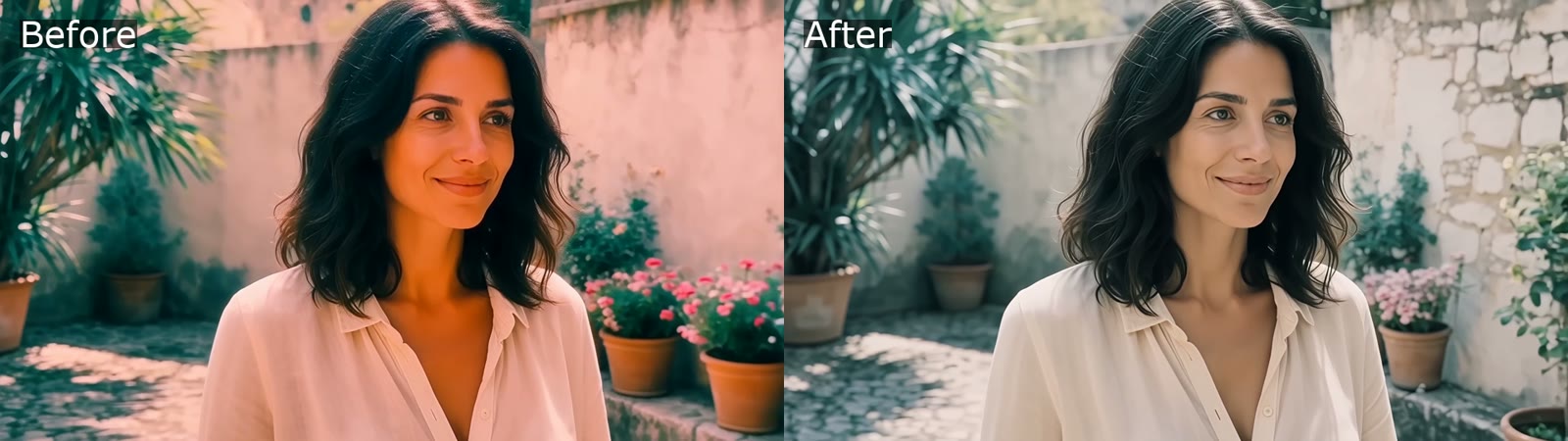
That difference matters. A selfie that looks great on a phone screen may have a busy background, a heavy beauty filter, and no visible neck or shoulders. When an AI model tries to animate it, the result can feel like a floating face rather than a person in a place. Starting with a cleaner still saves generation time and gives you more control over the final mood.
Capture a Clean Picture Inside TikTok
Open TikTok, tap the plus button, and switch the capture mode from video to photo. Use the rear camera when possible, enable the grid, and tap the subject to lock focus and exposure. Avoid pinch-zooming; move closer instead. Digital zoom softens edges and makes it harder for an AI tool to separate the subject from the background.
What makes a photo useful as a source frame
- Clear subject separation. The person, product, or object should stand out from the background through focus, contrast, or lighting.
- Look room and headroom. Leave some empty space in the direction the subject will turn or move.
- Simple background. A wall, sky, window, or open street works better than a cluttered room with text and mirrors.
- No baked-in stickers or captions. Remove filters and overlays; add those later in the edit.
- Natural exposure. Avoid blowing out windows or crushing shadows. Detail in the image gives the model more to work with.
- A stable pose. A relaxed stance with visible hands or shoulders usually animates better than a cropped, twisted pose.
Settings that prevent problems later
Shoot in the tallest aspect ratio you can use, usually 9:16, and keep a clean copy before applying TikTok effects. If the app saves a filtered version, the AI tool may inherit that look and struggle to match a different grade later. Use the grid to keep vertical lines straight, especially for architecture and product shots. Finally, take three versions: a wide frame, a medium frame, and a close frame. One of them will usually give the animation more breathing room.
Mistakes at the capture stage
The most common error is capturing too tight. A face fills the frame, the background disappears, and there is no visual information for camera motion. The second error is capturing in low light with heavy noise reduction. The third is using a mirror or reflective surface without noticing the reflection. Check the edges of the frame before you export, not after the first generation fails.
What AI Video Can and Cannot Do With a Phone Photo
Image-to-video tools infer motion from a single frame. They can add a slow push-in, make fabric move, shift light across a face, or create a believable environmental loop. They cannot reliably invent the back of a subject's head, read small text on a label, or keep complex hand interactions stable without a reference. Understanding this boundary prevents wasted iterations.
Use a still when the shot is about atmosphere, a subtle gesture, or a controlled camera move. Avoid it when the idea depends on a precise action sequence, dialogue, or a reveal that requires new information outside the frame. For those cases, shoot live footage or build a multi-shot sequence where each AI clip has a narrow, achievable job.
AI is strongest when it extends what is already visible. A portrait can blink and turn slightly. A product on a table can catch a moving highlight. A landscape can gain drifting clouds. A full dance routine cannot be inferred from one photo, no matter how detailed the prompt.
A Repeatable Image-to-Video Workflow
A consistent workflow beats a lucky prompt. The goal is to make each generation a controlled test rather than a slot-machine pull. Start with a shot brief, prepare the image, write motion in a logical order, and review the result against a specific checklist.
Write the shot brief first
Before opening any tool, write one sentence: what the viewer should feel, what moves, and how long the shot lasts. For example: a quiet five-second push-in on a ceramic cup as morning light shifts across the table. This sentence becomes the spine of your prompt and stops you from adding unrelated ideas later.
Prepare the source image
Crop to the final aspect ratio, straighten the horizon, and remove distracting edge objects. If the image is soft, do not over-sharpen it; generate at a slightly smaller size or choose a tool setting that preserves the original texture. A clean source with natural grain usually looks more cinematic than an aggressive cleanup that plasticizes skin and fabric.
Describe camera motion before subject motion
AI models respond well to a clear hierarchy. Put the camera first, then the subject, then the light, then the duration. Camera language such as slow push-in, gentle handheld drift, or locked-off wide shot gives the model a stable frame. Subject motion such as turns her head, blinks once, or lifts a cup gives it a small, readable action. Too many actions in one clip is the fastest way to get mush.
Keep the first generation short
Generate three to five seconds before trying a longer clip. Short outputs are cheaper to review and easier to judge. If the first frame and the motion are right, extend the idea in a second clip or use a longer duration with the same prompt. If the first attempt is wrong, a longer clip only makes the error more expensive.
Review the first and last frames
Pause on the first frame and ask whether it matches the source photo. Pause on the last frame and ask whether it could cut to the next shot. Most bad generations fail at one of those two points. Warped hands, drifting backgrounds, and changing facial structure usually appear in the final second, not the first.
Change one variable at a time
If the motion is too fast, lower the motion strength before rewriting the entire prompt. If the color shifts, lock the grade or adjust the light description. If the subject changes shape, simplify the action. One change per iteration teaches you what the tool actually responds to.
Prompt Patterns That Produce Believable Motion
A useful prompt is closer to a shot list than a poem. It names the camera, the subject, the light, and the limit. Here is a reusable structure:
Camera: slow push-in, eye-level, 35mm lens feel.
Subject: woman in a linen shirt turns her head slightly toward the window.
Light: soft morning light from camera left, gentle shadow falloff.
Duration: 5 seconds.
Avoid: warped hands, changing background, text overlays, fast motion.
Keep the language concrete. Instead of cinematic energy, write low camera angle and slow dolly forward. Instead of emotional, write soft eyes and a small exhale. The model cannot interpret taste, but it can follow physical description.
For a product still, try: locked-off close-up, a thin highlight travels across the glass bottle, background stays still, no label warping. For a travel photo, try: slow aerial drift over the ridge, clouds move gently from left to right, foreground rocks remain fixed. For an illustration, try: subtle parallax between foreground and background, character blinks once, paper texture stays visible.
One action per clip is a good rule. If you need a turn, a step, and a hand gesture, build three shots and cut them together. The edit will feel more intentional than a single overstuffed generation.
Keep a Series Visually Consistent
Consistency is what makes AI clips feel like a body of work rather than a collection of experiments. Keep a small reference board with the source images, the prompts that worked, and the final grade. Reuse the same lens language, the same color words, and the same motion vocabulary across clips.
If a character appears in multiple shots, use the same base portrait and change only the camera angle or action. Avoid regenerating the face from scratch for every scene. For products, keep the same background treatment and lighting direction. For locations, keep a consistent time of day. Small重复 details such as the same jacket, cup, or window light help viewers read the clips as one story.
Save your best prompts in a prompt library so you are not rewriting from memory. When a clip works, note the duration, aspect ratio, and motion strength. That record becomes more valuable than any generic prompt list because it is calibrated to your own footage.
Finish the Clip for TikTok
Export at 1080 by 1920 and 30 frames per second unless you have a reason to use another frame rate. Keep captions inside the safe zone, away from the bottom interface and the right-side buttons. Add sound early; a silent AI clip often feels uncanny, while a room tone, footsteps, or a low music bed gives it physical weight.
The first frame still has to stop the scroll. If the generated clip opens on an empty background, trim it. If the motion peaks too late, speed up the opening slightly or cut directly to the turn. Use a simple text hook only when it adds information. Do not cover the whole frame with captions that repeat what the viewer can already see.
For a polished result, combine AI shots with real b-roll. A generated establishing shot can set the location, while a live handheld clip provides authenticity. AI is most useful as a bridge between ideas, not as a replacement for every shot. Templates can help you keep pacing consistent across a series; browse video templates when you need a structure rather than a blank timeline.
When to Use AI Video and When to Shoot Live
| Need | Better choice |
|---|---|
| A moody establishing shot | AI image-to-video |
| A precise product demonstration | Live footage |
| A character moment with subtle motion | AI with a clean portrait |
| Dialogue or complex hand action | Live footage |
| A fast series of visual variations | AI generation |
| A personal story or vlog | Live capture |
Use AI when the shot is expensive, impossible, or repetitive. Use live video when the value is in authenticity, timing, or physical detail. The strongest feeds mix both without announcing which is which. The viewer only cares whether the shot holds attention.
Common Mistakes and How to Fix Them
- Too much motion. Reduce the action to one gesture and lower motion strength.
- A busy source image. Crop closer to the subject or blur the background before generating.
- Conflicting instructions. Do not ask for a locked-off shot and a fast dolly in the same prompt.
- Over-filtered source. Start from a natural image and grade after generation.
- Ignoring the last frame. Check for warping before you post, not after.
- No audio plan. Add room tone, foley, or music so the clip feels grounded.
- Expecting readable text. Avoid generating labels and signs; add them in the edit instead.
FAQ
Can I use a TikTok photo as an AI video source?
Yes, if you have the rights to the image and it is clean enough. Export the original photo without stickers, captions, or heavy filters, then crop it to the target aspect ratio before uploading.
What kind of photo works best for image-to-video?
A sharp image with a clear subject, simple background, and some empty space for motion. Natural light and visible detail in the shadows help the model create a more believable result.
How long should an AI clip be?
Start with three to five seconds. Short clips are easier to review and cut together. Extend only after the first frame, motion, and final frame all work.
Why do faces change during generation?
Large head turns, heavy filters, and low-resolution sources make identity harder to preserve. Use a front-facing portrait, reduce the motion, and keep the same reference image across shots.
Can AI video replace live filming for TikTok?
It can replace some b-roll and establishing shots, but not every scene. Live footage still wins for demonstrations, dialogue, and authentic personal moments.
How do I make several AI clips look like one series?
Reuse the same lens language, color description, lighting direction, and character reference. Grade all clips together at the end so the blacks, whites, and skin tones match.
Turn Your Next Still Into a Moving Scene
The best AI video workflow starts before the prompt. Capture a clean frame, decide what should move, and give the tool a narrow job. That discipline turns a phone photo into a usable shot instead of a novelty.
When you are ready to test the workflow, open the Orelon AI video generator, start with a still you already trust, and build one controlled motion at a time. You can also create a cleaner source frame with the AI image generator, then bring it into video once the composition feels right. The goal is not more clips. It is a repeatable way to make each clip count.